How to Connect a Meta Quest 3 to a PC: Cable, Wi-Fi, Fixes
How we researched this: written by Owl3D from published sources, all 29 listed at the end.
Short answer
Install Meta's free Meta Horizon Link app on a Windows 10 or 11 PC. Then either plug the headset in with a USB-C 3.2 cable, or put both on the same home network, and on the headset open Quick controls, choose Link, pick your PC and select Launch. The steps are the same on a Quest 3, 3S and 2. You only need a PC for PC VR games and for seeing the PC's screen in the headset; the Quest works without one.
Owl3D, the publisher of this guide, makes Owl3D Link, one of the apps in the table below. The table describes every app from its maker's own page.
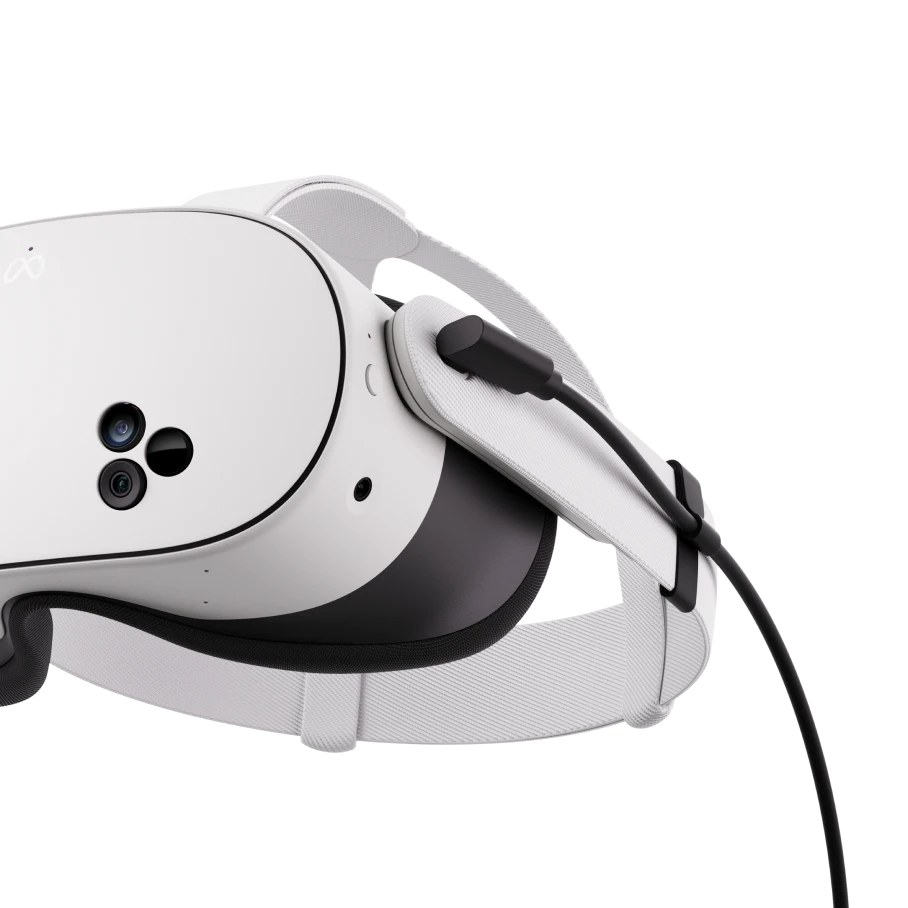
Key takeaways
- No PC is needed to use a Quest. A PC is for PC VR games such as the ones on Steam, and for the PC's screen in the headset: do you need a PC.
- Two official ways to play PC VR: a USB-C cable (Link) or Wi-Fi (Air Link). Both use Meta's free Windows app: cable steps, Wi-Fi steps.
- It will not connect? Find what you see, such as "searching for pc", a headset that only charges, or a Meta logo with three dots, in the symptom table, then read the fixes owners say worked.
- On a Mac, Meta's Link app does not run. You can still see the Mac's screen in the headset: a Mac.
- To watch what is on the PC, not play VR games, use Virtual Display or Virtual Desktop, or Owl3D Link to see a 2D video or an ordinary PC game converted to 3D as it plays: the PC's screen in the headset.
Which way fits what you want
"Connect to a PC" covers four different jobs. Pick the row that matches yours.
| What you want | Use | Computer | Connection | Cost |
|---|---|---|---|---|
| PC VR games, wired | Link, in the Meta Horizon Link app | Windows 10 or 11 [2] | USB-C 3.2 cable, 5 Gbps or more [1] | App free [12]; Meta's cable is sold separately |
| PC VR games, wireless | Air Link, in the same app | Windows 10 or 11 [2] | Wi-Fi, preferably 5 GHz [1] | Free [12] |
| Steam games, wireless | Steam Link, Valve's app for Quest | Windows 10 or newer, running Steam and SteamVR [9] | 5 GHz Wi-Fi [9] | No price on the listing; the button says "Get" [9] |
| PC VR games and the PC's screen | Virtual Desktop | Windows 10 or 11, or macOS Catalina or later; PC VR needs Windows [10] | PC wired to a 5 GHz router [10] | Paid; see its store page [10] |
| The PC's screen as virtual monitors | Meta Virtual Display | Windows or Mac [5] | Same network; 5 GHz or 6 GHz Wi-Fi on Windows 11 [5] | Not stated on Meta's page |
| The PC's screen converted to 3D | Owl3D Link | Windows PC with an NVIDIA RTX 3060 or better, running the Owl3D app | Wireless | Owl3D Link is free |
| Copy files to or from the headset | A USB-C data cable | Windows [7] | USB-C | The cable |
Last checked : what each app needs; current prices are on each store page.
Do you need a PC for a Meta Quest?
No. A Quest 3, 3S or 2 is set up with a phone: Meta's setup page says to "Download the Meta Horizon mobile app on your smartphone, then wirelessly connect your headset and phone to complete the setup process" [11]. Games and apps then download to the headset itself. The Escapist's writer puts it this way: both headsets "are fully functional without one" [14].
You need a PC for one thing: PC VR, meaning VR games that run on the computer and are shown in the headset [11]. Half-Life: Alyx on Steam is the usual example. Such games run on the PC, not on the headset, so whether a Quest can play one of them is really a question about your PC.
Not every laptop is enough for that: Meta's list leaves out several laptop graphics chips [2]. See what the PC needs.
Connect with a cable (Link), step by step
The cable is the way to start if your Wi-Fi is weak or the router is in another room: a wired connection is also what Meta tells you to try when Air Link gives trouble [3].
- Install the app. Download Meta Horizon Link on the Windows PC from Meta's Link page and install it [12].
- Update the headset. Meta asks for "A Meta Quest that's updated with the latest software" [1].
- Plug in. Meta's words: "Plug your USB 3 cable into a USB 3.0 port on your PC, then plug the other end into your headset" [1].
- Open Link in the headset. Press the Meta button on the controller, select Quick controls, select Link, then select the computer the headset is plugged into [1].
- Select Launch [1].
Meta's own pages call that menu Quick controls in some places and Quick Settings in others [1], [4]. Which name you see depends on the headset's software version; it is the same menu.
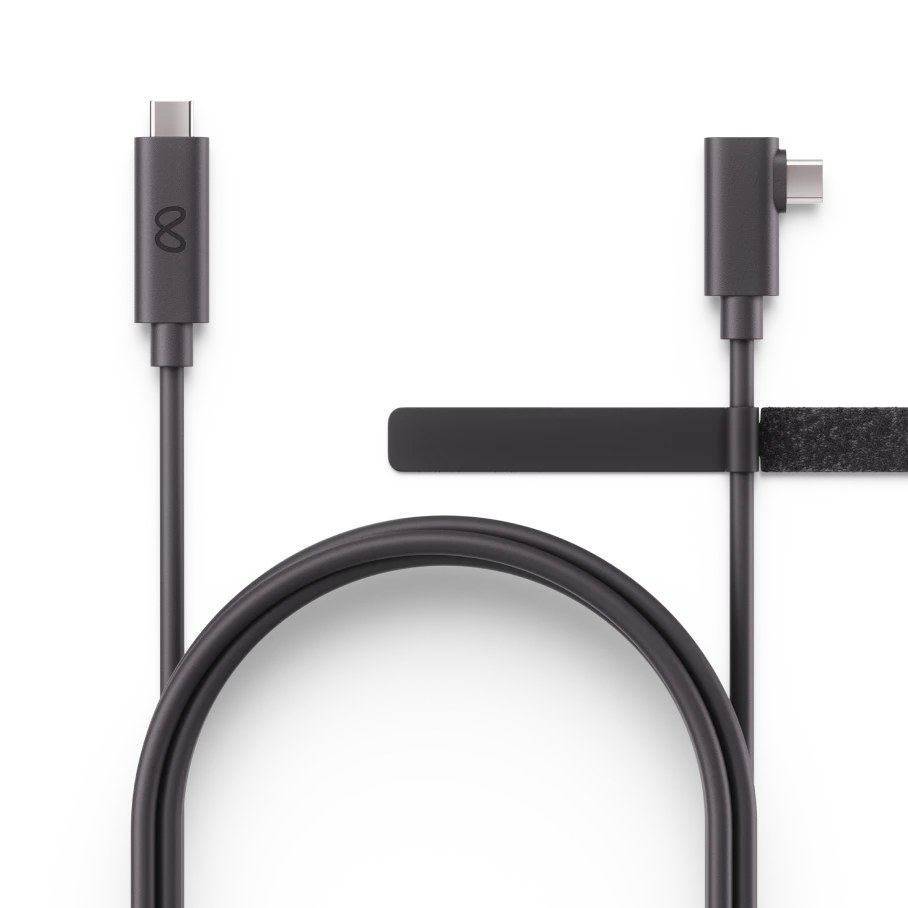
Which cable. Not any USB-C cable. Meta asks for "A USB-C 3.2 cable that supports a minimum of 5 GBs" [1], one "capable of supporting data and power", and suggests at least 3 meters (10 feet) so you can move [2]. Some USB-C cables only charge; Meta's file-transfer page warns that "Some are only used for charging" [7]. Meta's cable is one choice, at 5 meters [8]; Road to VR's guide, updated July 30, 2026, gives its price as $80, and Meta's store page has today's price [15]. Meta's setup page also allows a "similar high-quality USB 3 cable" [11].
Does a cable connection need Wi-Fi? Meta lists a Wi-Fi network only for Air Link, not for Link by cable [1].
Does the cable charge the headset while you play? Meta's requirement is a cable that carries "data and power" [2]. Its pages that we read do not say whether that keeps the battery from running down. Road to VR's guide says a cable "in most cases" lets the battery "last significantly longer than if you use Air Link" [15]. Two owners' comments on this are in what owners report.
Connect over Wi-Fi (Air Link)
Air Link does the same job as the cable over your home network. The Meta Horizon Link app must be open on the PC, and the PC and headset must be on the same network [4].
- Open Link in the headset. Press the Meta button, select Quick controls, then Link [1].
- Turn on Air Link. Select the toggle next to Use Air Link [1].
- Pair. Select your PC in the list, then Pair. A code appears in the headset; check that the PC shows the same code and click Confirm in the PC app [1].
- Select Launch [1].
The questions people ask most about the network:
- My PC is on an Ethernet cable and has no Wi-Fi card. Will it work? Yes, and it is what Meta recommends: "Connect your computer to your router with an Ethernet cable so only the headset uses Wi-Fi" [4]. The PC needs to be on the same network as the headset, not on Wi-Fi itself.
- Which Wi-Fi band? 5 GHz. Meta says to connect to the 5 GHz network and, if the router allows, lock the channel width to 80 MHz [4].
- The router is in another room or downstairs. Expect trouble. Meta's advice is to "Move closer to the router, preferably into the same room with a clear line of sight" [4]. If you cannot, use the cable.
- How do I know what is wrong with my Wi-Fi? In the headset, open Quick Settings, select Link, select your computer, then Troubleshoot. It grades the band, channel width, Ethernet connection, latency and signal strength [4].
What the PC needs
These are Meta's requirements for Link and Air Link, read on October 9, 2026 [2].
| Part | Minimum | Recommended |
|---|---|---|
| Windows | Windows 10 or 11 | Windows 10 or 11 |
| Processor | Intel i5-4590 or AMD Ryzen 5 1500X | Intel i7 or AMD Ryzen 7 |
| Memory | 8 GB | 16 GB |
| Graphics card | A supported card (list below) | Nvidia RTX 20 series or AMD Radeon RX 6000 series |
| USB | 1 USB port | 1 USB-C port |
Meta's supported list: the Nvidia Titan X, GTX 970, GTX 1060 (6 GB desktop card), 1070, 1080, 1650 Super, 1660 and 1660 Ti and the RTX 20 (except the 2050), 30, 40 and 50 series; and AMD's 400, 500, 5000 and 7000 series, Vega series, Radeon 6600 XT, 6700 XT, 6800 XT and 6900 XT, 7700 XT to 7900 XTX, and RX 9070 and 9070 XT. Not supported: the Titan Z, the 3 GB desktop GTX 1060 and the laptop GTX 1060M, the plain GTX 1650, the GTX 1050 Ti, the RTX 2050, AMD's 200 and 300 series and the RX 560, Intel Arc cards and workstation cards. Meta adds: "NVIDIA 3050 (laptop) and 3050ti GPUs are not recommended for use with Link" [2]. That last line matters if you plan to use a thin gaming laptop.
The Link app also needs free disk space. Meta's pages give two figures: 4 GB on the app's page [12] and "at least 9 GB available" on the troubleshooting page [3]. Go by the larger.
A PC that meets the list will connect. How well a given game runs is a separate matter: Meta notes that "Even top graphics cards might drop frames at high settings" [3].
When it will not connect
Find what you see. The fixes in this table are Meta's own [3], [4], [7]. Where Meta has no entry for a symptom, the table says so and points to owners' reports.
| What you see | What Meta says to check | What to do |
|---|---|---|
| It keeps searching for the PC, or the PC is not in the Air Link list | The app is not open on the PC, or the two are on different networks [4] | Open Meta Horizon Link on the PC. Put both on the same network. In the headset, turn Air Link off and on again [4] |
| The headset charges on the cable but nothing else happens | The cable does not carry data, or Air Link is still on [3], [7] | Use a USB-C 3.2 data cable [1]. Turn Air Link off: "the headset can only use one connection at a time" [3] |
| The PC treats a USB 3 cable as USB 2 | Adapter or plug orientation [3] | Check that any USB-A to USB-C adapter supports USB 3; turn the adapter round; reseat a USB-C to USB-C cable the other way up; try another port [3] |
| A Meta logo with three dots after Launch and nothing more; or it connects and drops; or the pairing code never shows | No entry for these on Meta's page | Meta's general steps: restart both, update the graphics driver, sign out of the app and back in, reinstall it, and leave the Public Test Channel if the headset is in it [3]. Then see owners' fixes |
| The Link app will not install, or says there is no space | Disk space [3] | Free at least 9 GB [3] |
| It connects but stutters | Graphics settings; on Air Link, the network [3], [4] | In the PC app: Devices, your headset, Graphics preferences, Reset to default [3]. On Air Link, run Troubleshoot in the headset [4] |
| The headset does not show up in File Explorer | The Allow prompt was missed, or a charge-only cable [7] | Look under the bell icon in the headset for the prompt and choose Allow; use a data cable [7] |
| Nothing above helped | Firewall or antivirus [3] | Meta lists disabling "any firewall or antivirus software that may interfere" [3], then contacting Meta Store support [1] |
Two things on that list catch new owners. Link by cable and Air Link cannot be on together [3]. And a headset enrolled in Meta's Public Test Channel, the early-software program, may not link at all until you leave it [3].
Fixes owners say worked (we have not tested them)
These are owners' own reports from Meta's community forum and from comments under YouTube tutorials. We have not tested any of them. YouTube and Meta's forum show only how long ago something was posted, so those dates are approximate.
- A USB-A port instead of USB-C: two owners. A Quest 3S owner on Meta's community forum, about 2025, whose PC had stopped recognizing the official cable in a USB-C port, came back to the thread with the fix: "what finally ended up working was a USB-C to USB-A adapter, and having the setting to immediately activate a Link session turned on via developer mode on the 3S itself. It now works flawlessly." The thread is marked solved [16]. A Quest 3 owner in another thread, about 2024, found the same split on a gaming desktop: "The quest will charge off of both ports but will only connect to quest link off of the USB C to USB A." [17]
- Fewer monitors: one owner. Under a video on fixing Link, about July 2026: "for me it was needing to disable two of my three monitors." [18]
- A graphics driver update: one owner. Under the same video, about June 2026: "all I had to do is go to Nvidia and update my drivers" [18]. This is also on Meta's list [3].
- And the other side. The most-liked comment under that video, with 96 likes when we saved it, about May 2026: "1. I have a problem 2. I find a video with the exact problem that i have 3. I see people commenting that it worked 4. It doesnt work for me" [18]. A Quest 3 owner under another tutorial, about 2025, with 53 likes: "I can't connect any way to my pc. I tried airlink, but it refuses even though it sees my pc, it keeps disconnecting." [19] Neither comment says a fix was found.
- Battery on the cable: two comments. One viewer, about February 2026: "I like my hardware link because it doesn't drain the battery on my headset" [18]. Another, about November 2025, credits a third-party cable: "Now I can play non-stop at 100% with the charge as you play feature" [20]. Neither names the PC port used, and Meta's pages do not promise this.
Steam games on a Quest
Yes, a Quest 3 works with SteamVR: Valve's own Steam Link app for Quest asks for "A computer running Steam and SteamVR" [9]. There are two routes.
Through Meta's Link or Air Link. Connect as above. The PC also needs SteamVR, Valve's software for VR games: its Steam page says to "Grab SteamVR to access and play VR games" on a supported headset [29]. One owner on a Steam forum, August 2024, describes the routine: "I just start up Quest Link, use my PC as the source after they have been coupled before and play my games that way without problems" [21].
Through Steam Link, with no Meta PC app. Install Valve's Steam Link app on the headset. Its store listing says it "will walk you through wirelessly connecting to your computer located on the same network as your headset with Steam installed and running" [9]. It needs a computer running Steam and SteamVR on Windows 10 or newer, an Nvidia GTX 970 or better, and a 5 GHz router; Valve recommends the PC be on a wired network connection [9]. The listing names Quest 2, 3, 3S and Pro [9].
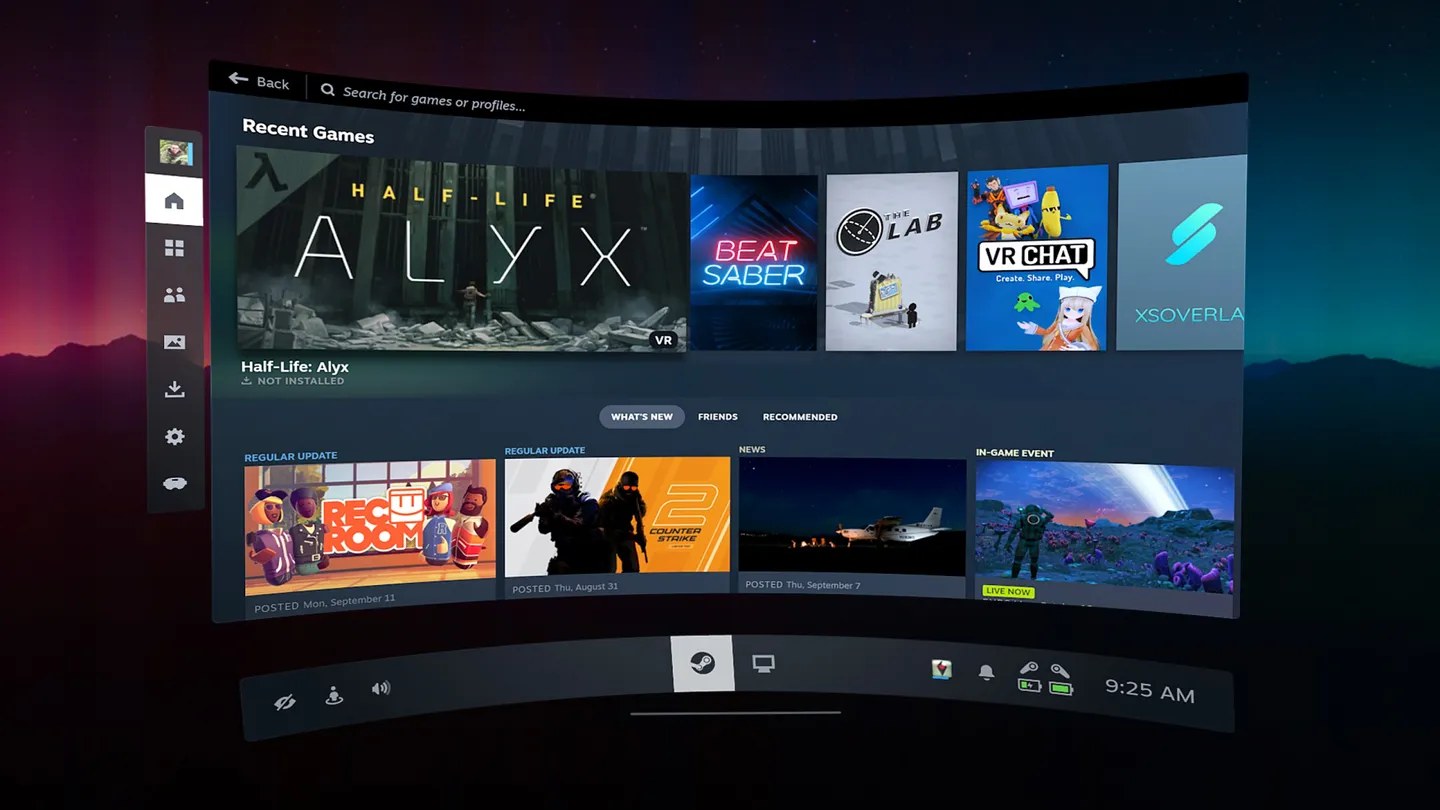
The game opens on your monitor, not in the headset. The Meta and Valve pages we opened do not cover this by name. What Valve does state, for Steam Link, is that the PC must be "running Steam and SteamVR" [9]. One reply on Steam's forum, from January 2020 and about the first Quest, puts it this way: "SteamVR should detect your Oculus Headset, but Oculus and Steam must both be open" [24]. That is one old reply, and we have not tested it.
Which way owners prefer (they disagree)
Owners' reports from Steam's forums, Meta's forum and YouTube comments. We have not tested these.
- For the cable, or fed up with wireless: three. "Link cable all day. Way clearer", about 2025 [19]. A Quest 3S owner on Meta's forum, about March 2026, after trying Steam Link: "the game ran fine, no issues with frame rates, but the graphics are bad" [25]. One who tried all three wireless apps, about January 2026: "playing wirelessly just SUCKS" [20].
- For Virtual Desktop: two. "Virtual desktop for me", a comment with 30 likes, about 2025 [19]. On a Steam forum, November 2024: "I use vitual desktop over wifi with my Quest 3 and it works great." [22]
- Steam Link: one for, one against, in the same thread. On a Steam forum, August 2024: "just got quest 3 and can confirm Steam link app works and it works pretty good tbh". The reply above it: Steam Link "only introduced problems for me, stutters every second and random disconnects" [21].
These few reports do not agree, and one of the unhappy ones had the PC wired to the router already. Meta's own advice for wireless is to wire the PC to the router and stay close to it [4].
The PC's screen in the headset
If you want your desktop, a browser or a film from the PC in the headset, and not VR games, you do not need Link.
Meta Virtual Display shows the computer as up to three virtual displays [5]. It was called Remote Desktop until a headset software update in August 2026, UploadVR reports [13].
- On Windows 11 (22H2 or newer) with a Quest 3 or 3S: install Mixed Reality Link from the Microsoft Store, put the headset on, and select Pair on the prompt that appears above your keyboard. Both must be on the same network, on 5 GHz or 6 GHz Wi-Fi [5].
- On a Mac or older Windows: install the Meta Quest Virtual Display app on the computer, sign in with the same Meta account, then in the headset choose Quick controls and Virtual Display [5].
Virtual Desktop, a paid app from another company (the price is on its store page), shows the PC's screen too, plays videos stored on the computer, and supports "3D Side-by-Side / Over-Under content on screen" [10]. Its listing says the "Computer must be wired with Gigabit Ethernet cable to a 5 GHz router" [10]. If a streaming service shows a black screen in it, see the fixes in our VR movies guide.
One owner's report on Meta's feature, from a YouTube comment of about 2025, when it was still called Remote Desktop: "the new Remote Desktop experience in preview is how I mostly interact with my PC on my Quest 3. Can definitely recommend!" [26] We have not tested it.
See the PC's screen in 3D: Owl3D Link
The routes above show the PC's picture as it is: a 2D video stays 2D. Owl3D Link is Owl3D's companion app for Meta Quest headsets. With the Owl3D desktop app running on a Windows PC, it streams what is on the PC to the headset wirelessly, converted from 2D to 3D instantly, as it plays. So an ordinary 2D video playing on the PC arrives in the headset in 3D, with no file to convert first. An ordinary PC game that is not a VR game shows in 3D the same way, as you play it; multiplayer competitive games and games with anti-cheat software often block screen capture, and then it cannot convert them. Netflix and other copy-protected streaming work in a web browser on the PC, but the browser's hardware acceleration must be turned off first; Owl3D's tutorial video shows the setting.
- What it needs: a Meta Quest headset and a Windows PC with an NVIDIA RTX 3060 or better graphics card, running the Owl3D app. It does not work from a Mac.
- Cost: Owl3D Link is free.
- What it is not: a way to play PC VR games; use Link, Air Link or Steam Link for those. The 3D is an AI conversion of a flat picture, not a studio's own 3D version of a film.
- Setup: Owl3D's walkthrough is Watch Movies on Meta Quest: The Setup Most New Owners Miss.
Connect a Quest to a Mac
For PC VR games, no. Meta Horizon Link is a Windows app [2], Steam Link's listing gives "Supported OS: Windows 10 or newer" [9], and Virtual Desktop's says "PCVR game streaming requires a VR Ready PC running Windows 10 or 11" [10].
For the Mac's screen, yes: Meta Virtual Display has a Mac app [5], and Virtual Desktop supports macOS Catalina or later for the desktop and videos [10]. UploadVR's writer, in an article of September 8, 2026, tried Virtual Display on an M2 MacBook Air and on two 2017 Intel Macs and reports that it worked on all three [13].
What owners report about running Windows inside a Mac to get round this: three Mac owners in one Steam thread, December 2023 to January 2024, tried Steam Link through Parallels on M1, M2 and M3 Macs. None got it working; the first wrote "Steam Link is asking me to update my graphics adapter drivers" [23]. Those reports are from early 2024 and we have not tested it.
Copy files between the headset and a PC
Connect the headset to a Windows PC with a USB-C data cable, put the headset on and select Allow when it asks. The headset then appears in File Explorer under This PC; your recordings are in Internal shared storage, Oculus, VideoShots [7]. If no prompt appears, look under the bell icon [7].
To put films on the headset, including from a Mac, a USB drive or a phone, see transfer your movies to the headset.
The other direction: show the headset's view on the PC
Casting sends what you see in the headset to a computer screen, so others can watch. It is the reverse of everything above. With the headset and computer on the same Wi-Fi network and signed in to the same Meta account: press the Meta button, select Quick controls, select Cast, then choose Web or a nearby device and follow the instructions [6]. Meta's Link app can receive a cast too [12].
Frequently asked questions
Is Meta Quest Link the same as Meta Horizon Link and Oculus Link?
Yes, they are names for the same PC connection at different times. Meta's help pages now call the Windows app Meta Horizon Link [1]; its cable is still sold as the Meta Quest Link Cable [8]; and Road to VR's July 2026 guide uses "Quest Link" and "Meta Horizon Link" for the same thing [15]. Older tutorials say Oculus Link.
Can I connect a Quest 3 to a laptop?
Yes, if the laptop runs Windows 10 or 11 and has a supported graphics card [2]. Meta says the laptop RTX 3050 and the 3050 Ti are "not recommended for use with Link", and Intel Arc graphics are not supported [2]. One owner on a Steam forum, December 2024, reports playing Half-Life: Alyx "on a modest asus laptop at full graphics via airlink" [27]; that is one report, and the laptop is not named.
Which Quest headsets can connect to a PC?
Meta lists its Link Cable as compatible with Quest 3S, Quest 3, Quest Pro and Quest 2 [8]. Virtual Display with Windows 11's Mixed Reality Link needs a Quest 3 or 3S [5].
Do the headset and the PC have to be on the same Wi-Fi?
For Air Link, Steam Link, Virtual Display and casting, they have to be on the same network [4], [9], [5], [6]. Virtual Desktop's help page adds a case people miss: "the headset might be on a Guest network" [28]. The PC can be on that network by Ethernet cable.
Sources (29)
- Meta Quest Help, "Set up and connect Meta Horizon Link and Air Link". https://www.meta.com/help/quest/509273027107091/ Opened 2026-10-09.
- Meta Quest Help, "Windows PC requirements for Meta Horizon Link". https://www.meta.com/help/quest/140991407990979/ Opened 2026-10-09.
- Meta Quest Help, "How to troubleshoot Meta Horizon Link on your computer". https://www.meta.com/help/quest/975178886590868/ Opened 2026-10-09.
- Meta Quest Help, "How to troubleshoot your Air Link connection over Wi-Fi". https://www.meta.com/help/quest/2094726341404944/ Opened 2026-10-09.
- Meta Quest Help, "Use your computer in VR with Meta Virtual Display". https://www.meta.com/help/quest/1370025034331518/ Opened 2026-10-09.
- Meta Quest Help, "Cast to a screen with Meta Quest". https://www.meta.com/help/quest/192719842695017/ Opened 2026-10-09.
- Meta Quest Help, "Transfer media from your Meta Quest headset to your computer". https://www.meta.com/help/quest/308605304163937/ Opened 2026-10-09.
- Meta, "Meta Quest Link Cable" product page. https://www.meta.com/quest/accessories/link-cable/ Opened 2026-10-09.
- Meta Horizon Store, "Steam Link". https://www.meta.com/experiences/steam-link/5841245619310585/ Opened 2026-10-09.
- Meta Horizon Store, "Virtual Desktop". https://www.meta.com/experiences/virtual-desktop/2017050365004772/ Opened 2026-10-09.
- Meta, "Set up your Meta Quest". https://www.meta.com/quest/setup/ Opened 2026-10-09.
- Meta Help Center, "Getting started with Meta Horizon Link App". https://www.meta.com/help/quest/1517439565442928/ Opened 2026-10-09.
- UploadVR, "Virtual Display Got A New Name, Input Forwarding & Mac Parity" (September 8, 2026). https://www.uploadvr.com/quests-meta-virtual-display-got-a-new-name-input-forwarding-mac-parity/ Opened 2026-10-09.
- The Escapist, "Do You Need a PC for Meta Quest 2 & 3?" (updated December 5, 2024). https://www.escapistmagazine.com/do-you-need-a-pc-for-meta-quest-2-3/ Opened 2026-10-09.
- Road to VR, "How to Tell if Your PC is Ready for Quest Link & Air Link" (updated July 30, 2026). https://roadtovr.com/oculus-quest-pc-requirements-oculus-link-minimum-specs/ Opened 2026-10-09.
- Users' reports: Meta Community Forums, "Quest 3S Doesn't Connect to PC via Cable Link". https://communityforums.atmeta.com/discussions/PairingConnection/quest-3s-doesnt-connect-to-pc-via-cable-link/1266859 Opened 2026-10-09.
- Users' reports: Meta Community Forums, "Usb C not connecting to quest link". https://communityforums.atmeta.com/discussions/PairingConnection/usb-c-not-connecting-to-quest-link/1189421 Opened 2026-10-09.
- Users' reports: comments under the YouTube video "How to Fix Meta Quest Link Not Working (2026)". https://www.youtube.com/watch?v=YohrbdIBKOU Opened 2026-10-09.
- Users' reports: comments under the YouTube video "Connect Your Meta Quest 3S to Your PC: Every PCVR Method Explained". https://www.youtube.com/watch?v=5gD6-6vjaV8 Opened 2026-10-09.
- Users' reports: comments under the YouTube video "How to Play PC VR WIRELESSLY with Quest 2 Quest 3 & Quest 3s". https://www.youtube.com/watch?v=1No4DrjKHyI Opened 2026-10-09.
- Users' reports: Steam Community, SteamVR discussions, "can a quest 3 work with steam vr?" (August 2024). https://steamcommunity.com/app/250820/discussions/0/7026264603291084572 Opened 2026-10-09.
- Users' reports: Steam Community, SteamVR discussions, "Quest 3 with steam vr" (November 2024). https://steamcommunity.com/app/250820/discussions/0/4633736485039825099 Opened 2026-10-09.
- Users' reports: Steam Community, SteamVR troubleshooting, "MacOS + Quest 3 (via Steam Link) + Parallels Desktop + Steam VR is not working." (December 2023). https://steamcommunity.com/app/250820/discussions/2/4036977035351869618 Opened 2026-10-09.
- Users' reports: Steam Community, SteamVR discussions, "Oculus Quest?" (January 2020). https://steamcommunity.com/app/250820/discussions/0/1742265315839005360 Opened 2026-10-09.
- Users' reports: Meta Community Forums, "Meta Quest 3s wired connection to pc, how to set up?". https://communityforums.atmeta.com/discussions/OffTopic/meta-quest-3s-wired-connection-to-pc-how-to-set-up/1367389 Opened 2026-10-09.
- Users' reports: comments under the YouTube video "How To Connect Your Meta Quest To Your PC With Meta Link Or With Virtual Desktop!". https://www.youtube.com/watch?v=nTz0-EMvqx8 Opened 2026-10-09.
- Users' reports: Steam Community, Half-Life: Alyx discussions, "can a meta quest 3s 128 gig run this?" (December 2024). https://steamcommunity.com/app/546560/discussions/0/592883860567492328 Opened 2026-10-09.
- Virtual Desktop, official site (requirements and troubleshooting notes). https://www.vrdesktop.net/ Opened 2026-10-09.
- Valve, "SteamVR" on Steam. https://store.steampowered.com/app/250820/SteamVR/ Opened 2026-10-09.