Meta Quest Remote Desktop: How to Use a Quest as a PC Monitor
How we researched this: written by Owl3D from published sources, all 11 listed at the end.
Short answer
A Meta Quest can show your computer's screen as large virtual monitors. Meta's own way is Meta Virtual Display, which was called Remote Desktop until August 2026 [4]. On Windows 11 you install Microsoft's Mixed Reality Link app, put on a Quest 3 or 3S and select Pair. On a Mac or older Windows you install Meta's Virtual Display app and sign in. Either way you get up to three screens. Immersed, Bigscreen and the paid Virtual Desktop do the same job with different limits. Owl3D, the publisher of this guide, makes Owl3D Link, one of the apps in the table below.
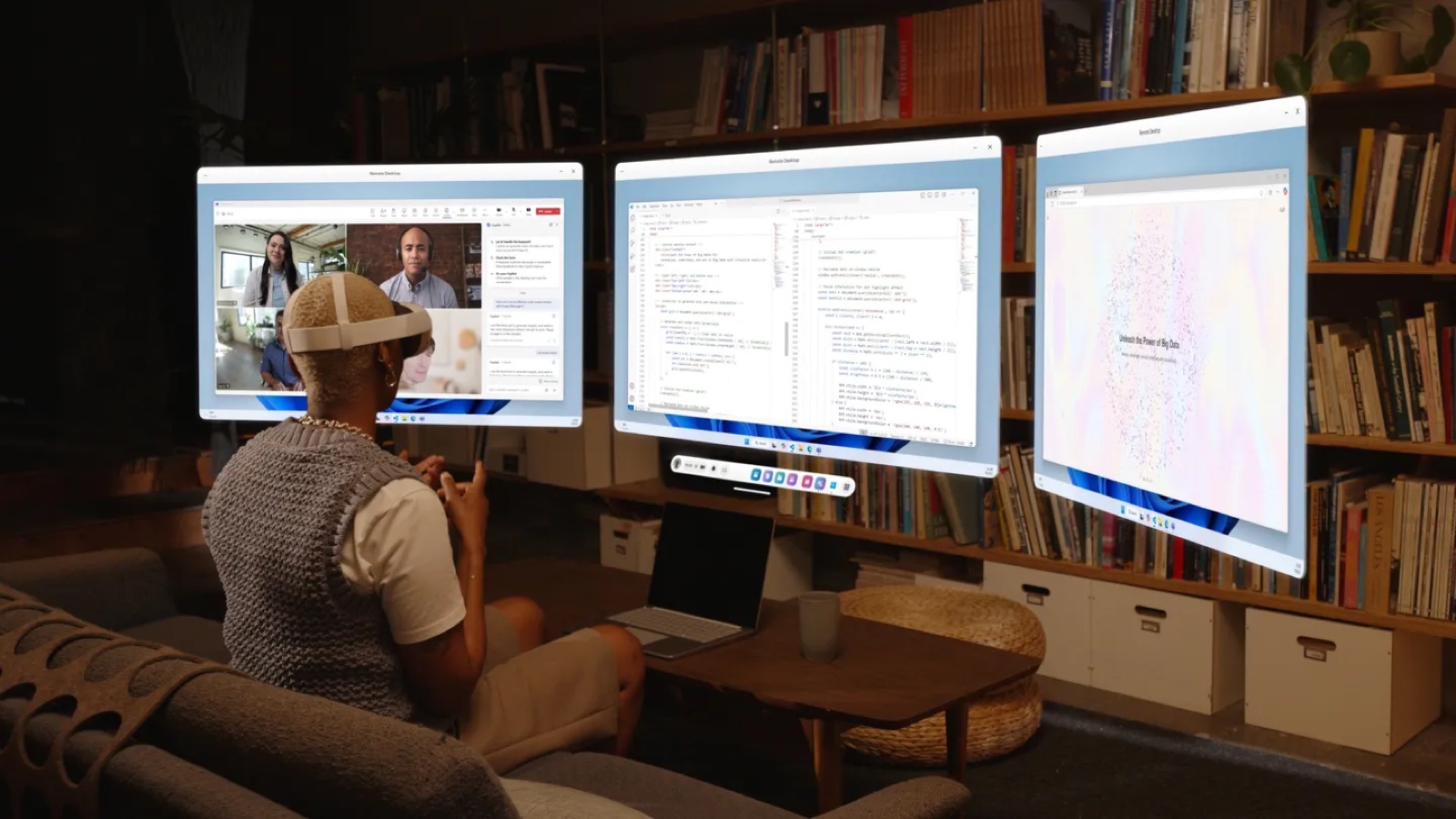
Three virtual displays from a Windows 11 PC, as Microsoft pictures them for a Quest 3 or 3S. Image: Microsoft, from the Windows App listing on the Meta Horizon Store.
Key takeaways
- Meta's own feature gives up to three screens, and its Windows 11 route needs a Quest 3 or 3S: set it up.
- Five apps with what each costs and what the computer needs: side by side.
- It will not pair, will not add a screen, or the text is blurry: fixes.
- An ordinary PC game on the big screen, flat or in 3D: games.
Set up Meta Virtual Display
The steps depend on the computer [1]. If your headset still says Remote Desktop, it is the same feature: UploadVR reports the new name came with a headset update that began rolling out the week of August 17, 2026 [4].
Windows 11 (22H2 or newer) with a Quest 3 or 3S
- Install Mixed Reality Link. It is Microsoft's app, in the Microsoft Store on the PC [1].
- Put on the headset next to the unlocked PC. "A prompt to pair should appear above your keyboard, select pair to continue" [1]. If none appears, select Quick Settings, Virtual Display, Add a new device, then Windows 11 [1].
- Accept the Windows App. During pairing the headset asks you to install Microsoft's Windows App, "which is required to complete pairing with Mixed Reality Link" [1].
A Mac, or Windows older than Windows 11 22H2
- Install the Meta Quest Virtual Display app. Get it from Meta's download page [3] and log in with the same Meta account as the headset [1].
- On a Mac, give the permissions it asks for. Screen recording, accessibility and the microphone [1].
- Connect from the headset. In Quick controls select Virtual Display, then select your computer. It must be on, unlocked and running the app [1].
What the Windows 11 route needs. The PC and the headset on the same network; 5 GHz or 6 GHz Wi-Fi, 802.11ac or higher; Horizon OS v81 or newer on the headset [1]. The PC can be modest: Microsoft's minimum list includes an Intel 8th-generation Core processor with UHD 620 integrated graphics [2].
More screens, other shapes. Hover over the Virtual Display panel, open the settings "from the dropdown menu at the top center" and select Add display. The limit is three [1]. Each screen can be Portrait (3:4), Compact (16:9), Wide (21:9) or Ultrawide, at 720p, 1080p (the default, chosen "for the best text quality") or 1440p [1].
Can I control the computer from inside the headset? Yes. A commenter in about 2025 called the feature useless "because I can't control my PC or desktop with my headset and controller" [11]. UploadVR reported on September 8, 2026: "On both Windows and Mac, Quest input can now control the connected computer", and its writer controlled a Mac with a Bluetooth keyboard and mouse paired to the Quest [4].
The apps side by side
Each row is from its maker's pages; the Owl3D Link row is from Owl3D's product facts.
| App | Cost | Computer | Connection | Screens | Limits its maker states |
|---|---|---|---|---|---|
| Bigscreen | "Get" on the Meta Horizon Store; the listing notes "In-App Purchases" [5] | Windows, with a graphics chip that can do hardware encoding [6] | Wireless, same local network, Quest on 5 GHz Wi-Fi [6] | The desktop "on the big screen at the front of the room" [6]; more not stated | Windows only; the PC and the headset signed in to the same Bigscreen account [6] |
| Immersed | "Free forever" with up to 3 screens; Immersed Pro "As low as $5.99 /month" with up to 5 [8] | macOS 11 or newer, Windows 10 or 11 64-bit, or Linux [9] | Wi-Fi, same network [9] | Up to 5 [8] | On Linux only plugged-in monitors are shown [9] |
| Meta Virtual Display | No price shown [1], [3] | Windows 11 22H2 or newer; a Mac or older Windows with Meta's app [1] | Wireless; on Windows 11 the same network and 5 or 6 GHz Wi-Fi [1] | Up to 3 [1] | Windows 11 pairing needs a Quest 3 or 3S [1]; "a headset cannot connect to a locked PC" [2] |
| Virtual Desktop | $24.99 on the Meta Horizon Store [10] | Windows 10 or 11, or macOS Catalina or later [10] | Wireless to the headset [10] | "multi-monitors (physical and/or virtual)"; number not stated [10] | "Computer must be wired with Gigabit Ethernet cable to a 5 GHz router" [10] |
| Owl3D Link | Free | A Windows PC with an NVIDIA RTX 3060 graphics card or better, running the Owl3D desktop app; not a Mac | Wireless | Not stated | Shows the PC's picture converted to 3D, an AI conversion; not for PC VR games |
Last checked : each maker's page; prices in US dollars as the page showed them.
Virtual Desktop's listing adds Bluetooth mice, keyboards and gamepads, side-by-side 3D content, and PC VR games from a Windows PC [10]. For films, see how to watch movies in VR.
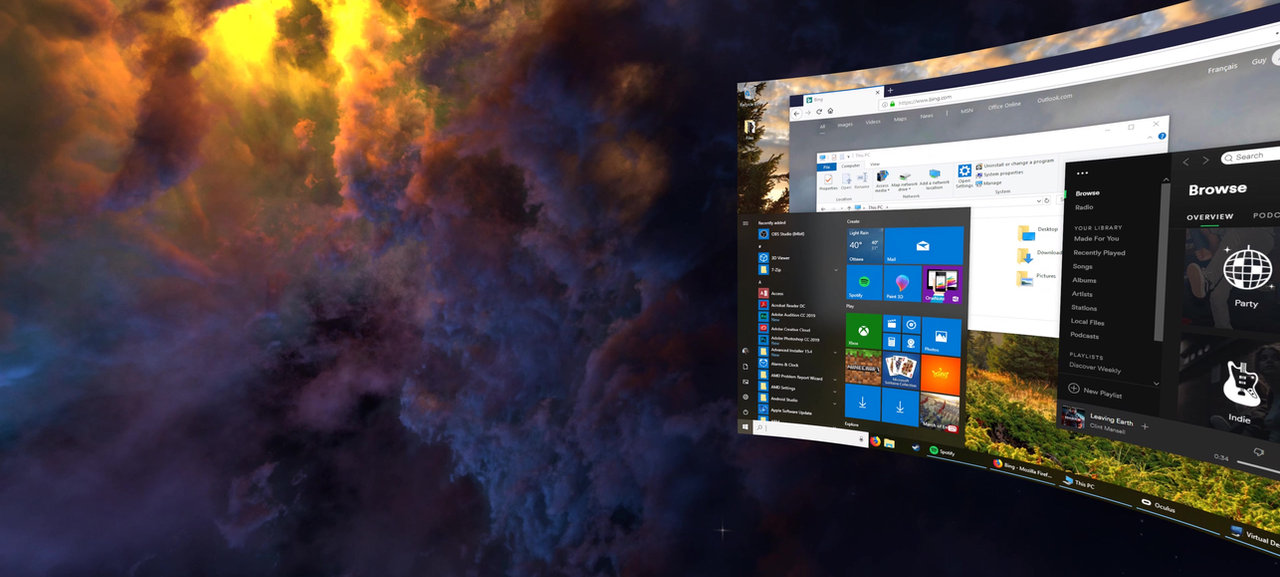
What owners say (we have not tested the apps)
Three people, each in a comment of about 2025, before the August 2026 update, under a video on Meta's Windows 11 route [11]:
- For Meta's: "I have both, but prefer the Meta Windows 11 version. I find it easier to use and less fuss."
- For Immersed: "Immersed worked way better than this Windows 11 link for me, but it eats a lot of battery."
- Against virtual monitors, from a software engineer: virtual monitors are "just not as readable or clear as a real monitor".
When it will not pair, add a screen, or look sharp
These are for Meta Virtual Display on Windows 11, from Meta [1] and Microsoft [2].
| What you see | What to check |
|---|---|
| It will not pair or reconnect | Both on the same network. On Wi-Fi, the same network name; a wired PC on the same subnet as the Quest's Wi-Fi [1]. Unlock the PC. Press Alt+Shift+W on the PC to open Mixed Reality Link and see whether a QR code appears [2] |
| "The connection was closed as a streaming connection could not be established" | Usually a firewall or proxy blocking it. Microsoft lists inbound ports 8264 and 8265 (TCP) and 8266 (UDP) [2] |
| The screen is pixelated | Neither device on 2.4 GHz, and a Wi-Fi signal of at least 75% on the PC; netsh wlan show interfaces in a command prompt shows both [2] |
An ordinary PC game on the big screen
Two makers name games: Virtual Desktop, to "play games on a giant virtual screen" [10], and Bigscreen, to "Wirelessly play your favorite PC games" [5]. Meta's help page for Virtual Display does not mention them [1]. Two owners tried on Meta's route, by their comments under the same video [11]; we have not: one, about 2025, "was able to play Forza Horizon 5 with almost no lag"; another, about August 2026, found that in games steered with the mouse "the cursor leaves the virtual monitor". For a Steam library, see non-VR Steam games on a Quest. For PC VR games, see how to connect a Quest to a PC.
The same game in 3D. Owl3D Link is free. With the Owl3D desktop app running on a Windows PC that has an NVIDIA RTX 3060 graphics card or better, it streams what is on the PC to a Meta Quest wirelessly, converted from 2D to 3D as it plays, so an ordinary non-VR PC game shows in 3D. Multiplayer competitive games and games with anti-cheat software often block screen capture, and then it cannot convert them. Netflix and other copy-protected streaming work in a web browser on the PC, with the browser's hardware acceleration turned off first. The 3D is an AI conversion, not a studio's own 3D version of a film and not true stereo rendered from a game's geometry. It does not work from a Mac, and it is not a way to play PC VR games.
Frequently asked questions
Can I use the PC at home while I am somewhere else?
Not with Meta's Windows 11 route, which needs the PC and the headset on the same network [1]. Virtual Desktop's listing says it "Supports remote connections over the internet (enable UPnP on your router)" [10].
Does it work on a Quest 2?
Meta's Windows 11 pairing names the Quest 3 and 3S only [1]. Immersed's listing names the Quest 2, Pro, 3 and 3S [7]; Virtual Desktop's and Bigscreen's add the first Quest [10], [5].
Sources (11)
- Meta Quest Help, "Use your computer in VR with Meta Virtual Display" (both setup tabs and the folded questions). https://www.meta.com/help/quest/1370025034331518/ Opened 2026-10-10.
- Microsoft Support, "About Windows Mixed Reality Link". https://support.microsoft.com/en-us/windows/experience/compatibility/about-windows-mixed-reality-link Opened 2026-10-10.
- Meta, "Bring your computer into Meta Horizon" (download page for the Meta Quest Virtual Display app). https://horizon.meta.com/desktop/ Opened 2026-10-10.
- UploadVR, "Quest's Meta Virtual Display Got A New Name, Input Forwarding & Mac Parity" (September 8, 2026). https://www.uploadvr.com/quests-meta-virtual-display-got-a-new-name-input-forwarding-mac-parity/ Opened 2026-10-10.
- Meta Horizon Store, "Bigscreen Beta". https://www.meta.com/experiences/bigscreen-beta/2497738113633933/ Opened 2026-10-10.
- Bigscreen, "Remote Desktop for Meta Quest". https://bigscreenvr.com/remotedesktop/ Opened 2026-10-10.
- Meta Horizon Store, "Immersed". https://www.meta.com/experiences/immersed/2849273531812512/ Opened 2026-10-10.
- Immersed, "Pricing". https://immersed.com/pricing Opened 2026-10-10.
- Immersed, "FAQ". https://immersed.com/faq Opened 2026-10-10.
- Meta Horizon Store, "Virtual Desktop". https://www.meta.com/experiences/virtual-desktop/2017050365004772/ Opened 2026-10-10.
- Users' reports: comments under the YouTube video "I Tried Windows 11 on Meta Quest 3! (Virtual Desktop Killer?)". https://www.youtube.com/watch?v=trct3nC-lX0 Opened 2026-10-10.