How to Cast a Meta Quest 3, 3S or 2 to a TV
How we researched this: written by Owl3D from published sources, all 21 listed at the end.
Short answer
In the headset, press the Meta button, open Quick controls, select Cast, and pick your TV from the list [1]. The TV is only in that list if it, or a stick plugged into it, has Google Cast (Chromecast), and even then Meta says compatibility "isn't guaranteed with all models" [2]. If your TV is not listed, cast to the Meta Horizon app on your phone and mirror the phone to the TV, or cast to a web browser on a computer that is plugged into the TV [1]. A Quest 3 can also send its picture down a USB-C DisplayPort cable [3].
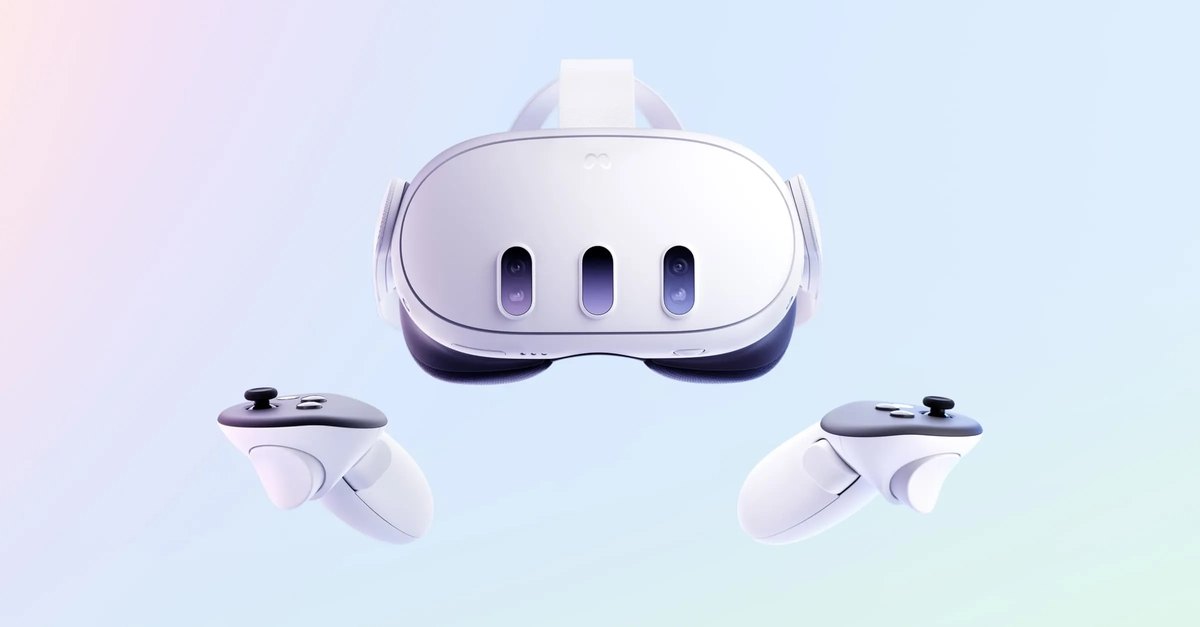
A Meta Quest 3. Casting copies what the wearer sees to a phone, a computer or a TV, so the room can watch. Image: Meta.
Key takeaways
- Your TV is not in the Cast list, or the list shows only Mobile and Web? The TV has no Google Cast, or it is switched off, or it is one Meta's casting does not work with: why the TV is missing, then the route for your TV.
- Roku or Fire TV? Go through your phone: cast to the Meta Horizon app, then mirror the phone's screen. That is what Meta's forum staff tell Roku owners.
- No Wi-Fi where you are? On a Quest 3, a cable shows the picture on the TV with no set-up. It carries no sound, and Meta names no other model.
- You do not need to buy a Chromecast. It is the only way to get a TV into the headset's own list, and Meta does not promise it works: do you need a Chromecast.
- Stuck on "connecting", no sound, or a delay on the TV: when it does not work, and what owners say fixed it.
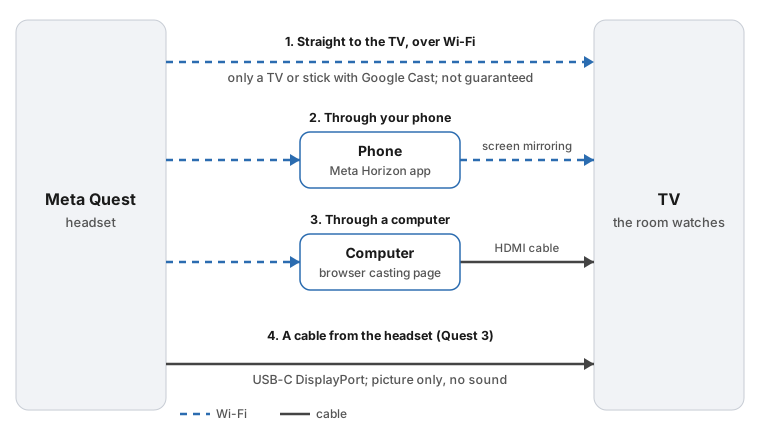
Which route works with your TV
Find your TV in the first column. "From the headset" means the TV shows up in the headset's own Cast list.
| Your TV or box | From the headset? | What to do |
|---|---|---|
| Google TV or Android TV, or a Chromecast plugged in | Try it. Google Cast is on by default on these [4]; Meta does not guarantee every model [2] | Cast from the headset. If the TV is missing, go through your phone |
| An LG, Vizio or other TV that works with Google Cast | Only once Google Cast is turned on in the TV [4]; Meta does not guarantee every model [2] | Turn Cast on, then cast from the headset |
| Roku TV or Roku player | Do not count on it: an owner's Roku TV was missing from the list, and Meta's forum staff say to cast to a phone first [15] | Through your phone: Roku takes an Android or Windows screen, and AirPlay from an iPhone [7], [8] |
| Amazon Fire TV | Not by itself: WhatGear says it has no Chromecast built in [13]. It mirrors devices that support Miracast [9] | Through your phone (Android), or the AirScreen app owners describe |
| Samsung TV | The Samsung page we opened does not say [10] | Through your phone: Smart View from a Samsung phone [10], or AirPlay from an iPhone if the TV has it [6] |
| Apple TV box | Apple's AirPlay page, the one we opened, covers only AirPlay from Apple devices [6] | Through an iPhone, with Screen Mirroring [6] |
| A TV with no smart features, only HDMI | No | A computer and an HDMI cable, or, on a Quest 3, a cable from the headset |
Meta's steps are written for Meta Quest headsets in general and name no model [1]. The cable route is the exception: Meta's page for it names the Meta Quest 3 [3].
Cast straight from the headset
This is the shortest route: nothing sits between the headset and the TV.
Before you start, Meta asks for three things: the headset and the screen on the same Wi-Fi network; on a dual-band network, both "on the same frequency"; and the same Meta account on both ends [1].
- Open the menu. Press the Meta button (the Oculus button on older controllers) on your right controller.
- Open Quick controls. Select Cast.
- Pick the screen. Select "Mobile, Web or choose a nearby device from the list" [1]. A TV with Google Cast, when the headset finds it, is one of the nearby devices [2].
- Confirm. Select Next and follow the instructions on screen.
To stop, open Quick controls again, select Cast, then Stop casting [1].
Older tutorials point somewhere else: VR Wave's 2022 guide says "the share button" [14], and WhatGear's says the camera icon [13]. The path above is the one on Meta's help page on October 9, 2026 [1].
Through your phone, then to the TV
This is the route Meta's forum staff recommend to the owner of a Roku TV the headset did not list [15]. It has two hops, headset to phone and phone to TV. VR Wave's writer says pixelation and tearing are more likely this way than on a cast straight from the headset [14].
Hop one: headset to phone. Meta's steps [1]:
- Check the phone. Bluetooth on, and the same Wi-Fi network as the headset.
- Open the Meta Horizon app. Tap Devices.
- Start. Select your headset, then tap Cast.
Hop two: phone to TV. Use whatever your phone and TV share:
- iPhone or iPad. Open Control Center, tap Screen Mirroring, and choose an Apple TV or an "AirPlay-compatible smart TV" [6]. Roku lists the Roku TVs and players that take AirPlay [8].
- Samsung phone. Pull down the status bar and tap Smart View. That reaches a Roku [7], and Smart View is also Samsung's own way onto a Samsung TV [10].
- An Android phone (Android 8.0 or later), to a Google TV or Chromecast. In the Google Home app, hold the TV's tile, then Cast, then Cast my screen [5].
- Android to a Fire TV. On the Fire TV, go to Settings, Display & Sounds, Enable Display Mirroring, then turn on mirroring on the phone. It works with phones that support Miracast [9]. Roku notes that Google's own Pixel phones are not among the Android phones likely to support this kind of mirroring [7].
Through a computer
If a laptop or desktop is plugged into the TV with an HDMI cable, the TV is just its monitor, and casting to a browser puts the game on the TV. Meta's steps [1]:
- On the computer. Open a browser, go to horizon.meta.com/casting and log in with the Meta account that is on the headset.
- In the headset. Press the Meta button, open Quick controls, select Cast.
- Choose Web. Select Web, then Next, then Computer, then Next.
Meta's troubleshooting page still gives the older address, oculus.com/casting, as a place to log in [2].
Some smart TVs have a web browser of their own, and WhatGear's tutorial suggests opening the casting page there. It adds that "there is a chance that the browser on your TV might block it" [13], and one owner got a blank page on an LG TV [16]. Treat it as a long shot.
If the computer runs the Meta Horizon Link app for PC VR, that app has its own Start casting button under Devices [1].
With a cable, on a Quest 3
A Quest 3 mirrors to a TV or monitor through its USB-C port. Meta says this "uses DisplayPort technology, requiring no additional set-up or configuration. As soon as your headset is connected to an external display, mirroring will start" [3]. Meta's page lists no Wi-Fi requirement for it.
What you get, and what you do not [3]:
| What | By cable from a Quest 3 |
|---|---|
| Picture | The left eye's view, flattened to fit the screen, at up to 1920x1080 and 60 frames a second |
| Sound | None: "Mirroring to an external display does not support audio output at this time" |
| Games and passthrough | Both shown |
| Films and shows with copy protection | "DRM protected content will not be visible on the external display" |
| Which headsets | Meta's page names the Meta Quest 3 |
If your TV has HDMI sockets and no DisplayPort, that changes what you buy. Meta says: "you will need to use an active DisplayPort to HDMI adapter or cable" [3]. The cable chains Meta tested are:
- USB-C to USB-C cable
- USB-C to DisplayPort cable
- USB-C cable, then a DisplayPort adapter, then a DisplayPort cable
- USB-C cable, then a DisplayPort adapter, then an active HDMI adapter, then an HDMI cable
- USB-C cable, then a DisplayPort adapter, then an active DisplayPort to HDMI cable
Meta adds: "Only some combinations of cables and adapters have been tested", and the hardware you use "can determine the stability of connectivity" [3]. We have not tested any cable ourselves.
Roku, Samsung, LG, Vizio, Fire TV: notes by brand
Roku. An owner whose Roku TV was missing from the headset's list asked on Meta's forum, and Meta's community manager answered: "to cast to a Roku Tv we recommend casting first to a smartphone and from there to your TV" [15]. Roku's own page says: "Most current generation Roku streaming players and Roku TV models support screen mirroring". That is from Android and Windows; from Apple devices, the Roku models on its AirPlay list take AirPlay [7], [8]. When a phone asks to mirror, the Roku shows a prompt: choose Allow or Always allow with the remote [7].
LG. Google's Cast help gives LG as its example of a TV where Cast has to be switched on: "on LG, open the Home Hub and select the Google Cast button" [4].
Vizio. On a Vizio, Google says Cast is part of the terms and conditions page during the TV's first set-up [4].
Google TV and Android TV. "Google Cast is automatically turned on when you set up Android TV or Google TV devices" [4].
Amazon Fire TV. Amazon's page covers Miracast mirroring from a phone or PC, and points owners of Fire TV Smart TVs to a separate AirPlay page [9]. It says nothing about Google Cast.
Samsung. Samsung's mirroring page is about Smart View from "compatible Samsung devices" and projecting a Windows PC [10]. So a Samsung phone or a Windows laptop is the bridge.
Do you need a Chromecast?
No. Three of the four routes work without one.
A Chromecast, or a TV with Google Cast built in, is what puts the TV in the headset's own list. Whether that then works has been uncertain since December 2023. Tom's Guide and 9to5Google reported then that, with version 60 of the Quest software, some Quest 3 owners lost the Chromecast option, and that Meta had changed its help page to say "Chromecast is not fully supported with Meta Quest" [11], [12].
In October 2026 Meta's cast page again offers "a nearby device from the list", and its troubleshooting page has a section for "Chromecast-enabled devices" [1], [2]. The same page still says: "TVs with built-in Chromecast or other smart functionality may be supported, but compatibility isn't guaranteed with all models" [2]. And a Meta community manager wrote on Meta's forum, about December 2025: "Meta does not have a list of which devices or TVs will or will not work" [15].
So if you already have a Chromecast or a Google TV, try it. Before buying one only for this, try the phone or the computer, which cost nothing.
When it does not work
The TV is not in the list, or you only see Mobile and Web
This is the complaint owners post most often under casting tutorials. In order:
- Does the TV have Google Cast at all? Meta's forum staff send Roku owners through a phone [15], and WhatGear says a Fire TV has no Chromecast built in [13]. Use your phone.
- Is Cast switched on in the TV? Meta: "Make sure your TV supports Chromecast and that Chromecast is enabled in your TV settings" [2]. On an LG it is a button in the Home Hub [4].
- Same network, same band. The headset and the TV must be on the same Wi-Fi network, and Meta adds: "Use a 5GHz or 6GHz band instead of 2.4GHz for faster performance" [2].
- The Chromecast's clock. Meta lists this by name: "Make sure the date and time of your Chromecast device is accurate" [2].
- Restart the headset, the TV and the router, and check each for software updates. Meta lists these steps for a cast to a phone that will not start [2]; they cost nothing to try here.
If the TV still does not appear, that is the case Meta's "isn't guaranteed" covers. Switch routes.
It says connecting and never connects, or the cast ends by itself
- Same Meta account. The phone app or the browser must be logged in to the account that is on the headset [2].
- Phone: Bluetooth must be on [1]. Then restart the headset and the phone, update both, and restart the router [2].
- The network may be blocking it. Meta: "Certain mesh networks and corporate or certificate-based networks may not support casting due to blocks for security purposes. These blocks are common on home guest networks, corporate and commercial networks (such as at a hotel or airport), and some cellular tethering systems" [2]. Try another network.
- You opened another app on the phone. That stops the cast [1].
The TV is a second or more behind
Meta gives no figure for the delay. It says a 5GHz or 6GHz band gives "faster performance" than 2.4GHz, and that while casting "in-app performance may degrade" [2]. VR Wave's writer calls a gap between the headset's sound and the TV's "unfortunately normal", and says the picture is likeliest to break up when casting through a phone [14]. If the delay spoils it, move both devices to the 5GHz band, then try a route with one hop: a direct cast, or, on a Quest 3, the cable. See also what owners report.
No sound on the TV, or sound from two places
- On the cable route there is no sound, by Meta's own statement [3]. The sound stays in the headset.
- Over Wi-Fi, Meta's pages do not say whether sound is sent. WhatGear's tutorial says a direct cast passes the audio to the TV, and that casting to the phone app "also streams" it [13].
- An echo comes from hearing the headset and the delayed TV together. VR Wave's writer mutes the TV: "I usually mute the TV audio and allow the sound to come from the headset itself" [14].
The Cast button will not respond while you record
Meta lists it as a known issue: "You may experience issues when you cast and record simultaneously" [2]. Stop the recording first.
What owners report
These are people's own accounts, from comments under casting tutorials on YouTube and from Meta's community forum. We have not tested any of them. YouTube shows only how long ago a comment was posted, so those dates are approximate.
Whether a Chromecast or Cast TV shows up: owners disagree.
- It was missing: "Does anyone know what to do my oculus only has the option to connect to mobile and web" (about 2025) [16]. Another, about 2024, after buying one: "Just bought a dongle and got super frustrated that I couldn’t get it to work" (video) [17].
- It worked: "Dug out my old 1st gen chromcast and it worked!" and "The Quest 3 will cast to an NVidia Shield TV with no app install." (two commenters, about 2025) [16].
- It connected and dropped: "It connects, then the signal drops within seconds, or it wont even connect period." (one commenter, about 2025) [16].
Two fixes for a Cast TV that stopped appearing. One commenter, about 2025: "Make sure your TV software is up to date. I had to manually update my TV software for Chromecast to work." A second, about January 2026, on an LG: "The latest LG update disabled our MQ3 ability to cast. To reset/re-pair your TV, using the LG remote: Select input (cable icon)/ Home Hub/ Google Cast..." [16]. Neither has a reply confirming it.
AirScreen on a Fire TV. AirScreen is a third-party app for Fire TV that WhatGear's and VR Wave's tutorials describe: it makes the Fire TV appear in the headset's Cast list [13], [14]. Three commenters under WhatGear's video say it worked, the most recent in about September 2026: "Used the Airscreen and it worked beautifully." A fourth reports a limit: "airscreen stopped casting after a half hour or so and said I had to pay premiums to keep casting" [16]. WhatGear notes "a noticeable 1 second sound delay" with it [13].
Lag. On the phone-then-TV route, an owner in the Roku thread on Meta's forum, about 2025: "The image lags terribly" [15]. On a direct cast, a commenter about 2023: "the delay from actual gameplay and the stream on the TV is delayed by 1 second" (video) [18]. One who moved off the phone route, about 2025: "casting to my projector without going through my phone, much better" [16].
A phone that will not connect. Under a tutorial for the Quest 2 from about 2022, so the app has changed since, three people, writing about 2023 and 2024, name what fixed it: "My fix was turning off the 2.4ghz wifi in my router management."; "Bluetooth forget was the fix for me, thank you."; and "I reset my internet, removed the meta from my mobile Bluetooth and reconnected." (video) [20]. The first matches Meta's advice to keep both devices on one band [2].
Sound. A Quest 3 owner on Meta's forum in March 2024: "I don't get any sound when casting regardless of which device I cast to." The same post then adds: "Actually, I do hear sound when casting to the mobile app, but I can't get the sound to play through a connected speaker". No reply was visible to us [21]. One commenter, about 2025, got sound another way, through Meta's developer tool for PCs: "developer hub did the trick for me. I was tired of not having audio in my cast." (video) [19].
Frequently asked questions
Can you cast a Meta Quest to a TV without Wi-Fi?
On a Quest 3, a cable is the route to try: Meta says mirroring starts as soon as the cable is connected, with no set-up, and its page lists no network requirement [3]. We have not tested it. Every wireless route needs the headset and the screen on the same Wi-Fi network [1]. Whether that network also needs internet is something we could not confirm.
Can I cast a film or Netflix from the headset to the TV?
Do not count on it. On the cable route Meta says "DRM protected content will not be visible on the external display" [3]; its pages on wireless casting do not say either way. Casting is built for showing a game to the room. To watch a film with other people, see watching with friends in our guide to movies in VR.
Can I cast from a second account on the headset, such as my child's?
From a secondary account, yes. Meta: "You can cast from either your primary or secondary account" [1]. Its page does not mention children's accounts by name. The screen you cast to must be logged in to that same account [2]. Meta has a separate help page on how parents can watch a child's or teen's headset in real time, linked from its casting page [1].
Can I cast my phone to the Meta Quest instead?
That is the other direction, and Meta's casting pages do not cover it: they describe sending the headset's view to a phone, a computer or a nearby screen [1].
Does casting drain the battery or slow the game?
It can. Meta: "When you cast, battery usage may increase or in-app performance may degrade" [2].
Sources (21)
- Meta Quest Help Center, "Cast to a screen with Meta Quest" (all four tabs). https://www.meta.com/help/quest/192719842695017/ Opened 2026-10-09.
- Meta Quest Help Center, "Troubleshoot casting to a screen with Meta Quest". https://www.meta.com/help/quest/214966974548157/ Opened 2026-10-09.
- Meta Quest Help Center, "Casting to an external display using USB-C, DisplayPort or HDMI cables". https://www.meta.com/help/quest/1561768654489777/ Opened 2026-10-09.
- Google Cast Help, "Set up a TV with Google Cast". https://support.google.com/googlecast/answer/7020323 Opened 2026-10-09.
- Google, Streaming Help, "Cast your Android screen from the Google Home app". https://support.google.com/chromecast/answer/6059461?hl=en Opened 2026-10-09.
- Apple Support, "Use AirPlay to stream video or mirror the screen of your iPhone or iPad" (published May 15, 2026). https://support.apple.com/en-us/102661 Opened 2026-10-09.
- Roku Support, "How to screen mirror from your phone, tablet, or computer to your Roku streaming device" (updated September 29, 2026). https://support.roku.com/article/screen-mirror-your-phone-tablet-or-computer Opened 2026-10-09.
- Roku Support, "How to use AirPlay and HomeKit with your Roku streaming device" (updated June 23, 2026). https://support.roku.com/article/screen-mirror-your-apple-device-with-airplay Opened 2026-10-09.
- Amazon, Fire TV Support, "Screen Mirror Your Device to Fire TV". https://www.amazon.com/gp/help/customer/display.html?nodeId=ToUjwyfVuffzVfbR6b Opened 2026-10-09.
- Samsung US Support, "Screen mirroring to your Samsung TV". https://www.samsung.com/us/support/answer/ANS10001896/ Opened 2026-10-09.
- Tom's Guide, Alan Martin, "One of Meta Quest 3's best features may have gone forever" (December 30, 2023). https://www.tomsguide.com/news/one-of-meta-quest-3s-best-features-may-have-gone-forever Opened 2026-10-09.
- 9to5Google, Ben Schoon, "Meta Quest 3 seems to be removing Chromecast support for mirroring VR to your TV" (December 29, 2023). https://9to5google.com/2023/12/29/meta-quest-3-chromecast-tv-mirroring/ Opened 2026-10-09.
- WhatGear, Troy R, "How to Cast Meta Quest 3 & 3S to ANY TV ( 6 Simple Methods )". https://www.whatgear.net/technology/how-to-cast-meta-quest-3-amp-3s-to-any-tv Opened 2026-10-09.
- VR Wave, "How To Cast Your Quest To Your TV" (September 2, 2022). https://www.vr-wave.store/blogs/virtual-reality-prescription-lenses/how-to-cast-your-quest-to-your-tv-wip Opened 2026-10-09.
- Meta Community Forums, "Why can't I cast my Meta Quest 3 to my Roku Tv?" (posted October 9, 2024; replies from Meta's community manager and from owners). Users' reports and forum staff replies. https://communityforums.atmeta.com/discussions/PairingConnection/why-cant-i-cast-my-meta-quest-3-to-my-roku-tv/1248381 Opened 2026-10-09.
- YouTube, WhatGear, "How to Cast Meta Quest 3 & 3S to ANY TV ( 6 Simple Methods )", comments. Users' reports. https://www.youtube.com/watch?v=VAsR5-aNNho Opened 2026-10-09.
- YouTube, HyphTech, "Screencast Meta Quest 3 Feed to Any TV", comments. Users' reports. https://www.youtube.com/watch?v=iVofSeUdO9k Opened 2026-10-09.
- YouTube, CNET, "How To Cast a Meta Quest VR Headset to Any Device", comments. Users' reports. https://www.youtube.com/watch?v=RAFCQ4Hgkzk Opened 2026-10-09.
- YouTube, "Cast Meta Quest 3 & 3S to ANY Smart Device (Phone, TV & PC)", comments. Users' reports. https://www.youtube.com/watch?v=nXLKMM3faro Opened 2026-10-09.
- YouTube, "How to Fix Oculus Quest 2 Not Casting to Phone", comments. Users' reports. https://www.youtube.com/watch?v=mH7gW1HoXYE Opened 2026-10-09.
- Meta Community Forums, "No sound when casting to any device - Quest 3" (posted March 29, 2024). Users' reports. https://communityforums.atmeta.com/discussions/PairingConnection/no-sound-when-casting-to-any-device---quest-3/1175974 Opened 2026-10-09.