Meta Quest Link (Now Meta Horizon Link): The App and Its Fixes
How we researched this: written by Owl3D from published sources, all 16 listed at the end.
Short answer
Meta Quest Link is the feature, and the free Windows app, that lets a Meta Quest play PC VR games running on your computer. Meta now calls the app Meta Horizon Link; before that it was the Meta Quest Link app, and before that the Oculus app. Install it on a Windows 10 or 11 PC, then connect the headset by USB-C cable (Link) or over Wi-Fi (Air Link) and choose Link in the headset's Quick controls. Meta makes the app for Windows only.
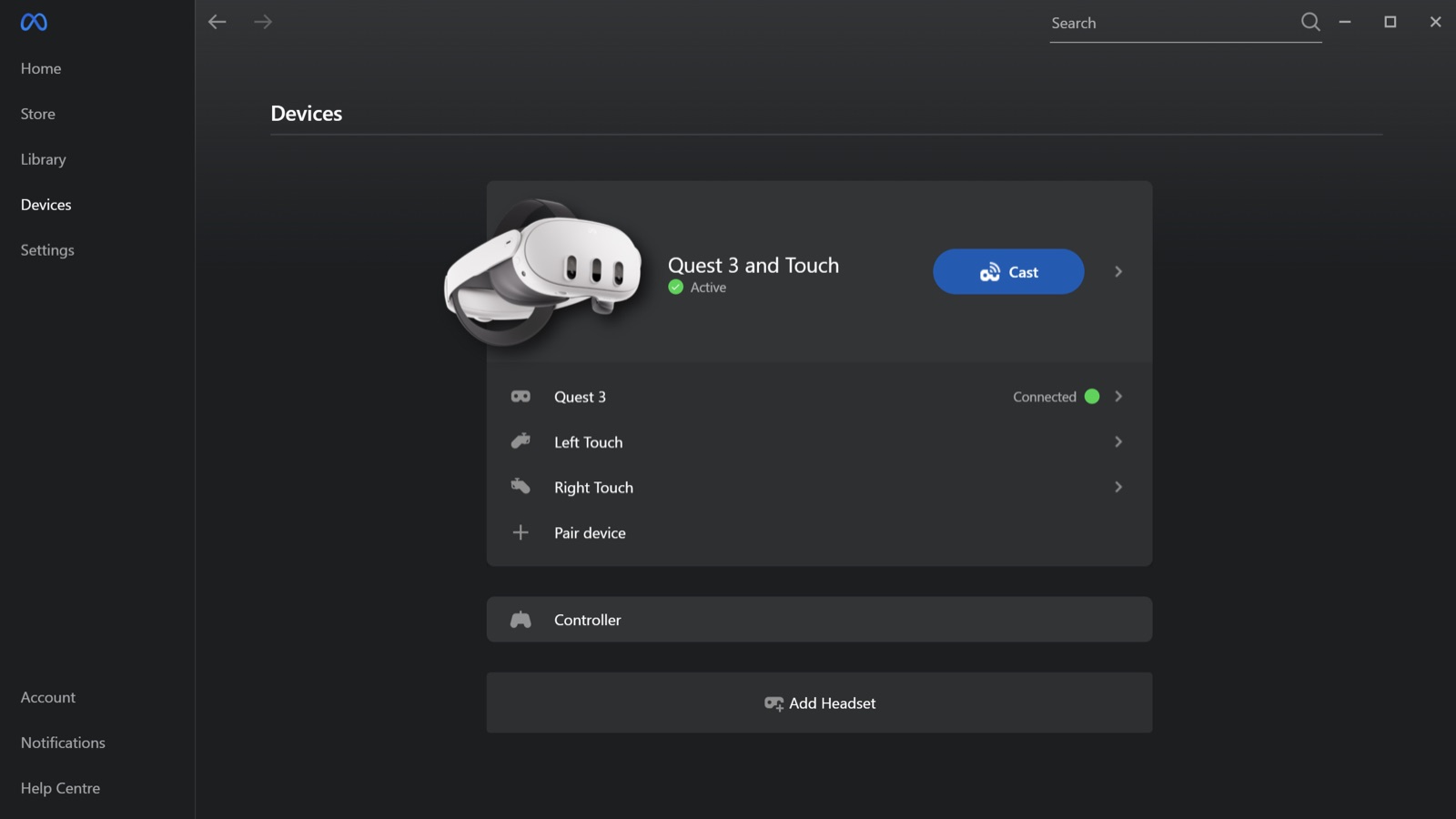
The PC app's Devices page, with a Quest 3 connected. Screenshot: UploadVR, November 2024, when the app was still called Meta Quest Link.
Key takeaways
- Oculus app, Meta Quest Link and Meta Horizon Link are the same PC app under three names: which name is which.
- The phone app "Meta Horizon" and Valve's Steam Link are different apps.
- Download it from Meta's own page and keep 9 GB free: download and install.
- The app says "isn't working correctly", will not install or shows no pairing code? Find what you see in the error table.
Oculus, Meta Quest Link, Meta Horizon Link: which name is which
One app, renamed twice. In March 2024 Meta renamed its PC software, "previously called the Oculus PC app", to the Meta Quest Link app [7]. Meta's help pages now call it Meta Horizon Link [1], [3]. If you search for any of the three names, you want the same download.
| The name you saw | What it is |
|---|---|
| Oculus app, Meta Quest Link, Meta Horizon Link | Meta's Windows app for PC VR, casting and Remote Desktop [1], [8] |
| Link | Playing PC VR over a USB-C cable [2] |
| Air Link | The same thing over Wi-Fi [2] |
| Meta Horizon (phone app) | The app on your phone; one thing it does is show the headset's view on the phone [6] |
| Steam Link | A different app: see Steam Link on a Quest |
| Link Cable | Meta's own USB-C cable for Link [3] |
Download and install the app
- Download. On the Windows PC, open Meta's Meta Horizon Link page and select Download app [1].
- Make space. Meta's start page asks for "at least 4GB of space" [1], but its troubleshooting page says the app "needs at least 9 GB available" [4]. Keep 9 GB free.
- Install it and sign in with your Meta account.
- Update the headset. Meta asks for "A Meta Quest that's updated with the latest software" [2].
Link and Air Link are on by default on a headset with current software. To check, open Quick controls, then Settings, then Link [2].
The app is for Windows only. Meta lists Windows 10 and Windows 11 and nothing else [3].
Link or Air Link
Both run through the same PC app. The headset uses one at a time, so turn Air Link off when you use the cable [4].
| Link (cable) | Air Link (Wi-Fi) | |
|---|---|---|
| What you need | "A USB-C 3.2 cable that supports a minimum of 5 Gbps" [2] | "A Wi-Fi network (preferably 5GHz)" [2] |
| Start it | Quick controls, Link, your PC, Launch [2] | Quick controls, Link, turn on Use Air Link, Pair, check the code, Launch [2] |
| Best when | Your Wi-Fi is weak, or the router is in another room [5] | The router is near, and the PC is on an Ethernet cable [5] |
Step by step, with the cable choice: connect a Quest to a PC by cable or over Wi-Fi.
What the PC needs
A Windows 10 or 11 PC with at least an Intel i5-4590 or AMD Ryzen 5 1500X, 8 GB of memory and a graphics card on Meta's list [3]. Meta does not yet support Intel Arc cards, and says the RTX 3050 laptop and 3050 Ti "are not recommended" [3]. The full table: what the PC needs.
The settings people look for
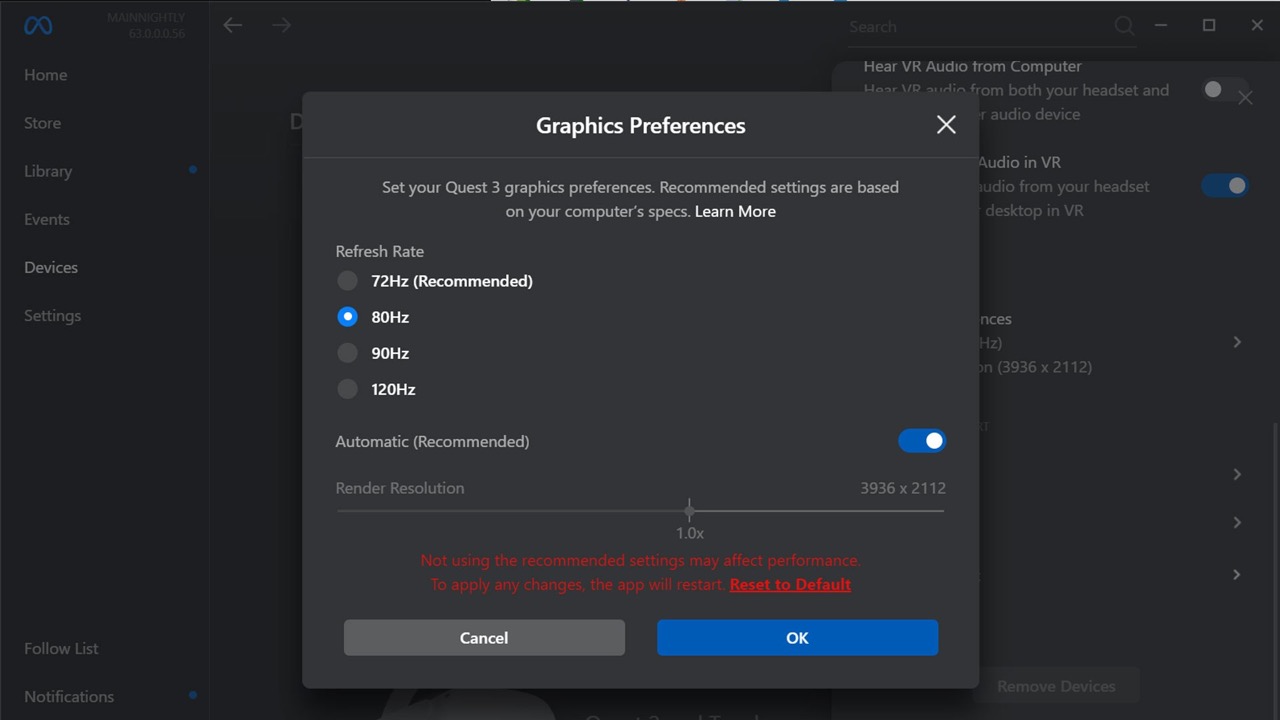
Sharpness and smoothness. In the app, select Devices, then your headset, then Graphics preferences. There you set the refresh rate (72, 80, 90 or 120 Hz) and the render resolution, up to 5408 x 2736 [4]. Higher settings look better but can drop frames, "Even top graphics cards" [4]. If Link starts to stutter after you changed them, select Reset to default [4].
Casting and Remote Desktop. The app can show the headset's view on the PC [1]: in the headset, open Quick controls, select Cast, and pick from the list of devices [6]. Since November 2024 it also includes Remote Desktop, which shows the PC's screen in the headset; it used to be a separate app [8].
When the Link app goes wrong
Find what you see. These fixes are Meta's own.
| What you see | What to do |
|---|---|
| The installer stops with "Restart your computer" [11], or says there is not enough space | Free 9 GB on the PC [4]. Then see owners' fixes |
| "Meta Horizon Link isn't working correctly", and the headset loads forever [15], [16] | Update the app and the headset. Meta posted a fix for one such bug, which left users "stuck in the app launch loading screen" (about February 2026) [9]. Some owners still saw the message months later [15]. Then run Meta's first steps below |
| "Your computer doesn't meet the updated minimum specifications" on a new PC [16] | Check your card on Meta's list, update the graphics driver and restart the PC [3] |
| Stutter or blur after a change | Reset Graphics preferences to default [4] |
| The headset only charges, the PC is not found, or three dots after Launch | That is the connection, not the app: see when it will not connect |
Meta's first steps [4]:
- Restart the headset and the computer.
- Update the headset software and the graphics driver.
- Turn off any firewall or antivirus that may block Link.
- Uninstall the app and install it again.
- Sign out of the app and back in.
- Try the cable instead of Air Link, with Air Link turned off.
Fixes owners report (we have not tested them)
These come from Meta's community forum. Each is one person's or a few people's report.
- Not enough space when you have space. An owner found that the installer "checks the C: volume for available storage" even if you install to another drive (about October 2026) [10]. A forum helper (an "Honored Contributor", not Meta staff) replied with a command to run in the installer's folder: "Setup.exe /drive=D", with D as the drive you want [10].
- "Restart your computer" every time. One owner traced it to a Windows user name containing "(" (late October 2026) [11]. The same helper replied that this bug "has been around for years" [11].
- No pairing code on the PC. A helper asked: "Are you sure the pairing code dialog on the PC is not hidden behind the app or other windows?" Another suggested ending the app in Task Manager, restarting both devices and signing in again (about March 2026) [13].
- The app opens every time Windows starts. One owner complained that neither the app nor Windows Startup apps has a switch for it (about September 2026) [14]. The same helper replied that the app itself no longer starts with Windows, but its background services still run [14]. In an older thread, two owners suggest copying the app's shortcut, or its Client file, into the Windows Startup folder, then turning it off in Startup apps. Later replies there say it did not work for them [12].
Watching PC video in the headset
Link is for VR games. For a film or your desktop on the PC, Remote Desktop in the same app shows the PC's screen in the headset [8], and a flat video stays flat.
Owl3D, the publisher of this guide, makes Owl3D Link, a companion app for Meta Quest headsets. With the Owl3D desktop app running on a Windows PC, it streams what is on the PC to the headset wirelessly, converted from 2D to 3D instantly, as it plays, so an ordinary 2D video arrives in 3D with no file to convert first. It needs an NVIDIA RTX 3060 or better graphics card. Owl3D Link is free to use; on the free plan a session lasts 15 minutes and the picture carries a watermark. It is not a way to play PC VR games; use Meta Horizon Link for those. The 3D is an AI conversion of a flat picture, not a studio's own 3D version of a film.
Frequently asked questions
Is Meta Quest Link free?
Yes. Meta calls it "the free Meta Horizon Link app" [1]. The cable is extra: Meta asks for a USB-C 3.2 cable that supports at least 5 Gbps, and also sells its own [2], [3].
Is there a Meta Quest Link app for Mac?
No. Meta lists only Windows 10 and Windows 11 for the app [3].
Sources (16)
- Meta Help Center, "Getting started with Meta Horizon Link App". https://www.meta.com/help/quest/1517439565442928/ Opened 2026-11-03.
- Meta Quest Help, "How to set up Meta Horizon Link and Air Link". https://www.meta.com/help/quest/509273027107091/ Opened 2026-11-03.
- Meta Quest Help, "Windows PC requirements for Meta Horizon Link". https://www.meta.com/help/quest/140991407990979/ Opened 2026-11-03.
- Meta Quest Help, "How to troubleshoot Meta Horizon Link on your computer". https://www.meta.com/help/quest/975178886590868/ Opened 2026-11-03.
- Meta Quest Help, "How to troubleshoot your Air Link connection over Wi-Fi". https://www.meta.com/help/quest/2094726341404944/ Opened 2026-11-03.
- Meta Quest Help, "How to cast your Meta Quest to a screen". https://www.meta.com/help/quest/192719842695017/ Opened 2026-11-03.
- Road to VR, "Meta Updates Quest Link with 120Hz on Quest 3 and Big Battery Savings for All" (March 7, 2024). https://www.roadtovr.com/meta-quest-link-update-120hz-battery/ Opened 2026-11-03.
- UploadVR, "The Meta Quest Link PC App Now Has Casting & Remote Desktop Built In" (November 18, 2024). https://www.uploadvr.com/meta-unifying-quest-pc-apps/ Opened 2026-11-03.
- Meta Community Forums, post by a Meta employee, "Meta Quest Link Update: Link Launch Issue Resolved". https://communityforums.atmeta.com/pairing-connection-12/meta-quest-link-update-link-launch-issue-resolved-174424 Opened 2026-11-03.
- Users' reports: Meta Community Forums, "Meta Horizon Link - Storage Prerequisite OOO Error". https://communityforums.atmeta.com/games-apps-13/meta-horizon-link-storage-prerequisite-ooo-error-180064 Opened 2026-11-03.
- Users' reports: Meta Community Forums, "Link installer 'Restart your computer' loop". https://communityforums.atmeta.com/other-troubleshooting-14/link-installer-restart-your-computer-loop-root-cause-windows-usernames-containing-crash-the-installer-s-log-sanitiser-fix-found-180909 Opened 2026-11-03.
- Users' reports: Meta Community Forums, "How to Disable Auto Startup of Meta Horizon Link". https://communityforums.atmeta.com/games-apps-13/how-to-disable-auto-startup-of-meta-horizon-link-174588 Opened 2026-11-03.
- Users' reports: Meta Community Forums, "Pairing code not showing up on Meta Horizon Link PC app". https://communityforums.atmeta.com/pairing-connection-12/pairing-code-not-showing-up-on-meta-horizon-link-pc-app-176207 Opened 2026-11-03.
- Users' reports: Meta Community Forums, "Stop Forcing Meta Horizon Link to Start With Windows". https://communityforums.atmeta.com/games-apps-13/stop-forcing-meta-horizon-link-to-start-with-windows-this-is-my-pc-178342 Opened 2026-11-03.
- Users' reports: Meta Community Forums, "Meta Horizon Link isn't working correctly click here to check our support article." https://communityforums.atmeta.com/link-v2-07-troubleshooting-16/meta-horizon-link-isn-t-working-correctly-click-here-to-check-our-support-article-178802 Opened 2026-11-03.
- Users' reports: Meta Community Forums, "Meta app tells me my computer does not have the minimum specifications despite having a high end PC." https://communityforums.atmeta.com/other-troubleshooting-14/meta-app-tells-me-my-computer-does-not-have-the-minimum-specifications-despite-having-a-high-end-pc-176925 Opened 2026-11-03.