Spatial Photos on iPhone: What They Are, How to Take and View Them
How we researched this: written by Owl3D from published sources, all 33 listed at the end.
Short answer
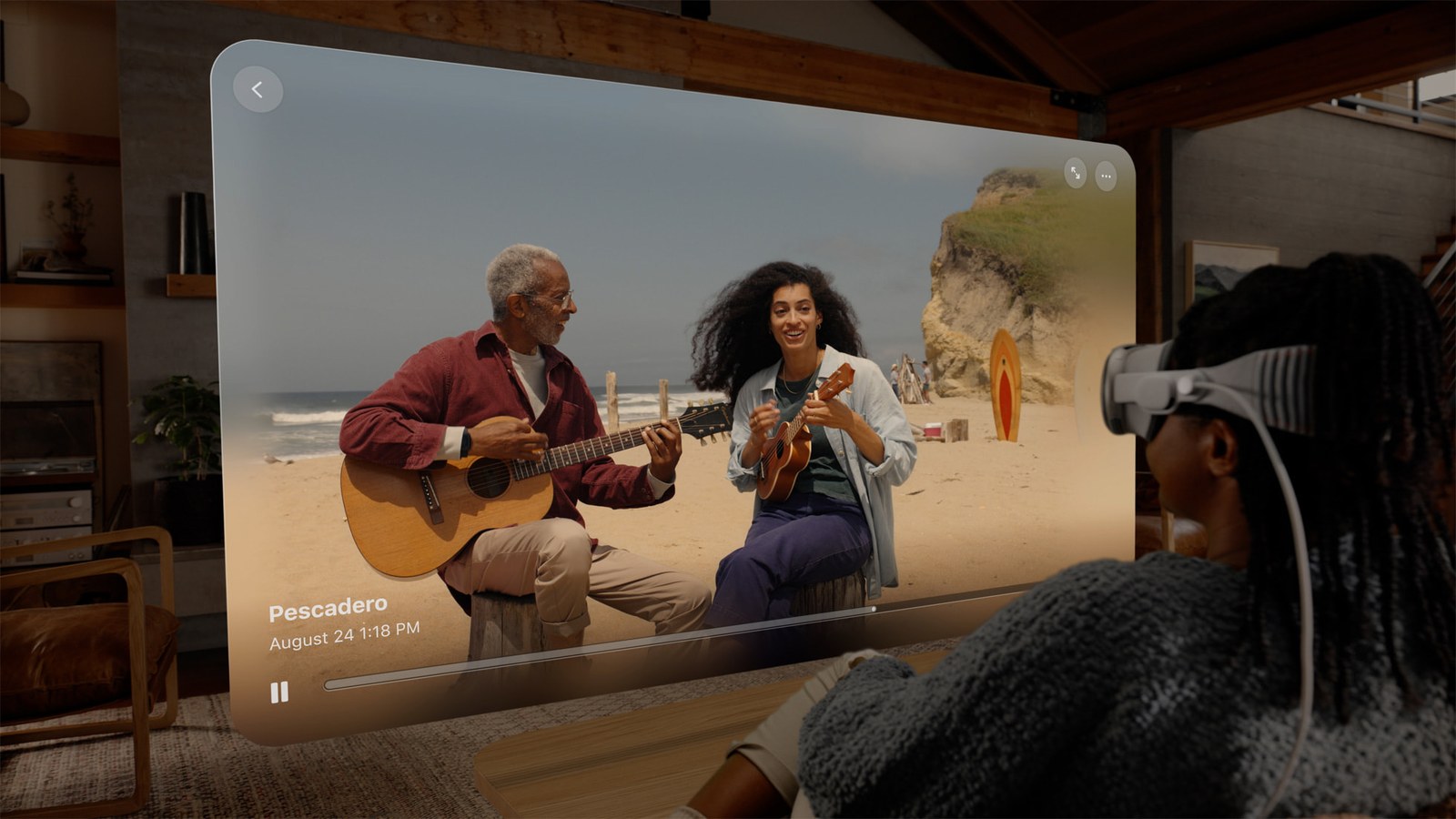
A spatial photo is Apple's name for a 3D photo: one file that holds a left-eye picture and a right-eye picture of the same moment. On the phone it looks like any flat photo; the depth shows on an Apple Vision Pro or another 3D display.

Capturing in 3D on an iPhone: the phone is held in landscape and the subjects are a few feet away. Apple's picture comes from its launch of spatial video capture on the iPhone 15 Pro, in December 2023. Image: Apple.
Key takeaways
- iPhones that take them: the 15 Pro, 16, 16 Plus, 16 Pro, 17, 17 Pro and 18 Pro (Pro Max versions included). The 16e, 17e, Air and Duo do not; see which iPhones.
- To take one: open Camera, choose Spatial mode, turn the phone to landscape, and keep the subject 3 to 8 feet away in good light; see the steps and whether it is worth it.
- A spatial scene is a different feature: a 3D effect for any photo you already have, on an iPhone 12 or later; see spatial scenes.
- Without a Vision Pro, use an app on a Meta Quest or the iPhone itself, or convert the photo to a side-by-side or anaglyph copy for a 3D TV, a projector or red-cyan glasses; see ways to view.
- To see it with no headset and no glasses, show a side-by-side copy on the Owl3D Shift, a glasses-free 3D display, through its Stereo 3D Playback feature; see the three steps.
What is a spatial photo?
The camera takes two pictures of the same scene at the same moment, from two lenses a short distance apart, and saves both in one file. When a display shows the left picture to your left eye and the right picture to your right eye, the scene has depth.
On an iPhone, Spatial is a mode in the Camera app. A photo taken in it sits in your library with the rest and looks flat there, because the Photos app shows only one picture of the pair [2].
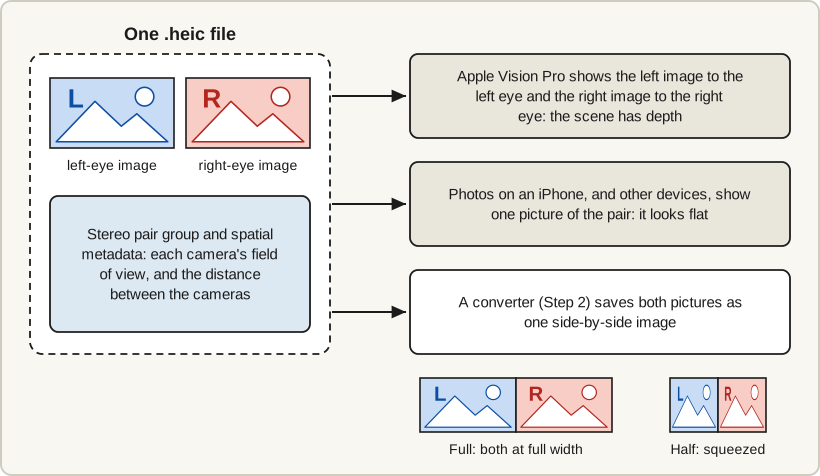
HEIC is the image format iPhones use, and a spatial photo is one .heic file with two pictures inside [1]. A spatial video is the same idea in motion. Our spatial video article covers it.
What is inside the file, in Apple's words
Apple's developer documentation defines the file as "a multi-image HEIC file containing a left-eye image and a right-eye image, a stereo pair group, plus spatial metadata" [1].
The metadata describes the cameras, such as each one's field of view and the distance between them, so a viewer can show the pair at the right size and depth [1]. The definition calls for no depth map: the 3D comes from the two views [1].
Spatial photo vs spatial scene vs regular photo
Apple uses "spatial" for two different photo features [4][6]. Most of the confusion about spatial photos comes from mixing them up.
| Kind | What it is | How you get one | Where it works | Does it last? |
|---|---|---|---|---|
| Regular photo | One image | Any camera mode | Everywhere | Yes |
| Spatial photo | One file with a left-eye and a right-eye image [1] | Spatial mode on a supported iPhone; a capture on a Vision Pro; Create Spatial Photo on a Vision Pro [3][5][6] | 3D on a Vision Pro, 2D elsewhere [3] | Yes: a file you keep and share |
| Spatial scene | A viewing effect on one photo [4] | The Spatial Scene button in the Photos app [7] | iPhone 12 or later, iPad and Vision Pro [4][7] | No: "a temporary change" [4] |
How to take a spatial photo (a 3D photo) on an iPhone
Use Spatial mode in the Camera app, on an iPhone that Apple lists for it.
Which iPhones take spatial photos
As of October 2026, Apple lists these models as able to capture spatial photos and videos [9]:
| iPhone | On Apple's list? |
|---|---|
| 15 Pro and 15 Pro Max | Yes, with iOS 18.1 or later [10] |
| 16, 16 Plus, 16 Pro and 16 Pro Max | Yes |
| 17, 17 Pro and 17 Pro Max | Yes |
| 18 Pro and 18 Pro Max | Yes |
| 16e, 17e, Air and Duo | No [9] |
The steps
From Apple's iPhone guide for iOS 27 [5]:
- Open Camera.
- Choose Spatial mode. Swipe right on the screen to reach it.
- Rotate the iPhone to landscape.
- Tap the Spatial Photo button. That way you take a photo and not a video.
- Tap the Shutter button.
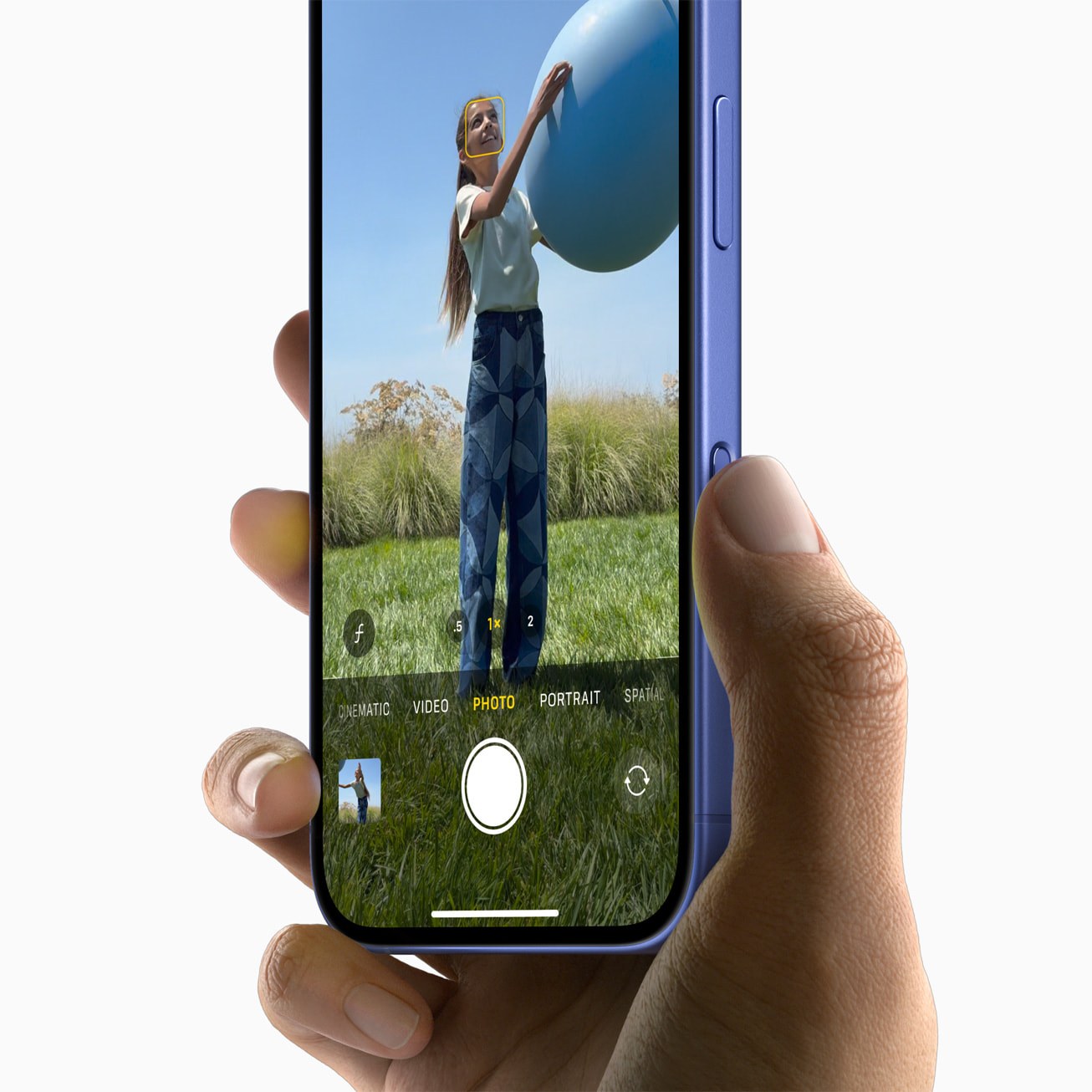
Keep the iPhone steady and level, within the distance and light limits described below [5]. For other cameras that shoot stereo pairs, see 3D cameras.
More on capture: iOS 18.1, the iPhone Duo, why landscape is required, capturing on a Vision Pro, and iCloud sync
iOS 18.1 added the Spatial camera mode [10]. The foldable Duo has two rear cameras, but Apple's specification page for it lists neither spatial photos nor spatial video [26], and UploadVR reported in September 2026 that Apple had not said why [11].
Landscape is required because the capture uses the Main and Ultra Wide cameras together [11], and with the phone on its side the two lenses sit left and right of each other, the way eyes do [12].
On an Apple Vision Pro, press the top button to open Capture, choose Photo, and press the top button again [3].
With iCloud Photos on, a spatial photo syncs to your other devices signed in to the same Apple Account [5].
Where spatial photos are saved on an iPhone
The photo is saved to your library like any other. In Photos, look under Media Types for the Spatial category; each item carries a SPATIAL label [13].
To copy it off the phone with both pictures intact, see Step 1 below.
How to turn a regular photo into a spatial photo
There are three ways, and in all three the depth is made by software, not captured by a second lens [11].
On a Vision Pro
- You get A spatial photo
- How Create Spatial Photo, in Photos [6]
With other software
- You get A stereo pair
- How An app such as i3DMovieMaker, or a desktop converter
The taps and the apps for each of the three routes
On a Vision Pro. In Photos, open a 2D photo, tap the Actions button at the top, then tap Create Spatial Photo. The result appears in the Spatial tab, and Undo Create Spatial reverses it [6].
On an iPhone. Create Spatial Photo is in Apple's Vision Pro guide; its iPhone guide has only the spatial scene effect [6][7].
With other software. i3DMovieMaker, an app for iPhone, iPad and Mac, converts 2D photos to 3D on some models (the iPhone 12 Pro and later Pro models, and some others) and can save the result as a spatial photo [14][2].
Owl3D, the publisher of this guide, has two ways to see an ordinary photo or video in 3D. Neither produces an Apple spatial photo file.
- Instant, on a screen. On the Owl3D Shift, a glasses-free 3D display, the Live 3D Screen feature converts any ordinary photo or video on its screen to 3D in real time, with no file to prepare.
- Highest quality, as a file. The Owl3D desktop app for Windows and Mac converts ordinary photo and video files with AI, on your own computer, and saves a side-by-side, half side-by-side or top-bottom picture, the layouts that VR headsets, 3D TVs, projectors and the Shift take. It is not instant; it gives the best 3D Owl3D makes. It has a free tier; see owl3d.com and pricing.
On the iPhone itself, the built-in route is the spatial scene.
How to do a spatial scene on iPhone (the 3D effect for any photo)
A spatial scene is the 3D photo effect that arrived with iOS 26, iPadOS 26 and visionOS 26 [4][23]. It works on photos you already have, on an iPhone 12 or later [7], and it has nothing to do with Spatial mode in the Camera.
- Open a photo. In the Photos app, tap a photo to view it full screen [7].
- Tap the Spatial Scene button [7]. It is a small hexagon icon; in iOS 26 it sat in the upper right corner [23].
- Move the iPhone in your hand. The picture shifts as if you were looking around inside it [7].
How the effect works, how long it lasts, and which photos suit it
For a spatial scene, software separates one photo into layers so you can look around inside it [4]. On a phone or tablet the picture shifts as you tilt the device, which AppleInsider compares to a lenticular poster [4]. The change ends when you close Photos [4], though a Lock Screen wallpaper can keep the effect [8].
It works on any 2D photo that is not a panorama [4], and MacRumors says a photo with a clear subject suits it [23]. The software does not invent what is hidden behind an object, so in AppleInsider's words "you'll just see a smeared background behind objects" [4].
How to set a spatial scene as your Lock Screen wallpaper
Customize the Lock Screen, choose a photo and tap the spatial effect button; the wallpaper then shifts as you move the phone [4][8].
The five steps for a spatial scene wallpaper, from Apple's iPhone guide
From Apple's iPhone guide for iOS 27 [8]:
- Wake the iPhone. Then touch and hold the Lock Screen.
- Add or pick a Lock Screen. Tap the add button to create a new Lock Screen, or swipe to the one you want to change and tap Customize.
- Choose a photo. MacRumors adds that iOS suggests photos from your library that suit the effect [23].
- Tap the spatial effect button. If the photo supports it, this button (Apple's guide labels the icon "the Spatial Capture button") adds the 3D effect; MacRumors describes the same control as a toggle that turns the effect on or off [23].
- Tap Add or Done. Then choose Set as Wallpaper Pair or Customize Home Screen.
What is the point of a spatial photo, and is it better than a regular photo?
The point is to record real depth now so that you can look at the moment in 3D later: Apple's description is that you take spatial photos and then "relive the memories in three dimensions" on a Vision Pro [5]. Seen as a flat photo, a spatial photo is not better than a regular one, and taking it costs you something:
- Landscape only, close subjects, good light. Spatial mode needs the phone turned sideways. Apple recommends subjects 3 to 8 feet from the camera and even, bright light [5].
- Modest depth. Apple's developer documentation gives the distance between the cameras that capture spatial video on the iPhone 15 Pro as 19.2 mm, and the average distance between human eyes as 64 mm [1].
- Probably fewer pixels. Apple publishes no resolution for spatial photos [25]. One of the two pictures comes from the Ultra Wide camera [11], and Apple's format requires both to cover the same field of view [1], so the wider one has to be cropped to match.
- Editing is uncertain. AppleInsider says spatial photos "can't be edited" [4]; iGeeksBlog says the Photos app's ordinary editing tools work on them [13]. Keep an untouched original.
What is known about light, depth and resolution, with the figures
On light, Cult of Mac reports a "More light recommended" warning in rooms that are not bright enough [12]. On depth, the maker of the app i3DMovieMaker writes that "The short distance between the cameras makes it suitable for capturing 3D images of nearby objects" [14].
| Kind of photo | Resolution |
|---|---|
| Regular photo | 24MP and 48MP in Apple's specifications [25] |
| Spatial photo | No figure in Apple's specifications [25] |
| Spatial photo on an iPhone 16 Pro | 12MP, by one developer's account [27] |
The 12MP figure comes from the developer of the camera app Spatialify, who told MIXED in September 2024 that the iPhone 16 Pro's 48MP Ultra Wide camera "can natively crop to a 12MP spatial photo frame" [27]. To see what your own phone recorded, open the photo, then swipe up or tap the Info button [33].
AppleInsider's advice is not to make Spatial your default camera mode, and to take both a regular photo and a spatial photo when you want the best result [4]. A workable rule: add the spatial photo when the subject is close, the light is good, and you have, or expect to have, a way to see 3D.
How to view spatial photos, with and without a Vision Pro
A Vision Pro shows a spatial photo as it is; most other routes need an app or a converted copy. What you see is one of three things:
- Captured pair: the two images your cameras took, one for each eye. This is the real 3D.
- Computed depth: software estimates depth from one image and builds the rest.
- Motion only: a spatial scene on a flat screen.
Several routes call for a converted copy: side-by-side (SBS), with the left-eye picture in the left half of one image and the right-eye picture in the right half [20], or anaglyph, which overlays the two in different colors, such as red and cyan, for glasses with matching filters [19]. The steps are in how to convert, after the table.
| Way to view | What you need | What you see |
|---|---|---|
| Apple Vision Pro | The headset, from $3,499 [15] | Captured pair |
| iPhone, iPad or Mac, built-in apps | Nothing extra | A flat photo [3]; a spatial scene adds motion only [4][7] |
| Meta Quest, Pico or a PC VR headset | immerGallery, $29.99 [16] | Captured pair |
| Glasses-free 3D screen | An Owl3D Shift, a computer and a side-by-side copy (below) | Captured pair |
Last checked : app prices.
Five more ways to view (an iPhone app, AR glasses, a 3D TV or projector, red-cyan glasses, no equipment), and notes on every row
| Way to view | What you need | What you see |
|---|---|---|
| iPhone, with a 3D photo app | Spatialify, $2.99 [29] | Captured pair |
| XREAL and similar AR glasses | i3DMovieMaker [14], or a side-by-side copy from a computer [17] | Captured pair |
| 3D TV or 3D projector | A side-by-side copy and the set's 3D glasses | Captured pair |
| Red-cyan glasses | An anaglyph copy [19]; see anaglyph 3D | Captured pair |
| No equipment | A side-by-side copy on any screen [20] | Captured pair |
- Vision Pro. The price is the one Apple gave when it announced the M5 model in October 2025 [15]. In Photos, tap Spatial in the tab bar [3].
- 3D photo app on the iPhone. Spatialify's App Store listing says it shows spatial photos on the phone "using parallel viewing, anaglyph glasses, wigglegram, or Cardboard" [29]. That means through glasses or a phone viewer, or by freeviewing (last row).
- VR headsets. The maker of the app immerGallery lists Apple spatial photos (.heic) as a supported format on Quest 2, Pro, 3 and 3S, on Pico headsets and on SteamVR for Windows. The demo is free and limited to 10 files per folder; the full version is $29.99 [16].
- AR glasses. From an iPhone 15 or a USB-C iPad, i3DMovieMaker's maker says the app shows 3D images on glasses such as the XREAL Air 2 and VITURE One [14]. XREAL's own page gives the side-by-side settings only for video [17]. From a computer, show a side-by-side copy full screen with the glasses' 3D Mode on: Full SBS at 3840 x 1080, Half SBS at 1920 x 1080 [17].
- 3D TV or projector. BenQ's TK710 projector, for one, accepts side-by-side 3D [18]. See 3D TVs and 3D projectors.
- No equipment. "Freeviewing" is looking through the pair with your eyes parallel until the two images merge. The cross-eyed method needs the two images swapped [20].
On the Quest, iPhone spatial videos have played since a February 2024 software update [24]; for stills, see the note below. For films in a headset, see how to watch movies in VR.
Without a Vision Pro, most routes start with the same two steps.
How to convert a spatial photo to side-by-side or anaglyph
First get the original file off the iPhone with both pictures in it, then convert it. An app on the phone can do both at once.
Step 1: Get the photo off the iPhone with both pictures in it
The second picture exists only in the original .heic file [1], so treat any copy that was converted to JPEG on the way as an ordinary flat photo. Check the result before you rely on it; how to tell is in the folded block below.
The easiest route is to convert on the phone: i3DMovieMaker and Spatialify (Step 2) read the spatial photo from your library and save a side-by-side image [2][14][29], an ordinary picture you can send any way you like.
Three ways to move the original .heic to a computer, and how to tell it worked
- AirDrop to a Mac. In Photos, tap the Share button, then Options. Choose Current "to prevent a file format conversion", or turn on All Photos Data "to share the original file" [30].
- USB cable to a Windows PC or a Mac. First open Settings, tap Apps, tap Photos, and choose Keep Originals; otherwise, Apple says, the photo "might be converted to JPEG" as it is imported [31]. On Windows, Apple's instructions use the Apple Devices app from the Microsoft Store [32].
- iCloud Photos. Apple says media shared through iCloud Photos "is preserved in its original format" [31]. Download the original from there, not an edited or converted copy.
Apple describes these settings for HEIC photos in general and does not mention spatial photos, so check the result.
How to tell it worked: the file ends in .heic, and a converter finds two pictures in it. spconv, for one, treats a HEIC with two images as a spatial photo and a HEIC with one image as a regular photo [22].
Step 2: Convert it to side-by-side or anaglyph
Side-by-side comes in two sizes. "Full" keeps both pictures at full width; "half" squeezes them into a normal frame [17]. Four tools read Apple's spatial photo files, according to their makers: spconv and StereoPhoto Maker on Windows, i3DMovieMaker on an iPhone, iPad or Mac, and Spatialify on an iPhone, iPad or Mac [22][19][14][29].
The four conversion tools: what each runs on, costs and saves, with versions and dates
| Tool | Runs on | Price | Saves |
|---|---|---|---|
| spconv | Windows | Free | Side-by-side JPEGs [22] |
| StereoPhoto Maker | Windows | Free | Side-by-side images; several kinds of anaglyph [19] |
| i3DMovieMaker | iPhone, iPad, Mac | Only saving videos needs an in-app purchase [14] | Side-by-side, half side-by-side or anaglyph [14][2] |
| Spatialify | iPhone, iPad, Mac | $2.99 | "common 3D formats for viewing on other VR devices" [29] |
- spconv. It batch-converts spatial photos from an iPhone or Vision Pro: pick the input folder or files, pick an output folder, click Start. Dated July 2, 2026 [22].
- StereoPhoto Maker. Version 6.41, dated July 11, 2026, opens Apple spatial photos. Reading them relies on a DLL file that has to sit in the same folder as the program [19].
- i3DMovieMaker. It opens photos from the Spatial album with the left and right images separate [14][2].
Last checked : what each maker says its tool reads, and the prices.
With a side-by-side copy in hand, one route needs no glasses at all.
How to view a spatial photo on a glasses-free 3D screen
A glasses-free 3D screen sends a different image to each eye from the screen itself, so there is nothing to wear (how that works). The Owl3D Shift shows the pair your iPhone captured, from a side-by-side copy.
Owl3D, the publisher of this guide, makes the Shift. It is a 14-inch display, priced at 499 US dollars, that sits beside a computer as a second monitor. It needs that computer to run the Owl3D app, and it does not open a spatial photo's .heic file directly. The route:
- Convert the spatial photo to a side-by-side image. Use one of the tools in Step 2: the Owl3D app is a 2D-to-3D converter and does not turn one 3D layout into another, so this step needs a separate tool.
- Open the Stereo 3D Playback tab in the Owl3D app and press Start. Leave the format setting on Auto, or set it to Side-by-side.
- Show the side-by-side picture on the Shift's screen. Any image viewer will do: the Shift detects the layout from the picture itself, not from the app that is showing it, and renders it in 3D. Use full screen if the "Fullscreen only" option is on, or if your computer has AMD or Intel graphics, where Stereo 3D Playback works in fullscreen only.
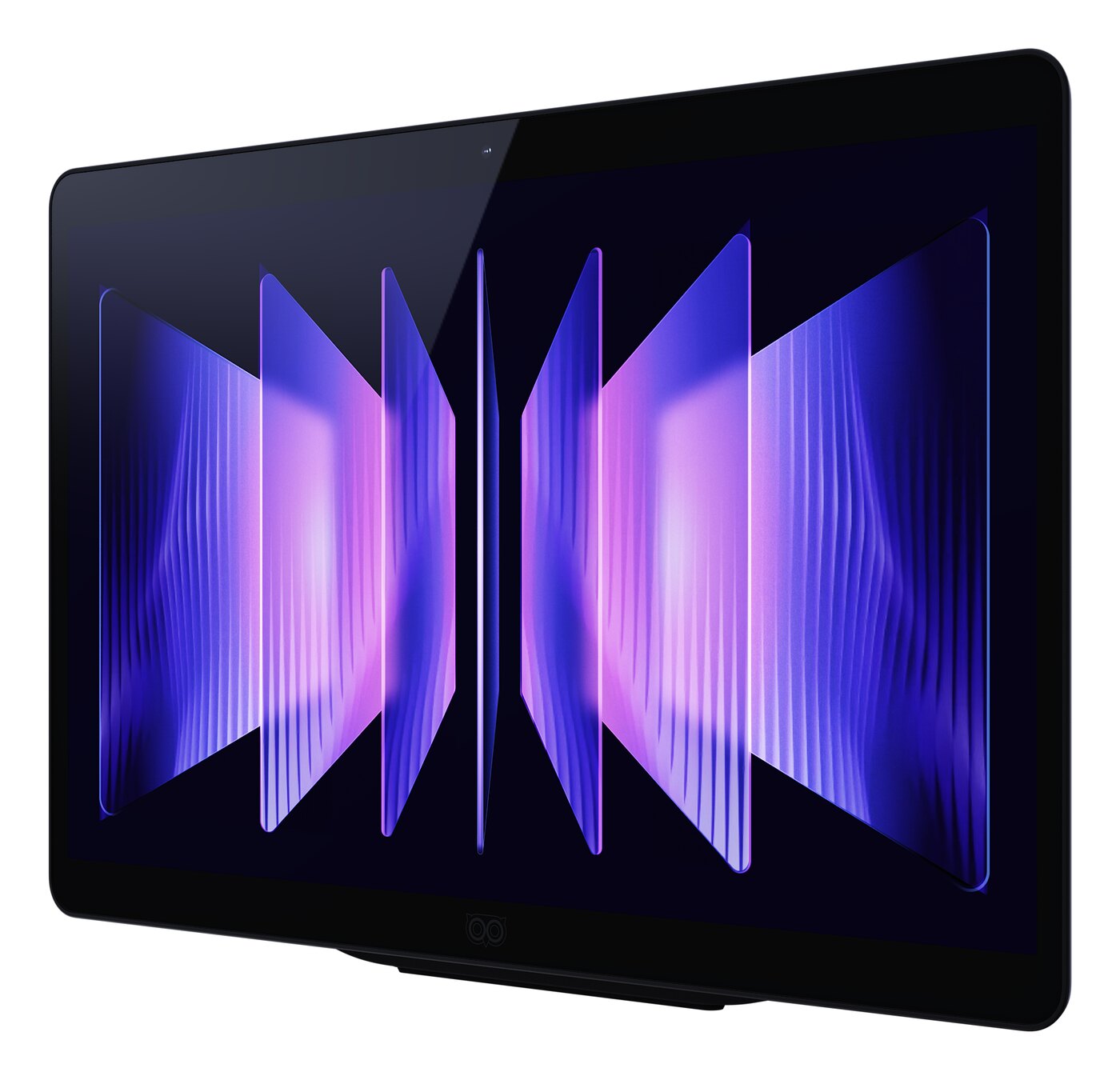
This is playback, not conversion: each eye sees one of the two pictures your iPhone took. The Shift's limits: it shows 3D to one viewer at a time, it is a 14-inch desk display, and each eye gets 1920 x 2160 pixels in 3D. Other models are in glasses-free 3D monitors compared.
Another glasses-free screen works differently. The Looking Glass Go, a 6-inch display priced at $199 on its maker's store, has a phone app that its maker says turns "2D images into holographic memories"; the store page does not mention Apple spatial photos, so expect depth computed from a single image, not your captured pair [21].
Last checked : the Looking Glass Go's price.
More on the Shift: supported layouts, what the computer needs, and ordinary 2D photos
Full side-by-side, half side-by-side and top-bottom layouts are all supported. For this route the Shift page lists an NVIDIA GTX 1650 or Radeon RX 570 graphics card or better, and on a Mac any Shift feature needs macOS 15.5 or later.
For an ordinary 2D photo, the Shift's Live 3D Screen feature converts whatever is on its screen to 3D instantly, in real time. That needs an NVIDIA RTX 30-series graphics card or newer, or a Mac with Apple Silicon (M1 Pro or better recommended; a MacBook Air works but can stutter unless it is kept cool). Like the app's 3D Photo Viewer, it shows computed depth, so do not use either for a spatial photo: they would not show the pair your iPhone captured.
Frequently asked questions
How do I take a 3D photo on an iPhone?
There are two ways. Spatial mode in the Camera app takes a true 3D photo, on the models and with the steps listed above [5][9]. On any iPhone 12 or later, the Spatial Scene button in Photos gives an existing photo a 3D effect, though it does not make a 3D file [7].
Is there a 3D photo app for iPhone?
Not for taking one: on a supported iPhone the built-in Camera app does it [5]. For viewing and converting, the two apps described above are Spatialify ($2.99), which shows spatial photos in 3D on the phone itself [29], and i3DMovieMaker, which is free for photos and can also make 3D from a 2D photo on some models [14].
Can I turn off spatial photos on my iPhone?
Spatial is a separate Camera mode, so swipe back to Photo to stop taking them [5]. A spatial scene in Photos is temporary and ends when you close the app [4]. On the Lock Screen, touch and hold, tap Customize, and tap the spatial effect button to turn the 3D effect off [8][23]. On a Vision Pro, Spatial Off shows the 2D version of a converted photo [6].
Sources (33)
- Apple Developer Documentation, "Creating spatial photos and videos with spatial metadata". https://developer.apple.com/documentation/imageio/creating-spatial-photos-and-videos-with-spatial-metadata (opened 2026-10-07)
- Masuji Suto, i3DMovieMaker help, "Read/write spatial video/spatial photos". https://stereo.jpn.org/eng/iphone/i3dmoviemaker/spatial/index.html (opened 2026-10-07)
- Apple Support, Apple Vision Pro User Guide, "Capture, view, and share spatial photos and videos on Apple Vision Pro". https://support.apple.com/guide/apple-vision-pro/capture-dev7068c3c93/visionos (opened 2026-10-07)
- AppleInsider, "How Spatial Scenes & Spatial Photos on Apple Vision Pro add depth to your memories", by Wesley Hilliard, November 6, 2025. https://appleinsider.com/articles/25/11/07/spatial-scenes-spatial-photos-add-depth-to-your-memories-but-in-different-ways (opened 2026-10-07)
- Apple Support, iPhone User Guide (iOS 27), "Take spatial photos and record spatial videos for Apple Vision Pro with your iPhone camera". https://support.apple.com/guide/iphone/spatial-photos-record-videos-apple-vision-iph6e3a6d4fe/ios (opened 2026-10-07)
- Apple Support, Apple Vision Pro User Guide, "Create a spatial photo or view a spatial scene in Photos on Apple Vision Pro". https://support.apple.com/guide/apple-vision-pro/tan1be9a3a0b/visionos (opened 2026-10-07)
- Apple Support, iPhone User Guide (iOS 27), "View photos and videos on iPhone". https://support.apple.com/guide/iphone/view-photos-and-videos-iph3d267610/ios (opened 2026-10-07)
- Apple Support, iPhone User Guide (iOS 27), "Create a custom iPhone Lock Screen". https://support.apple.com/guide/iphone/create-a-custom-lock-screen-iph4d0e6c351/ios (opened 2026-10-07)
- Apple Support, iPhone User Guide (iOS 27), "Models that capture spatial photos and videos". https://support.apple.com/guide/iphone/aside/ipheee23829a/27/ios/27 (opened 2026-10-07)
- Apple Support, "About iOS 18 Updates". https://support.apple.com/en-us/121161 (opened 2026-10-07)
- UploadVR, "iPhone Duo Seemingly Can't Capture Spatial Photos Or Video", by Craig Storm, September 11, 2026. https://www.uploadvr.com/iphone-duo-seemingly-cant-capture-spatial-photos-or-video/ (opened 2026-10-07)
- Cult of Mac, "How to record spatial video on your iPhone for mind-blowing 3D memories", by D. Griffin Jones, updated November 7, 2025. https://www.cultofmac.com/how-to/record-3d-video-iphone (opened 2026-10-07)
- iGeeksBlog, "How to capture spatial photos and videos on iPhone 17, iPhone 16 and 15 Pro series", by Jibin Joseph, updated March 30, 2026. https://www.igeeksblog.com/how-to-record-spatial-video-on-iphone/ (opened 2026-10-07)
- Masuji Suto, "i3DMovieMaker HELP". https://stereo.jpn.org/eng/iphone/i3dmoviemaker/index.html (opened 2026-10-07)
- Apple Newsroom, "Apple Vision Pro upgraded with the powerful M5 chip and comfortable Dual Knit Band", press release, October 15, 2025. https://www.apple.com/newsroom/2025/10/apple-vision-pro-upgraded-with-the-m5-chip-and-dual-knit-band/ (opened 2026-10-07)
- immerVR, "immerGallery". https://immervr.com/ (opened 2026-10-07)
- XREAL Tutorials, One Series, "3D Mode". https://tutorials.xreal.com/docs/glasses/one-series/osd/3d-mode/ (opened 2026-10-07)
- BenQ US, "TK710 Specifications". https://www.benq.com/en-us/projector/home-projectors/tk710/spec.html (opened 2026-10-07)
- Masuji Suto, "StereoPhoto Maker (English)". https://stereo.jpn.org/eng/stphmkr/ (opened 2026-10-07)
- Wikipedia, "Stereoscopy", section "Freeviewing". https://en.wikipedia.org/wiki/Stereoscopy (opened 2026-10-07)
- Looking Glass Factory store, "Looking Glass Go". https://checkout.lookingglassfactory.com/products/looking-glass-go (opened 2026-10-07)
- Masuji Suto, "spconv" (HEIC batch converter). https://suto.bex.jp/spconv/index.html (opened 2026-10-07)
- MacRumors, "iOS 26: Turn Photos Into 3D Spatial Scenes", by Tim Hardwick, October 2, 2025. https://www.macrumors.com/how-to/ios-3d-lock-screen-effect-spatial-scenes/ (opened 2026-10-07)
- Road to VR, "Quest Now Natively Supports Spatial Video Originally Meant for Vision Pro", by Scott Hayden, February 1, 2024. https://roadtovr.com/quest-spatial-video-support-vision-pro/ (opened 2026-10-07)
- Apple, "iPhone 18 Pro and 18 Pro Max - Technical Specifications". https://www.apple.com/iphone-18-pro/specs/ (opened 2026-10-07)
- Apple, "iPhone Duo - Technical Specifications". https://www.apple.com/iphone-duo/specs/ (opened 2026-10-07)
- MIXED, "With the iPhone 16, Spatial Videos & Photos are now a standard feature", by Tomislav Bezmalinovic, September 10, 2024. https://mixed-news.com/en/iphone-16-spatial-capture-standard-feature/ (opened 2026-10-07)
- MIXED, "Take a look at these beautiful spatial photos on your Meta Quest", by Tomislav Bezmalinovic, May 24, 2024. https://mixed-news.com/en/meta-quest-spatial-photos-collection-croatia/ (opened 2026-10-07)
- Apple App Store, "Spatialify" (version 2.6). https://apps.apple.com/us/app/spatialify/id6471922894 (opened 2026-10-07)
- Apple Support, iPhone User Guide (iOS 27), "Share photos and videos on iPhone". https://support.apple.com/guide/iphone/share-photos-and-videos-iphf28f17237/ios (opened 2026-10-07)
- Apple Support, "Using HEIF or HEVC media on Apple devices", published December 5, 2025. https://support.apple.com/en-us/116944 (opened 2026-10-07)
- Apple Support, "Transfer photos and videos from your iPhone or iPad to your Mac or PC", published September 14, 2026. https://support.apple.com/en-us/120267 (opened 2026-10-07)
- Apple Support, iPhone User Guide (iOS 27), "See photo and video information on iPhone". https://support.apple.com/guide/iphone/see-photo-and-video-information-iph0edb9c18f/27/ios/27 (opened 2026-10-07)