Samsung TV 3D Mode: How to Turn It On and Which Mode to Pick
How we researched this: written by Owl3D from published sources, all 12 listed at the end.
Short answer
Press 3D on the remote, or open Menu > Picture > 3D, then set 3D Mode to match the picture: two pictures next to each other take Side by Side (called L/R from 2013), two pictures one above the other take Top & Bottom (T/B) [2][4]. On 2012 sets the modes show as icons, not names: Side by Side is the one that "Displays two images next to each other." [3] Put on the glasses and switch them on [1][7]. Samsung's manuals show 3D on models from 2010 to 2015; the 2016 manual we checked has no 3D at all [1][7][8].
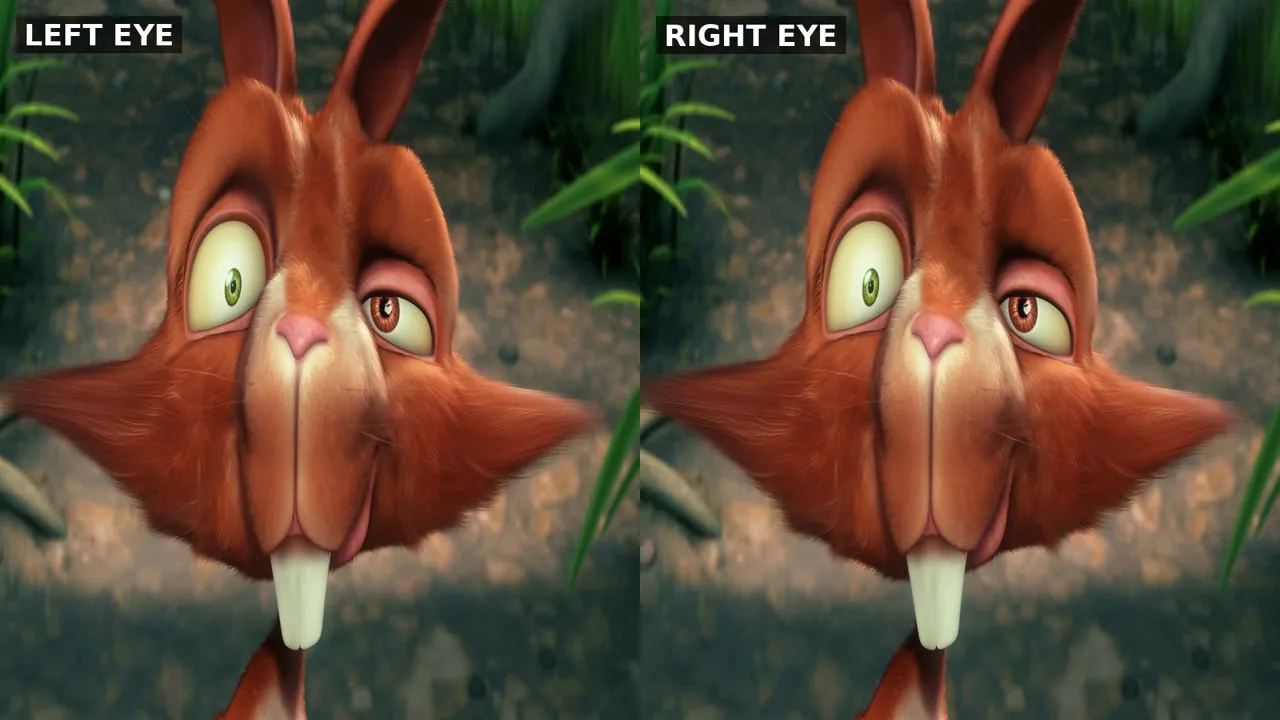
A side-by-side 3D picture, the layout that 3D Mode "Side by Side" (or "L/R") reads. We made it from Big Buck Bunny 3D, 5 minutes 40 seconds in, with each eye's half labeled. Image: © Blender Foundation, bigbuckbunny.org, CC BY 3.0. We have not tested it on a Samsung TV ourselves.
Key takeaways
- Find your model year and its menu path in the table. Model letters C to J are 2010 to 2015.
- Two pictures on the screen means the 3D Mode does not match the file: what you see, what to change.
- The glasses must match the year: 2010 sets use infrared glasses, and from 2011 Samsung's manuals say infrared glasses are not supported [2]. 2011 to 2013 sets take RF glasses such as the SSG-5100GB [5]. Pairing.
- Check the set with our free 10-second test clip on a USB stick.
Where is 3D on my Samsung TV?
Look for your model's year, then use its path. These are the paths printed in Samsung's manuals for each year; the menu can differ a little by model [2][9].
| Year (letter) | 3D models in Samsung's manuals | How to open 3D | 3D Mode names |
|---|---|---|---|
| 2010 (C) | UE40C7000 [1] | 3D button, or CONTENT > Content View > 3D [1] | Off, 2D → 3D, Side by Side, Top & Bottom, and more [1] |
| 2011 (D) | Manual of the UN55D7000; some items for LED 7000 and PDP 8000 and above [2] | 3D button, or MENU > Picture > 3D [2] | Off, 2D → 3D, Side by Side, Top & Bottom, and more [2] |
| 2012 (E) | UN55ES7500, PN60E8000 plasma [3][11] | Menu > Picture > 3D [3] | Off, then icons with no names, such as "Displays two images next to each other" [3] |
| 2013 (F) | UN55F8000, PN64F8500 plasma [4][12] | 3D button, or Menu > Picture > 3D > 3D Mode [4][12] | Off, Normal, L/R, T/B, and more [4] |
| 2014 (H) | LED 6400 to 7100 manual (UN55H7150); 3D on the LED 6400 series and higher [6] | 3D button, or MENU > Picture > 3D > 3D Mode; LED 6800: MENU > Picture [6] | Off, Normal, L/R, T/B, each with an icon [6] |
| 2015 (J) | UN48JU7500 [7] | MENU/123 > MENU > Picture > 3D; the 3D key is on the On-Screen Remote [7] | Off and Normal are listed; the others depend on the content [7] |
| 2016 (K) | None: the KS9500 and KS8000 manual has no 3D [8] | — | — |
Not every model of a year had 3D. The 2015 manual says the 3D function "is not available on certain models in specific geographical areas" [7]. A Samsung TV made without 3D cannot get it later: Samsung says it cannot be upgraded [10]. Which lines had 3D, by brand and year: 3D TV brands.
What you see, and which setting to change
| What you see | What to change |
|---|---|
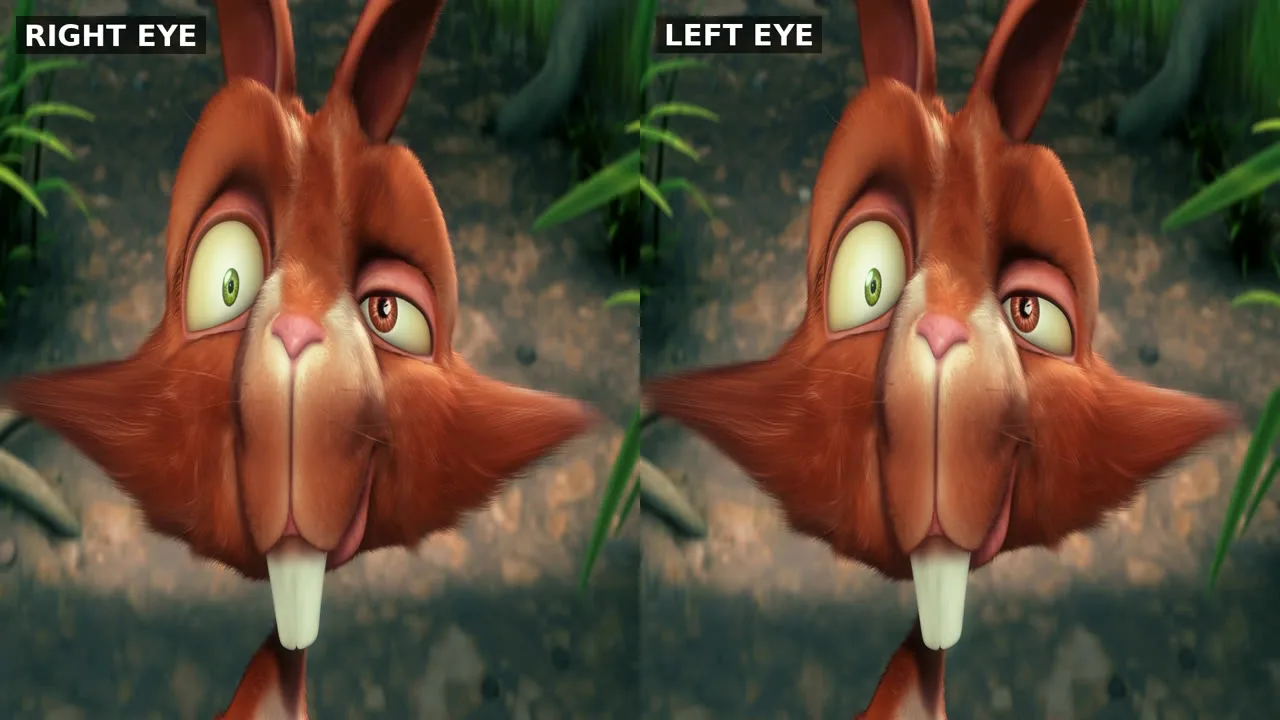
| Two pictures next to each other | 3D Mode: Side by Side (2010-2011; an icon on 2012) or L/R (2013 on) [2][3][4] |
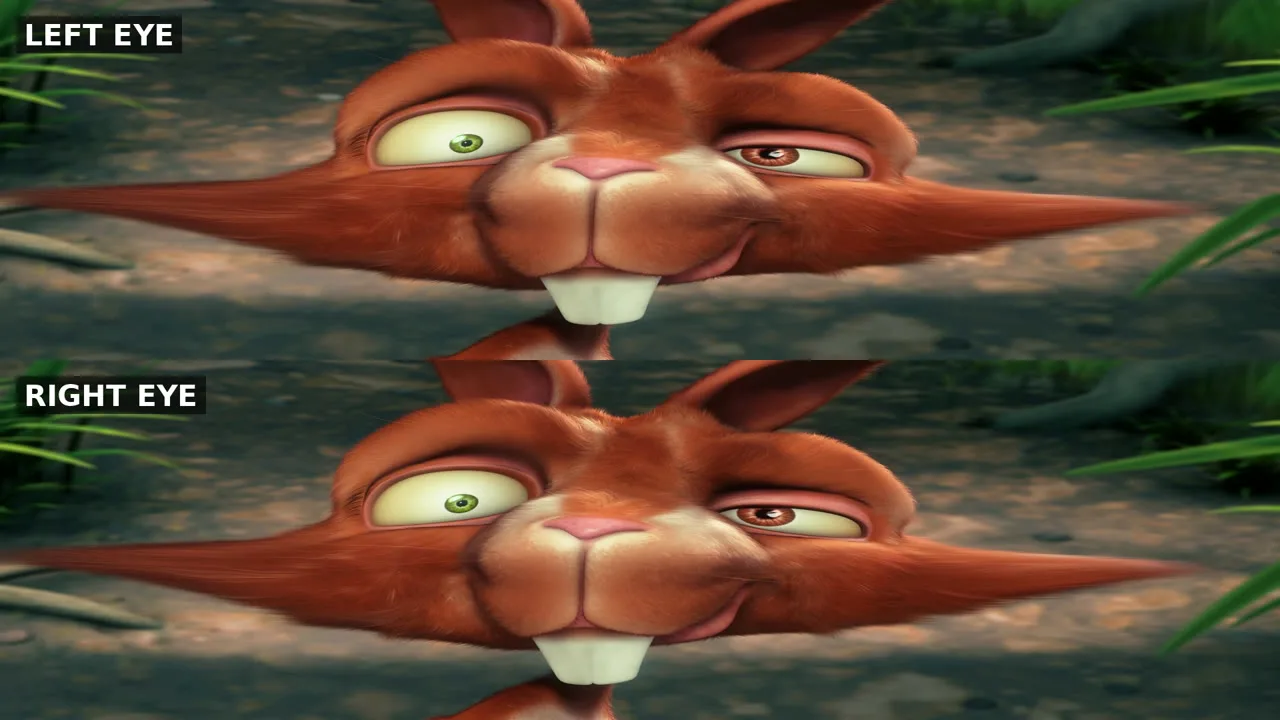
| Two pictures, one above the other | 3D Mode: Top & Bottom or T/B [2][4] |
| The two pictures overlap just after you turn on the TV | Wait: "It takes a moment for the display to optimize and the overlapping to stop." [6][7] |
| Depth looks inside out: near things seem far | L/R Change, which swaps the left and right pictures [2] |
| One flat picture, no depth | If the source is 2D, 2D → 3D (Normal from 2013) is the TV's own conversion of it [2][4] |
| Depth cannot be set | Nothing: Depth cannot be used when 3D Mode is L/R or T/B [4][6] |
| 3D went off when you opened Smart Hub | Nothing: "Running the Smart Hub automatically deactivates 3D viewing." [4] |
| Blurred, doubled picture with the glasses on | Check that the glasses are switched on and paired: pairing [5] |
From a 3D Blu-ray player or another HDMI source, the TV can switch by itself. With 3D Auto View set to On, it "switches the TV to 3D automatically" [2]. In 2011 that setting is on the LED 7000 and PDP 8000 series and above [2]; Samsung's 2013 LED manual says it is for the LED 7450/7500 and 8000 series only [4]. If the TV stays in 2D, press 3D.
If nothing helps, Samsung's own order is: check the 3D settings in the menu, check the cable to the player or box, update the TV's firmware, then reset under Menu > Support > Self-diagnosis > Reset [9]. On 2014 sets, MENU > Support > Self Diagnosis > 3D Picture Test shows a 3D test picture; you must wear paired glasses [6]. If that test looks right, Samsung says the problem may be the other device [6].
Which glasses work, and how do I pair them?
Samsung 3D TVs take active glasses, and the type changed after 2010:
- 2010 (C): infrared glasses such as the SSG-2200AR [1][2]. Nothing may stand between them and the TV's 3D emitter [1]. Wear them and press their power button [1].
- 2011 to 2015 (D to J): Samsung's 2011, 2014 and 2015 manuals say the older infrared glasses and other makers' glasses are not supported [2][6][7]. The SSG-5100GB uses the 2.4 GHz RF band and is for the D, E and F series, 2011 to 2013 [5].
To pair the SSG-5100GB, from Samsung's manual [5]:
- Turn on the TV and hold the glasses within 19.5 inches (50 cm) of it.
- Press the power button on the glasses briefly.
- Wait for the message "3D glasses are connected to TV." on the screen.
If the first try fails, turn the TV off and on again and press the power button on the glasses again [5].
To pair again, press the power button for more than 1 second [5]. Glasses paired with one Samsung TV must be paired again for another [5]. Samsung recommends a viewing distance of 2 to 6 m (6.5 to 19.5 ft) [5]. Samsung's 2011 manual puts the ideal distance at three times the screen height or more [2].
Test your TV with our 3D clip
We made a 10-second half side-by-side clip for this page: H.264, 1920 x 1080, 30 frames a second, no sound, each eye labeled. Samsung's 2011 manual lists Side by Side for 720p, 1080i and 1080p in USB mode [2].
Download the test clip (MP4, 4.1 MB)
- Copy the file to a USB stick and play it from the TV's media player.
- Press 3D (or open the 3D menu) and pick Side by Side (or L/R). Put on the glasses.
- Close your right eye. You should read LEFT EYE. If you read RIGHT EYE, use L/R Change.
We made the clip on November 22, 2026 and have not played it on a Samsung TV. If the media player does not open it, check the video formats in your TV's manual.
What can I watch in 3D now?
- 3D Blu-ray in a 3D Blu-ray player, over HDMI [9].
- Free 3D films you can download: free 3D movies.
- 3D files from a USB stick, a PC or a media box: play 3D files on a TV.
- Your own 2D videos. The Owl3D app takes an .mp4 video and can save it as half side-by-side 3D, a format aimed at older 3D TVs. You can copy that file to USB and try Side by Side, as for the test clip; we have not tested this on a Samsung TV. It is an AI conversion, not a studio 3D version, and it is not instant. Owl3D makes this app and publishes this guide. More: convert a video to 3D for a TV.
Frequently asked questions
Can my Samsung TV do 3D?
If the menu has a 3D item (under Picture; on 2010 sets, under CONTENT > Content View), yes [1][2]. Samsung's manuals show 3D on models from 2010 to 2015, not on every model [7]. A Samsung TV without 3D cannot be upgraded to it [10].
How do I turn off 3D on a Samsung TV?
Press 3D [4][6], or set 3D Mode to Off: "Turns the 3D function off." [2] If the TV keeps switching back to 3D, set 3D Auto View to Off [2][4].
Can I watch normal TV and Blu-rays in 3D?
The 2D → 3D mode ("Normal" from 2013) "Changes a 2D image to 3D" [2]. It is the TV's own conversion of a flat picture. Real 3D needs a 3D source: a 3D Blu-ray or a 3D file.
Sources (12)
- Samsung, UE40C7000 user manual, BN68-02590D (UK, 2010). https://org.downloadcenter.samsung.com/downloadfile/ContentsFile.aspx?CDSite=UNI_UK&OriginYN=N&ModelType=N&ModelName=UE40C7000WK&CttFileID=2962459&CDCttType=UM&VPath=UM%2F201005%2F20100529104208765%2FBN68-02590D-03Eng-0517.pdf (opened 2026-11-22)
- Samsung, D-series e-Manual GPATSCA (2011), linked from the UN55D7000LF support page. https://org.downloadcenter.samsung.com/downloadfile/ContentsFile.aspx?CDSite=UNI_CA&OriginYN=N&ModelType=N&ModelName=UN55D7000LF&CttFileID=3847156&CDCttType=UM&VPath=UM%2F201201%2F20120128100021210%2F%5BENG_US%5DGPATSCA-1025.pdf (opened 2026-11-22)
- Samsung, E-series e-Manual EPATSCE (2012), linked from the UN55ES7500F support page. https://org.downloadcenter.samsung.com/downloadfile/ContentsFile.aspx?CDSite=UNI_CA&OriginYN=N&ModelType=N&ModelName=UN55ES7500F&CttFileID=4957344&CDCttType=UM&VPath=UM%2F201208%2F20120821134242408%2F%5BENG_US%5DWEB-EPATSCE-2003-0821.pdf (opened 2026-11-22)
- Samsung, F-series e-Manual FPATSCF (2013), linked from the UN55F8000AF support page. https://org.downloadcenter.samsung.com/downloadfile/ContentsFile.aspx?CDSite=UNI_CA&OriginYN=N&ModelType=N&ModelName=UN55F8000AF&CttFileID=5362270&CDCttType=UM&VPath=UM%2F201312%2F20131223184830406%2F%5BENG_US%5DFPATSCF-4.103.pdf (opened 2026-11-22)
- Samsung, UF8000 user manual with the SSG-5100GB 3D glasses section, BN68-04786B (2013). https://org.downloadcenter.samsung.com/downloadfile/ContentsFile.aspx?CDSite=UNI_CA&OriginYN=N&ModelType=N&ModelName=UN55F8000AF&CttFileID=5387655&CDCttType=EM&VPath=EM%2F201405%2F20140507112449270%2F%5BUF8000-ZC%5DBN68-04786B-08L02-1029.pdf (opened 2026-11-22)
- Samsung, H-series e-Manual X14ATSCH (2014), linked from the UN55H7150AF support page. https://org.downloadcenter.samsung.com/downloadfile/ContentsFile.aspx?CDSite=UNI_CA&OriginYN=N&ModelType=N&ModelName=UN55H7150AF&CttFileID=7142817&CDCttType=UM&VPath=UM%2F201810%2F20181011112851146%2FENG_US_X14ATSCH-1.128.pdf (opened 2026-11-22)
- Samsung, J-series UHD e-Manual HMUATSCJ (2015), linked from the UN48JU7500F support page. https://org.downloadcenter.samsung.com/downloadfile/ContentsFile.aspx?CDSite=UNI_CA&OriginYN=N&ModelType=N&ModelName=UN48JU7500F&CttFileID=5981364&CDCttType=UM&VPath=UM%2F201512%2F20151210090904492%2FENG_US-HMUATSCJ-1.318-1203.pdf (opened 2026-11-22)
- Samsung, K-series e-Manual JZATSCK (2016), linked from the UN65KS9500F and UN65KS8000F support pages. https://org.downloadcenter.samsung.com/downloadfile/ContentsFile.aspx?CDSite=UNI_CA&OriginYN=N&ModelType=N&ModelName=UN65KS9500F&CttFileID=6648635&CDCttType=UM&VPath=UM%2F201612%2F20161209095658187%2FENG_US-JZATSCK-1.2.2.pdf (opened 2026-11-22)
- Samsung Hong Kong support, "What can I do if I am unable to view 3D content on my Samsung 3D TV?" (updated January 23, 2026). https://www.samsung.com/hk_en/support/tv-audio-video/what-can-i-do-if-i-am-unable-to-view-3d-content-on-my-samsung-3d-tv (opened 2026-11-22)
- Samsung New Zealand support, "Can the Samsung TV which does not support 3D TV be upgraded to do so?" (updated November 23, 2020). https://www.samsung.com/nz/support/tv-audio-video/can-the-samsung-tv-which-does-not-support-3d-tv-be-upgraded-do-so (opened 2026-11-22)
- Samsung, E-series e-Manual EPATSCE (2012), linked from the PN60E8000GF plasma support page. https://org.downloadcenter.samsung.com/downloadfile/ContentsFile.aspx?CDSite=UNI_CA&OriginYN=N&ModelType=N&ModelName=PN60E8000GF&CttFileID=4957350&CDCttType=UM&VPath=UM%2F201204%2F20120403095159112%2F%5BWeb_ENG_US%5DEPATSCE-1014.pdf (opened 2026-11-22)
- Samsung, F-series plasma e-Manual FP9ATSCF (2013), linked from the PN64F8500AF support page. https://org.downloadcenter.samsung.com/downloadfile/ContentsFile.aspx?CDSite=UNI_CA&OriginYN=N&ModelType=N&ModelName=PN64F8500AF&CttFileID=5365773&CDCttType=UM&VPath=UM%2F201308%2F20130813133457441%2F%5BENG_US%5DFP9ATSCF-3.104.pdf (opened 2026-11-22)