3D Subtitles: How to Convert Subtitles for a Side-by-Side 3D Movie
How we researched this: written by Owl3D from published sources, all 5 listed at the end.
Short answer
A normal .srt subtitle is drawn once, in the middle of the whole picture. In a side-by-side (SBS) 3D file the middle is the seam between the left-eye and right-eye views, so each eye gets half of the line [1]. The fix is to give each eye its own copy of the line, in the same place in its half. You can do that in three ways: a player setting, a subtitle file made for 3D, or a copy of the video with the line burned into both halves.
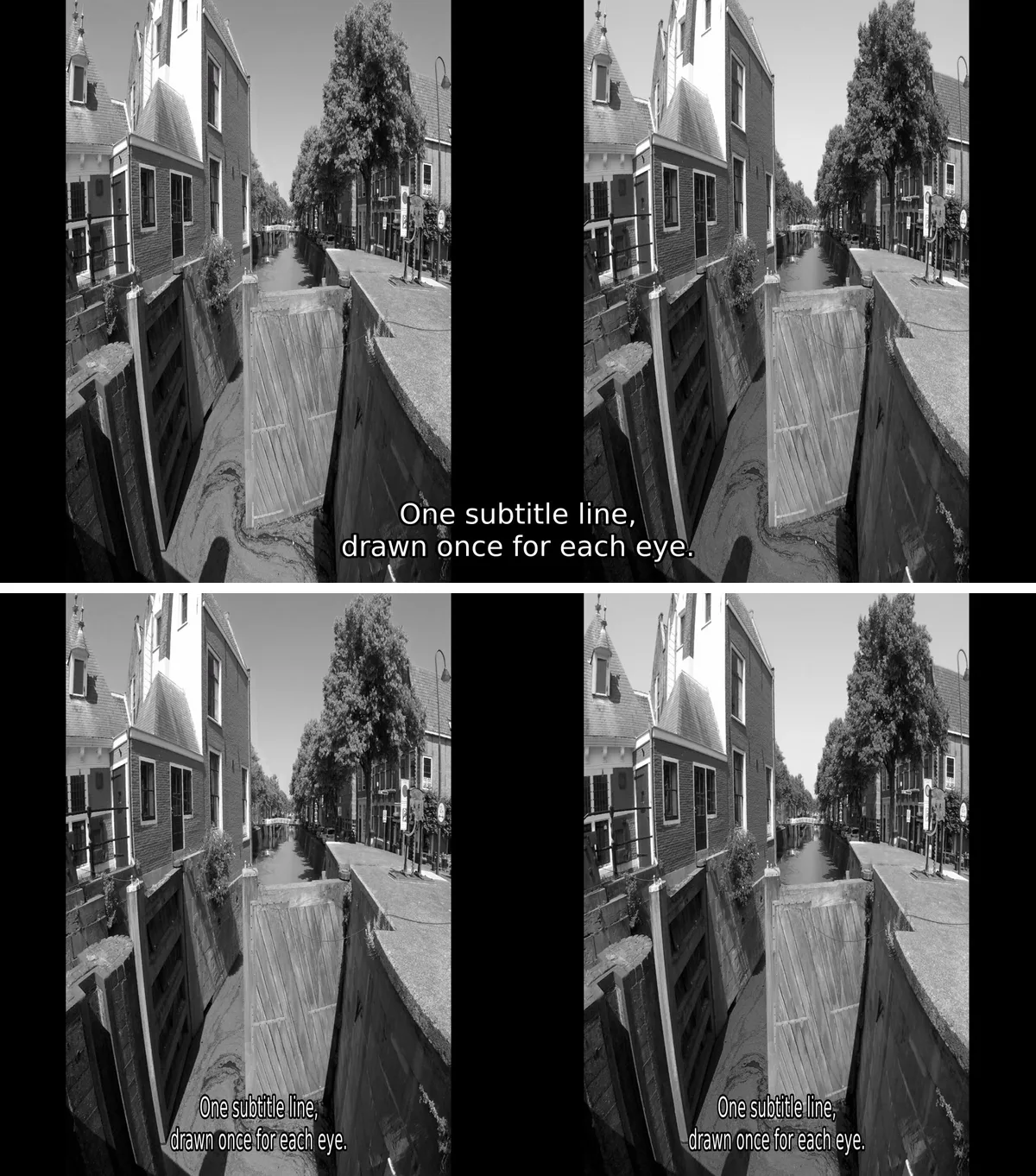
Top: an .srt drawn over the whole half SBS frame, as a player with no 3D subtitle setting does. Bottom: the same .srt burned into each half with the ffmpeg command below. Made by Owl3D on November 21, 2026, from "Gouda 3D GoPro" (Wim Hoppenbrouwers, public domain).
Key takeaways
- A subtitle splits because the player draws it before the picture is split into two eyes. See why.
- Quickest fix: a player that draws subtitles for each eye, such as mpv with a 3D layout option. See player fix.
- Keep the video as it is and convert only the .srt into a 3D .ass file. See 3D subtitle file.
- For any screen or player: burn the line into both halves with one ffmpeg command. See burn in.
Why do subtitles split or show twice in a 3D movie?
A side-by-side file holds two pictures in one frame: the left eye's view on the left, the right eye's view on the right. A 3D TV, a VR player or a 3D screen cuts the frame in two and shows each half to one eye. A player that draws the .srt first puts the line in the centre of the full frame, across that cut [1]. After the cut, each eye sees half a sentence.
Two other faults come from the same cause:
- Letters too wide. In half SBS each view is squeezed to half width, and the 3D display stretches it back. The display stretches a line drawn on top of the frame too, unless it was squeezed the same way first [3].
- The line shows twice, side by side. The subtitle is already made for 3D, with one copy for each half, but the player shows the frame flat. Turn on the player's or the TV's side-by-side 3D mode.
Can my player show subtitles in 3D?
Some can. The player must know the file is side by side and draw the subtitle once in each half.
In mpv (free, Windows, macOS, Linux), the option --vf=format:stereo-in=sbs2l tells mpv the 3D layout. A user in the mpv issue tracker wrote in 2022 that subtitles are then adjusted to match [2]. The same user said you will probably also need two things [2]:
- An .ass subtitle (ffmpeg converts an .srt:
ffmpeg -i movie.srt movie.ass). - The option
--sub-ass-force-style=ScaleX=0.5for half SBS, so the letters are not stretched with the picture. Since mpv 0.37.0 this option is called--sub-ass-style-overrides[5].
The full line for a half SBS film in mpv 0.37.0 or newer:
mpv --vf=format:stereo-in=sbs2l --sub-file=movie.ass --sub-ass-style-overrides=ScaleX=0.5 movie-hsbs.mkv
--vf=format:stereo-in=help lists the other layouts [2][5]. We have not tested this line in mpv. In 2019 a reply in the same issue said 3D was "barely supported anymore" [2].
In VR headset players, subtitle support differs from app to app and version to version. Check the app's own settings for a 3D or SBS subtitle option. If there is none, use one of the two fixes below.
How do I convert an .srt into a 3D subtitle file?
A 3D subtitle file is an .ass file with two copies of every line, one for each eye's half of the frame [1][3]. Any player that reads .ass subtitles then draws both. The video file stays as it is.
| Tool | What it makes | Layouts | Runs on |
|---|---|---|---|
| SRTto3Dsubtitles (free, MIT) | .ass from .srt | SBS, over-under, red-green anaglyph | CLI on Windows, Linux, macOS. GUI on Windows [1] |
| sub3dtool | .ass from .srt or .ass | Top-bottom in the example we found | Command line [3] |
With SRTto3Dsubtitles, a command for a 1080p side-by-side film, made from the options in its README, is [1]:
ConvertSRTto3DASS.exe movie.srt --mode sbs --resx 1920 --resy 1080
Its default settings use 1280 x 720, so set --resx and --resy to your video's size [1]. Its own notes say positions stored in the .srt are removed in the conversion [1]. They also call it a personal hobby project with some rough edges, and call the GUI experimental [1]. For sub3dtool, the example in the mpv tracker for top-bottom is sub3dtool --3dtb -o output.ass input.srt [3].
How do I burn subtitles into both halves of an SBS video?
Burning in draws the line into the picture itself. It is the fix that works on every screen, because the player has nothing to draw. It means a new encode of the video, and the subtitle can no longer be turned off. You need ffmpeg with its subtitles filter, which needs a build with libass [4]. ffmpeg -filters lists subtitles when your build has it.
- Put the video and the .srt in one folder and open a terminal there. Short file names with no spaces avoid escaping trouble in the filter.
- For a half SBS file (for example 1920 x 1080, each view squeezed): each half is cut out, stretched to full width, given the subtitle, then squeezed back. The letters come out the right shape after your 3D display stretches the view.
ffmpeg -i movie-hsbs.mp4 -filter_complex "[0:v]split[a][b];[a]crop=iw/2:ih:0:0,scale=iw*2:ih,setsar=1,subtitles=movie.srt,scale=iw/2:ih,setsar=1[l];[b]crop=iw/2:ih:iw/2:0,scale=iw*2:ih,setsar=1,subtitles=movie.srt,scale=iw/2:ih,setsar=1[r];[l][r]hstack[v]" -map "[v]" -map "0:a?" -c:v libx264 -crf 18 -c:a copy movie-hsbs-subs.mp4 - For a full SBS file (for example 3840 x 1080): no stretch is needed.
ffmpeg -i movie-fsbs.mp4 -filter_complex "[0:v]split[a][b];[a]crop=iw/2:ih:0:0,subtitles=movie.srt[l];[b]crop=iw/2:ih:iw/2:0,subtitles=movie.srt[r];[l][r]hstack[v]" -map "[v]" -map "0:a?" -c:v libx264 -crf 18 -c:a copy movie-fsbs-subs.mp4
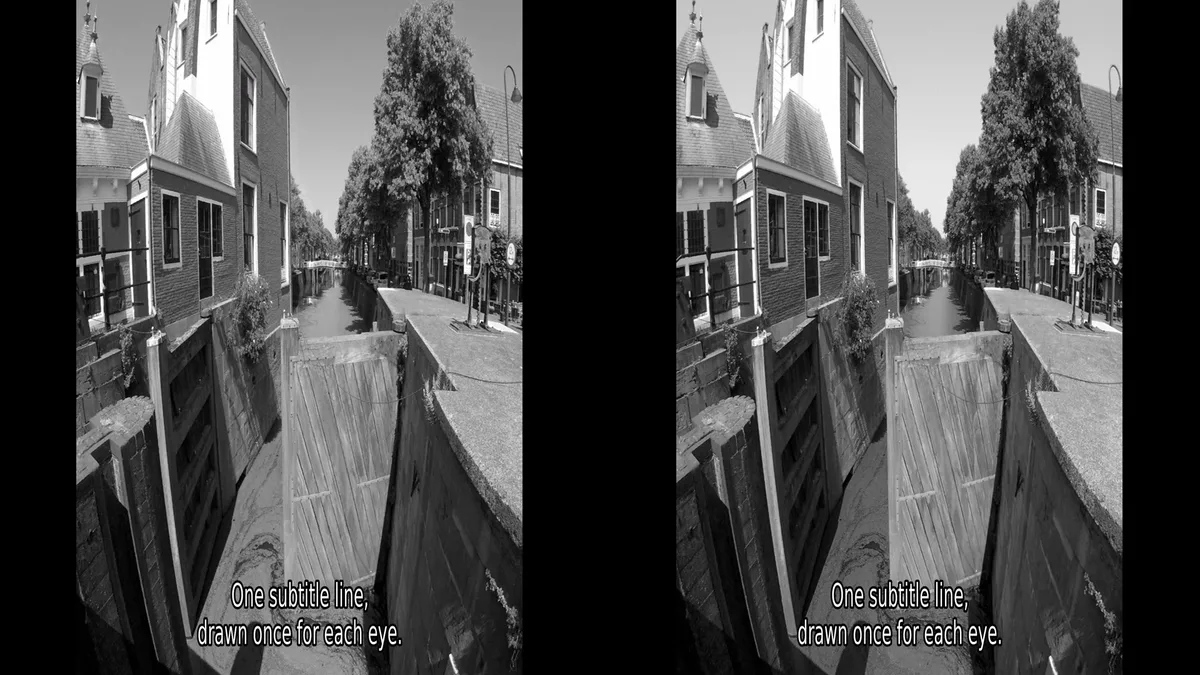
We ran both commands with ffmpeg 7.0.2 on a 4-second test clip on November 21, 2026. The clip was made from a public-domain stereo photo, in half SBS (1920 x 1080) and full SBS (3840 x 1080). In the half SBS result, the line starts 318 pixels from the left edge of each half, so both eyes see it at the same place.
To change the font or size, add :force_style='Fontname=Arial,Fontsize=24' after movie.srt in both places [4].
How do I set the depth of the subtitle?
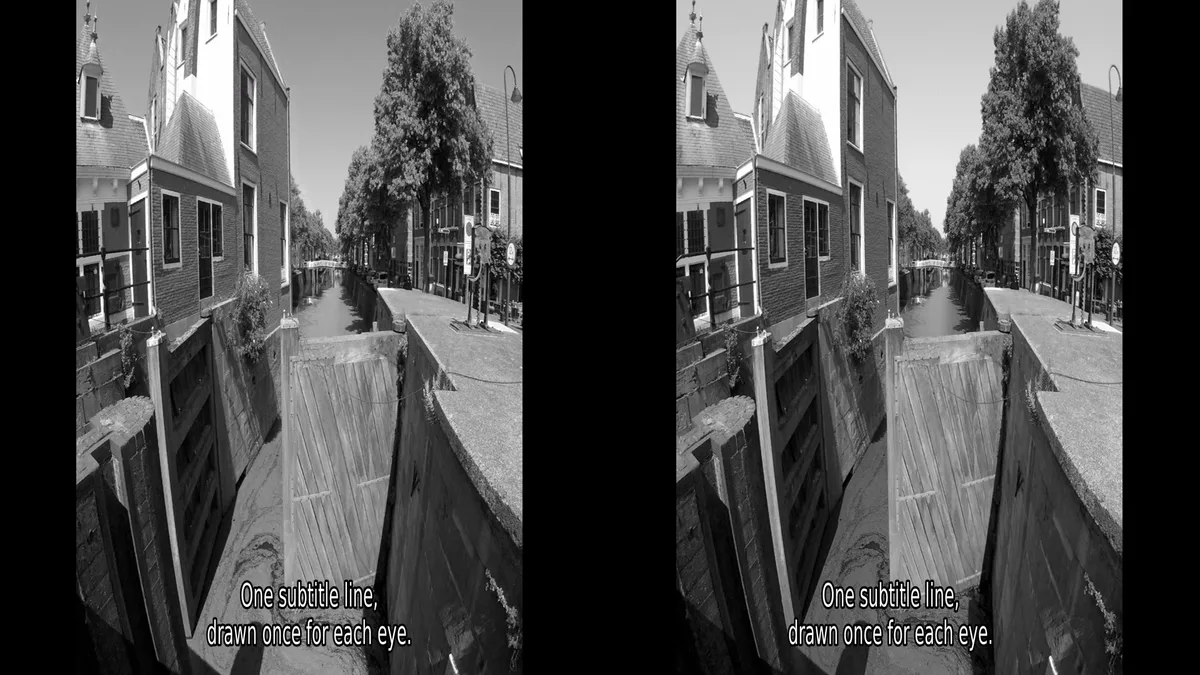
With the same line at the same place in both halves, the subtitle sits at the depth of the screen. Some viewers want it nearer or farther. To change that, move the two copies in opposite directions [3]. To bring the line forward, move the left eye's copy to the right and the right eye's copy to the left by the same small amount.
In the burn-in command you can do this with the side margins. In step 2, give the left half subtitles=movie.srt:force_style='MarginL=22,MarginR=10' and the right half subtitles=movie.srt:force_style='MarginL=10,MarginR=22'. In our test on the 1920 x 1080 half SBS clip, these margins moved the line 15 pixels right in the left half and 15 pixels left in the right half of the stored frame. Start small: a large shift is harder to fuse than a small one.
Where to watch the result
| Screen | File to give it |
|---|---|
| VR headset | Full or half SBS, in a player with a 3D SBS setting (VR video players) |
| 3D TV or projector | Half SBS, with the TV's 3D mode set to side-by-side (how) |
| Owl3D Shift, glasses-free | Half or full SBS (below) |
On the Owl3D Shift, SBS Mode shows Half-SBS, Full-SBS and Top-Bottom files in glasses-free 3D. A file with the subtitle burned into both halves needs no subtitle setting there. The Shift needs a computer running the Owl3D app, and it shows 3D to one viewer at a time. Owl3D makes the Shift and publishes this guide.
No 3D version of the film yet? The Owl3D app makes a half or full side-by-side 3D file from a 2D video you have the right to use. It is an AI conversion, not the studio's 3D version, and it is not instant. Add the subtitles to its output with the steps above. More in how to convert a 2D video to 3D.
Frequently asked questions
Can I turn off a burned-in subtitle?
No. Burning in draws the line into the picture, so it stays in every copy you make from that file. Keep the original video. If you want to switch the subtitle on and off, use a 3D .ass file instead (3D subtitle file).
Why are the letters of my 3D subtitle too wide?
In half SBS each view is squeezed to half width, and the 3D display stretches it back. A line drawn over the frame is stretched too, unless it was squeezed first [3]. The burn-in command for half SBS (step 2) squeezes the line with the view. In mpv, --sub-ass-style-overrides=ScaleX=0.5 does the same [2][5].
Does this work for top-bottom 3D files?
The ffmpeg commands on this page cut the frame into a left and a right half, so they are for side-by-side files only. For a top-bottom file, the example in the mpv issue tracker converts the .srt with sub3dtool: sub3dtool --3dtb -o output.ass input.srt [3].
Sources (5)
- imrayya, "SRT to 3D Subtitles" (SRTto3Dsubtitles), README, GitHub. https://github.com/imrayya/SRTto3Dsubtitles (opened 2026-11-21)
- mpv-player/mpv, issue 7155 "Subtitles in 3D", November 16, 2019, with comments to January 12, 2022, GitHub. https://github.com/mpv-player/mpv/issues/7155 (opened 2026-11-21)
- mpv-player/mpv, issue 1124 "3D movie playback with subtitle support", September 26, 2014, with comments, GitHub. https://github.com/mpv-player/mpv/issues/1124 (opened 2026-11-21)
- FFmpeg Filters Documentation, "subtitles". https://ffmpeg.org/ffmpeg-filters.html#subtitles-1 (opened 2026-11-21)
- mpv manual (DOCS/man/options.rst and vf.rst) and DOCS/interface-changes.rst, mpv-player/mpv master, GitHub. https://github.com/mpv-player/mpv/tree/master/DOCS (opened 2026-11-21)