Steam Link Away From Home: Play Your Home PC's Games Anywhere
How we researched this: written by Owl3D from published sources, all 4 listed at the end.
Short answer
Yes, for ordinary (non-VR) Steam games. Valve calls it Remote Play Anywhere. You log in to Steam on the PC at home, log in to the same account on the other device, and press Stream in the Library [1]. The other device can be a phone, a tablet, a TV with the Steam Link app, or another computer with Steam [1][2]. The PC at home must be on, with Steam running [2]. A Meta Quest is different. Valve's setup for Steam Link VR says the headset must be "connected to the same network as your PC" [3]. For a Quest away from home, Virtual Desktop has a setting for connections over the internet [4].

Valve's Remote Play Anywhere steps, read on November 19, 2026. Screenshot: Owl3D, of Valve's page.
Key takeaways
- Phone, tablet, TV or laptop: Remote Play Anywhere, with the same Steam account on both ends. See set it up.
- Before you leave: keep the PC on and awake, Steam running, and the PC on a cable to the router. See before you leave.
- Meta Quest: Steam Link VR is for your home network. Virtual Desktop connects over the internet. See a Quest away from home.
- Lag: in Steam's Remote Play settings, choose speed over quality or limit the bandwidth. See lag and fixes.
How to set it up
Steam captures the game's picture and sound on the PC and sends them to your device. Your device sends the keyboard, mouse or gamepad input back [1].
- At home, log in to Steam on the PC that has the game installed. Start the game once there, so it is up to date and runs [1].
- On the other device, install Steam Link, or Steam on another computer. Valve lists Steam Link for iPhone, iPad, Apple TV, Android phones, tablets and TVs, Amazon Fire TV, Raspberry Pi, Windows, Linux, macOS and Meta Quest [2].
- Log in to the same Steam account on that device [1].
- Open the Library. The game shows as installed, with "Stream" in place of "Play". Press Stream [1].
Some older answers say you must join the Steam beta first. Valve's current steps have no beta step [1].
Valve says "All Steam games can be played streaming between your own computers" [1]. On a phone or a TV, a game made for a mouse and keyboard can be hard to control. Games identified as good for the Steam Link app are marked on their store page, in the game details [1].
Before you leave home
The PC does the work, so it must be ready before you go.
- Leave it on and awake. Valve's steps start on a PC that is logged in to Steam [1]. A PC that sleeps or shuts down has no Steam running, so nothing answers. Set Windows so it does not sleep while you are away.
- Keep Steam running and logged in, on the same account as your device [1].
- Use a cable to the router. Valve recommends "a wired network for the best streaming experience" [1].
- Do not leave a game waiting on a Windows permission window. Valve: "UAC dialogs prevent streaming" [1].
- Know what the account can reach. Remote Play "allows access to the host computer outside of the game being streamed". If you do not want that, you can turn the feature off in Steam's Remote Play settings [1].
A Meta Quest away from home
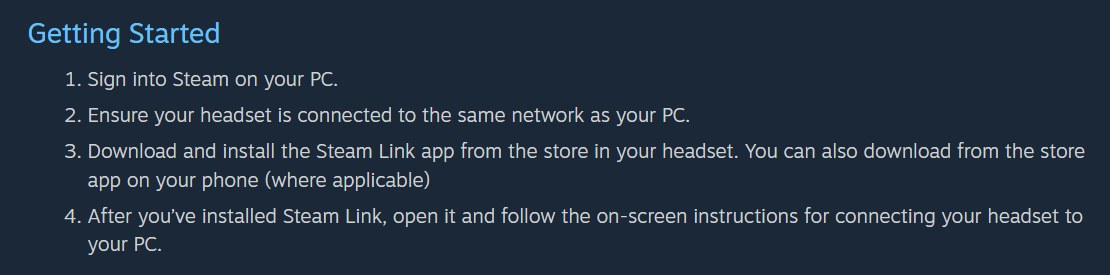
Steam Link on a Quest is Valve's VR app. It streams SteamVR games from your PC to the headset. Valve's setup steps say: "Ensure your headset is connected to the same network as your PC" [3]. Valve's headset page describes no way to connect from another network [3]. So plan Steam Link VR for home. For setup at home, see how to connect a Meta Quest to Steam.
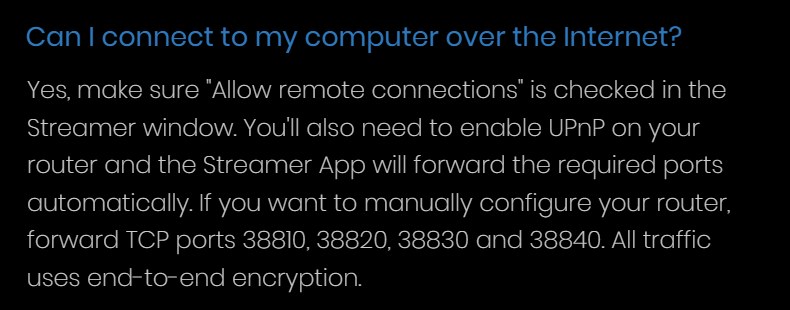
Virtual Desktop is a Quest app that does state internet connections. Its answer to "Can I connect to my computer over the Internet?" is yes [4]:
- In the Virtual Desktop Streamer on the PC, turn on "Allow remote connections" [4].
- Turn on UPnP on your router. The Streamer then opens the ports it needs by itself [4].
- No UPnP? Forward TCP ports 38810, 38820, 38830 and 38840 on the router to the PC [4].
Virtual Desktop says "All traffic uses end-to-end encryption" [4]. It needs a Windows PC for VR games [4]. For its price and setup, see Virtual Desktop on a Quest 3. We have not tested VR games over the internet.
Lag, and when it will not connect
Valve gives no speed figure for streaming away from home. If the picture is poor, find the problem in this table:
| Problem | What to change |
|---|---|
| Blurry picture or stutter | In Steam's Remote Play settings, choose speed over quality, limit the bandwidth, or lower the maximum capture resolution [1] |
| Still slow | In the game, lower the resolution and turn off vertical sync [1] |
| The device does not find the PC | Check that the firewall lets Steam use UDP ports 27031 and 27036 and TCP ports 27036 and 27037 [1] |
| You see the desktop, not the game | The game lost focus; Steam then streams the desktop so you can get back to it [1] |
| A wheel or flight stick does nothing | Valve: DirectInput controllers other than gamepads are not currently supported; XInput controllers are [1] |
| No voice chat from your device | Valve: voice recording over streaming is not currently supported [1] |
If your device still does not show the PC, update Steam on both and check that both are logged in to the same account [1].
Flat PC games in 3D on a Quest, at home: Owl3D Link
Steam Link VR and Virtual Desktop stream VR games, or a flat game on a virtual screen that stays flat. Owl3D, the publisher of this guide, makes Owl3D Link, a Quest app that does something else. It streams an ordinary, non-VR PC game to the Quest and converts it from 2D to 3D as you play. The 3D is an AI conversion of the flat picture, not depth rendered by the game. It needs a Windows PC with an NVIDIA RTX 3060 or better, running the Owl3D desktop app. Owl3D does not document its use over the internet, so plan it for home. Competitive multiplayer games and games with anti-cheat software often block screen capture, and then it cannot convert them. Owl3D Link is free to use; on the free plan a session lasts 15 minutes and the picture carries a watermark.
Frequently asked questions
Does Steam Link work away from home?
Yes, for ordinary (non-VR) Steam games. Valve calls it Remote Play Anywhere. Log in to the same Steam account on the PC at home and on the other device, then press Stream in the Library [1]. The PC at home must be on, with Steam running [2].
Can I use Steam Link VR on a Quest away from home?
Not with Valve's setup. Valve says the headset must be "connected to the same network as your PC" [3]. Virtual Desktop has a setting for connections over the internet [4].
Why does Steam Remote Play lag away from home?
Valve gives no speed figure. In Steam's Remote Play settings, choose speed over quality, limit the bandwidth, or lower the maximum capture resolution [1]. In the game, lower the resolution and turn off vertical sync [1].
Sources (4)
- Valve, Steam Support, "Steam Remote Play" (how it works, Remote Play Anywhere steps, settings, ports, known issues). https://help.steampowered.com/en/faqs/view/0689-74B8-92AC-10F2 Opened 2026-11-19.
- Valve, "Steam Remote Play" store page (devices for the Steam Link app). https://store.steampowered.com/remoteplay Opened 2026-11-19.
- Valve, Steam Support, "Steam Link For Meta, HTC and PICO Headsets" (Getting Started). https://help.steampowered.com/en/faqs/view/0E2C-406B-9135-38A4 Opened 2026-11-19.
- Virtual Desktop, official site, Frequently Asked Questions. https://www.vrdesktop.net/ Opened 2026-11-19.