Virtual Desktop VR on a Meta Quest 3: What It Is and How to Set It Up
How we researched this: written by Owl3D from published sources, all 8 listed at the end.
Short answer
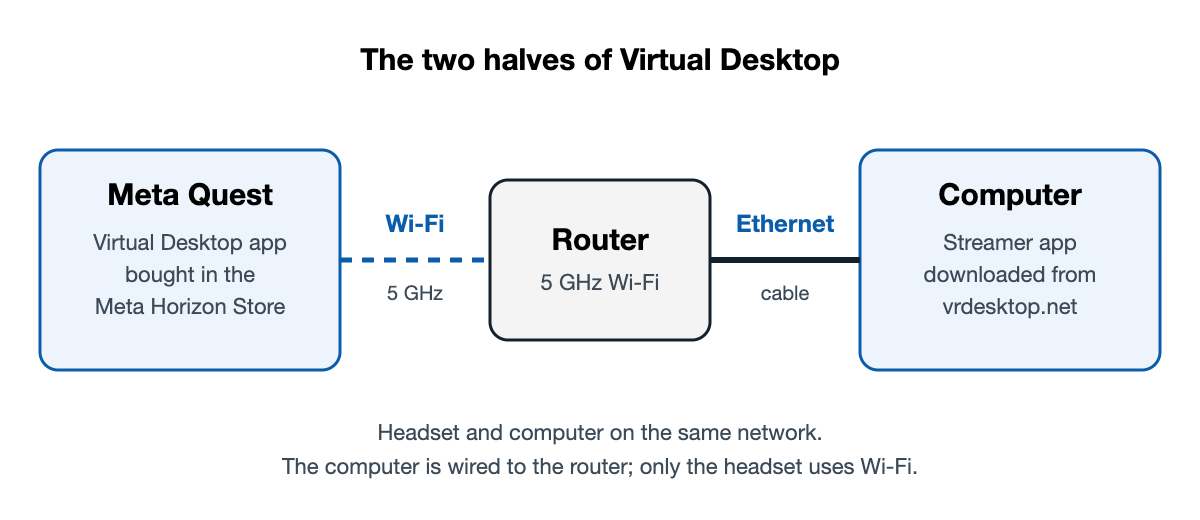
Virtual Desktop is a paid app for Meta Quest headsets that puts your computer's screen in front of you in VR and streams PC VR games to the headset over Wi-Fi [2]. It comes in two halves: the app, bought in the Quest's own store for $24.99 [2], and the Streamer, a program you download to the computer from vrdesktop.net [1]. Install both, enter your Meta username in the Streamer, wire the computer to your router, then choose the computer in the headset.
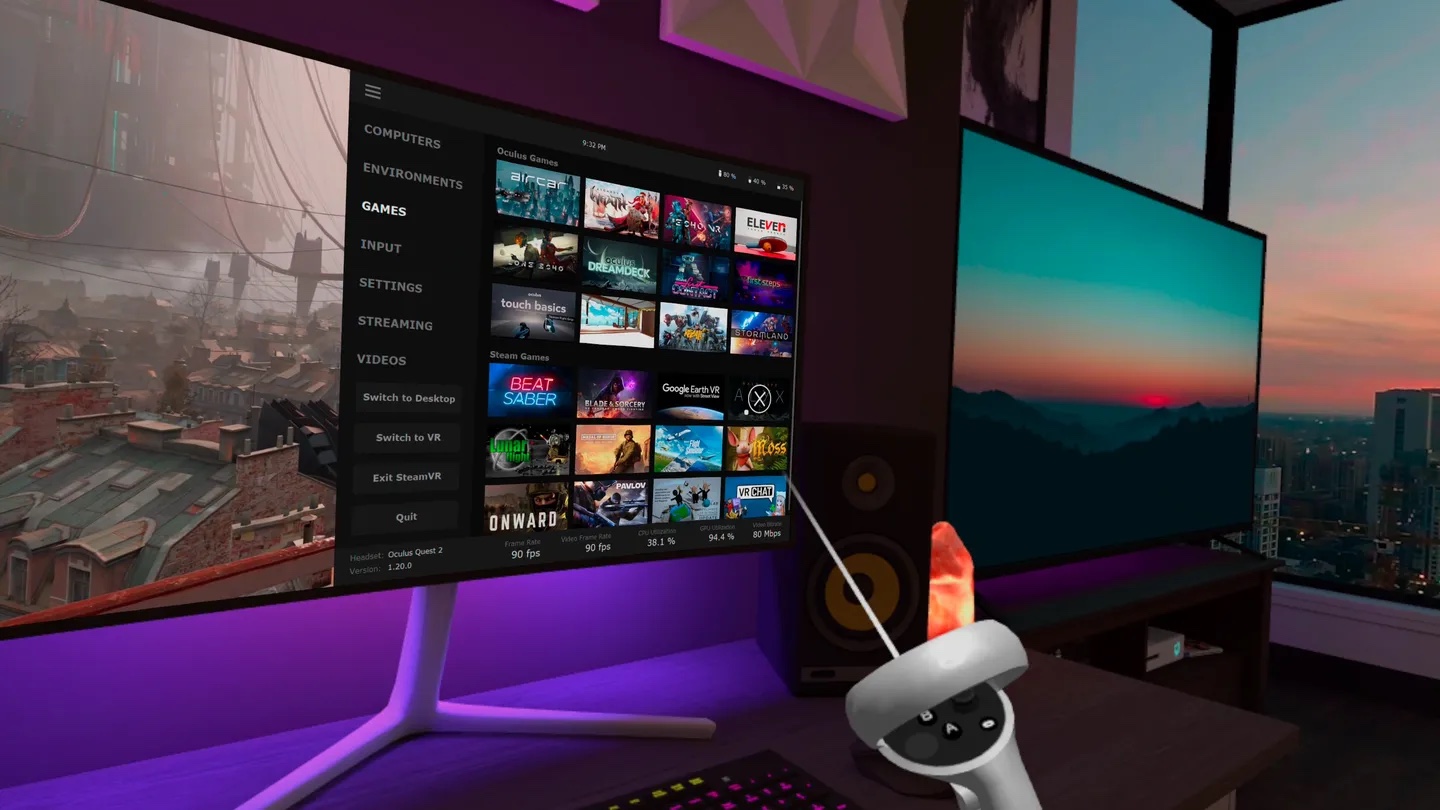
Virtual Desktop's Games tab, seen in the headset. Image: Virtual Desktop, Inc., from its Meta Horizon Store listing.
Key takeaways
- Buy it in the headset's store, not on Steam: which one to buy.
- Six steps from the purchase to the first game: set it up.
- The maker requires the computer to be wired to the router: Ethernet and USB.
- The computer is not found, the screen is black, a game will not start: fixes.
What Virtual Desktop does, and what it needs
The maker's own line is "Watch movies, browse the web or play games on a giant virtual screen" [1]. The store listing adds PC VR games streamed from the computer, videos stored on the computer, Bluetooth mice, keyboards and gamepads, and more than one monitor [2].
| You need | What the maker states |
|---|---|
| Headset | Meta Quest 1, 2, 3, 3S or Pro [1] |
| Computer | "most PCs and laptops running Windows 10 or 11, macOS Catalina or later" [2] |
| For PC VR games | "a VR Ready PC (GTX 970) running Windows" [1]. Not from a Mac: "it won't work on a Mac" [1] |
| Network | The computer wired to a 5 GHz router [2] |
Last checked : the price ($24.99) and the version (1.34.22.0) on the Meta Horizon Store, read from outside the US; requirements on the listing and on vrdesktop.net.
Whether to pay for it or use Air Link or Steam Link is a different question: see Virtual Desktop vs Air Link vs Steam Link. If you only want the computer's screens for work, Meta's own feature is in Meta Quest remote desktop.
Which one to buy
Buy the one in the Quest's own store. Steam sells a product called Virtual Desktop Classic, and its page says: "This app is NOT for the Oculus Quest or Pico headsets" [3]. Classic is for the Oculus Rift, HTC Vive, Valve Index and Windows Mixed Reality headsets [1].
The price is for the headset app [2]. The Streamer for the computer is a download button on the maker's site, with no price beside it [1].
Set it up
The order follows a community guide's quick start [4]. The username step sits where an older walkthrough has it, straight after installing the Streamer [8], and the network step is the maker's requirement [1], [2]. We have not run the steps ourselves.
- Buy and install Virtual Desktop on the headset. It is in the Meta Horizon Store [2].
- Install the Streamer on the computer. Use the "Download Streamer App" button on vrdesktop.net [1].
- Enter your Meta username in the Streamer. The maker's site and store listing do not spell this step out; it comes from a community guide, which says the Streamer's Platform Accounts take "Meta usernames (for Quest)", up to four of them, and that they "are not case-sensitive" [4]. An older walkthrough for the Quest 2 says it is "NOT your email address but the name you use on your Quest 2" [8].
- Wire the computer to the router, and put the headset on the same router's 5 GHz Wi-Fi. [1], [2]
- Open Virtual Desktop in the headset and choose your computer. The Computers tab lists "Available PCs and their status" [4].
- Start PC VR games from the Games tab. The maker: "Be sure to launch your games from the Games tab in the Virtual Desktop menu in VR" [1].
Do you need Ethernet, and does a USB cable work?
Ethernet from the computer to the router: yes, by the maker's rule. The listing says "Computer must be wired with Gigabit Ethernet cable to a 5 GHz router" [2]. The site's answer to a choppy picture is the same: "Make sure your computer is wired to your router and not wirelessly connected. You need at least an 802.11 AC Router and it is required to use a 5 GHz connection" [1].
A second router: not necessarily. The community guide says to "Try your existing router if it supports 5GHz WiFi and can connect to your PC via Ethernet". It also says internet speed is not the issue: "What matters is your local network setup" [4].
Shared Wi-Fi in an apartment building or an office: expect trouble. The site says such networks often stop devices from talking to each other, and "You'll need to get your own dedicated router" [1].
When the computer is not found or a game will not start
One commenter under a setup video, about April 2026: "ive put my meta username in but nothings happening" [6]. That is one person's question, not a finding of ours. The checks below are the maker's own, from its site [1], except the two rows marked as the community guide's [4]. We have not tried them.
| What you see | What to check |
|---|---|
| The computer is not listed, or "Computer is unreachable" | Headset and computer on the same router and network: "the headset might be on a Guest network for example". Then, in the maker's words: "Make sure the Windows Firewall isn't blocking all connections", "Make sure your PC isn't running VPN software", and with an anti-virus, "adding an exception for Virtual Desktop Streamer" [1] |
| "Measuring bandwidth", then it disconnects | "An error should appear on your desktop telling you what the problem is". The usual causes it lists: graphics drivers that are not the latest, "HDR / WCG enabled in your Display Settings", and "VPN or anti-virus software blocking connections to your PC" [1] |
| Connected, but a black screen | "Make sure your monitor is detected by Windows. Some monitors/TVs need to be turned ON to be detected". Also turn off Night light and HDR [1] |
| A black screen when a game starts | The computer wired to the router by Ethernet, and "the latest drivers for your GPU" [1] |
| The Streamer will not install or run | "Your anti-virus might be preventing the app from installing/running. Try adding an exclusion for Virtual Desktop" [1] |
| The headset says the Streamer needs an update | Community guide, not the maker: the Streamer's About section has a tool, "Check for updates" [4] |
| A game is missing from the Games tab | Community guide: the tab "Shows Steam VR and Meta PC games"; "Other platforms will not show up here, and custom games cannot be added" [4]. The maker: "Not all games are compatible with Virtual Desktop" [1] |
A black screen on Netflix, Hulu or another streaming service is a limit, not a fault in your setup. The maker's sentence: "Microsoft Edge, Internet Explorer, Chrome and some Windows Store apps have DRM that prevent those services from being captured" [1]. For films in the headset, see how to watch movies in VR.
Frequently asked questions
Can I watch side-by-side 3D video in Virtual Desktop?
Yes. The listing says it "Supports 3D Side-by-Side / Over-Under content on screen" [2]. The site's instruction: "press the trigger while pointing outside the screen to bring up the Desktop Toolbar and select the 3D mode" [1].
Do I need SteamVR?
The community guide's quick start lists "Install SteamVR" as a step, and the same guide says Virtual Desktop's own runtime, VDXR, "Doesn't require SteamVR to run" [4]. The maker's release notes for version 1.34.8 say: "Now using VDXR by default instead of SteamVR when Preferred OpenXR runtime is set to Automatic" [5]. Which games need SteamVR is not something the pages we opened list.
Sources (8)
- Virtual Desktop, official site (versions, supported headsets, computer requirements, FAQ, release notes for version 1.34.22). https://www.vrdesktop.net/ Opened 2026-10-11.
- Meta Horizon Store, "Virtual Desktop" (price, description, requirements, version and its release notes). https://www.meta.com/experiences/virtual-desktop/2017050365004772/ Opened 2026-10-11.
- Steam, "Virtual Desktop Classic". https://store.steampowered.com/app/382110/Virtual_Desktop_Classic/ Opened 2026-10-11.
- VR Discord community, "Virtual Desktop Guide" (a community guide, not the maker's page). https://vrdiscord.com/guides/quest-wireless/virtualdesktop.html Opened 2026-10-11.
- Virtual Desktop release notes on GitHub (guygodin/VirtualDesktop, Releases). https://github.com/guygodin/VirtualDesktop/releases Opened 2026-10-11.
- A user's question: comment under the YouTube video "Quest 3 Virtual Desktop Tutorial and PCVR Setup in Under 5 Minutes". https://www.youtube.com/watch?v=uiOnlK22wLM Opened 2026-10-11.
- Gamertag VR, description of the YouTube video "Virtual Desktop Just Changed PCVR Forever!" (August 7, 2026). https://www.youtube.com/watch?v=4ci1JxwuuKY Opened 2026-10-11.
- Beebom, "How to Set up and Use Virtual Desktop on the Oculus Quest 2" (updated October 15, 2025). https://beebom.com/how-set-up-use-virtual-desktop-oculus-quest-2/ Opened 2026-10-11.