AR Glasses for Work: What Connects, How Many Screens, and the Limits
How we researched this: written by Owl3D from published sources, all 23 listed at the end.
Short answer
Yes, display glasses from XREAL, VITURE and RayNeo work as a private monitor for a laptop, a tablet or a phone. Your device's USB-C port must send video (DisplayPort Alt Mode, Thunderbolt or USB4). A charge-only port does not work without an adapter. VITURE's free SpaceWalker app gives up to three virtual screens on Windows and Mac. XREAL One series glasses have a built-in ultra-wide mode. One owner who codes on them calls the picture "about the equivalent of a single 1080p screen" [16], and four of the six owners we quote report limits for a full day of text work. AI glasses such as Ray-Ban Meta have no screen to work on. Owl3D, the publisher of this guide, makes a 2D-to-3D video service, described in one passage below. What each pair of glasses does comes from its maker's own pages; owners' reports are marked as theirs.
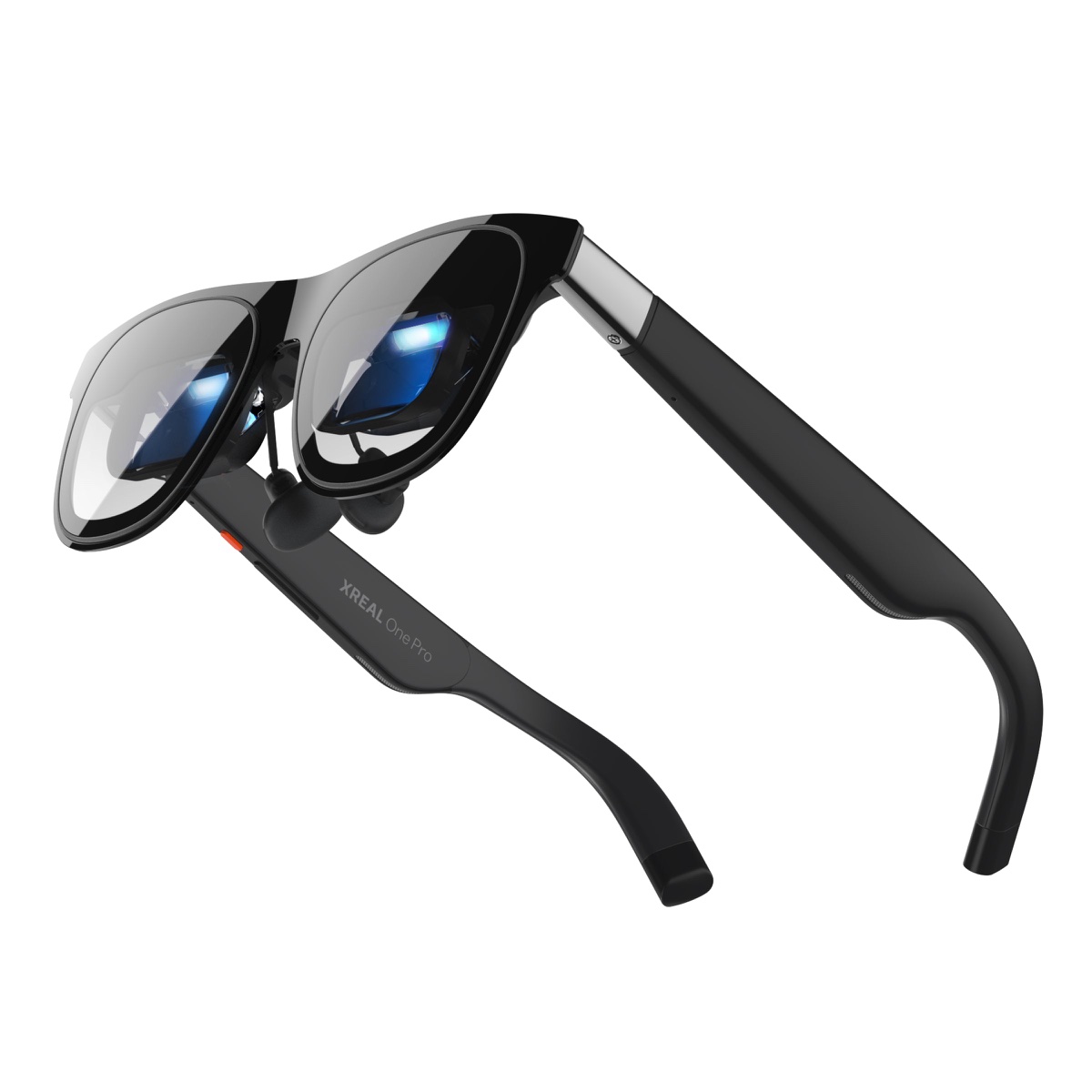
Display glasses such as XREAL's One Pro show the screen of the device they are plugged into. Image: XREAL.
Key takeaways
- Check your laptop's USB-C port for "DisplayPort Alt Mode", "Thunderbolt" or "USB4" first. What connects.
- Set the glasses as an extended display, not a mirror, to get a second screen. Windows setup.
- Several screens: VITURE SpaceWalker gives up to 3. XREAL One series has an ultra-wide mode. Screens by maker.
- Owners say: fine for travel and posture, blurry in places, 2 to 3 hours before the eyes tire for some. What owners report.
- The same glasses play side-by-side 3D video in the evening. 3D mode.
What your laptop or phone needs
The glasses are a screen with a cable. The device does the computing and sends the picture out of its USB-C port. That port must carry video.
VITURE says all its glasses "connect via USB-C with DisplayPort Alt Mode" and tells you to check your device's specification page for "DisplayPort Alt Mode," "Thunderbolt," or "USB4" [1]. RayNeo lists "DisplayPort over USB-C," "DP Alt Mode," "Alt DP over USB-C," or "Thunderbolt 4" [10]. XREAL's One Pro page says "The device must have a USB-C DP port and support DP output" [4].
| Your device | Direct USB-C cable? | What the makers say |
|---|---|---|
| Mac with Apple Silicon (M1 to M4), MacBook Pro, MacBook Air | Yes | VITURE lists them [1]. RayNeo lists "MacBook Pro (models from 2016 or later)" [11] |
| Windows laptop | Yes, if the USB-C port has DP Alt Mode, Thunderbolt 3/4 or USB4 [1] | Otherwise an HDMI adapter: VITURE's HDMI XR Adapter [1], RayNeo's HDMI AR Adapter for a "Laptop with HDMI port" [11] |
| Desktop PC | Only with a USB-C video port | VITURE: "use an HDMI adapter if your PC lacks a USB-C video output port" [1] |
| iPhone 15 and later, iPad, DP-capable Android | Yes | XREAL and VITURE list them [9][1] |
| Lightning iPhone | No | An adapter [9][10] |
Last checked : what each maker's compatibility and support page says.
Three points to know before you buy:
- A charge-only port fails. VITURE: "USB-C ports that only support charging or data transfer (not video) will NOT work with VITURE glasses without an adapter" [1].
- No drivers for basic use. VITURE says its glasses are "auto-detected as an external monitor on Mac, Windows, Android, Steam Deck, and iOS (iPhone 15+)" [1].
- No wireless. RayNeo says its Air glasses "do not support wireless connections" [10].
RayNeo adds that "Compatibility may vary due to regional device variations, manufacturer software updates, or other factors beyond our control" [11]. If you can, test with your own laptop before the return window closes.
Set the glasses as a second screen on Windows
Your computer can copy (mirror) its own screen to the glasses or extend the desktop onto them. For work you usually want a second, separate screen. XREAL says the same for its ultra-wide mode: "set the glasses as an extended display on your computer" [5].
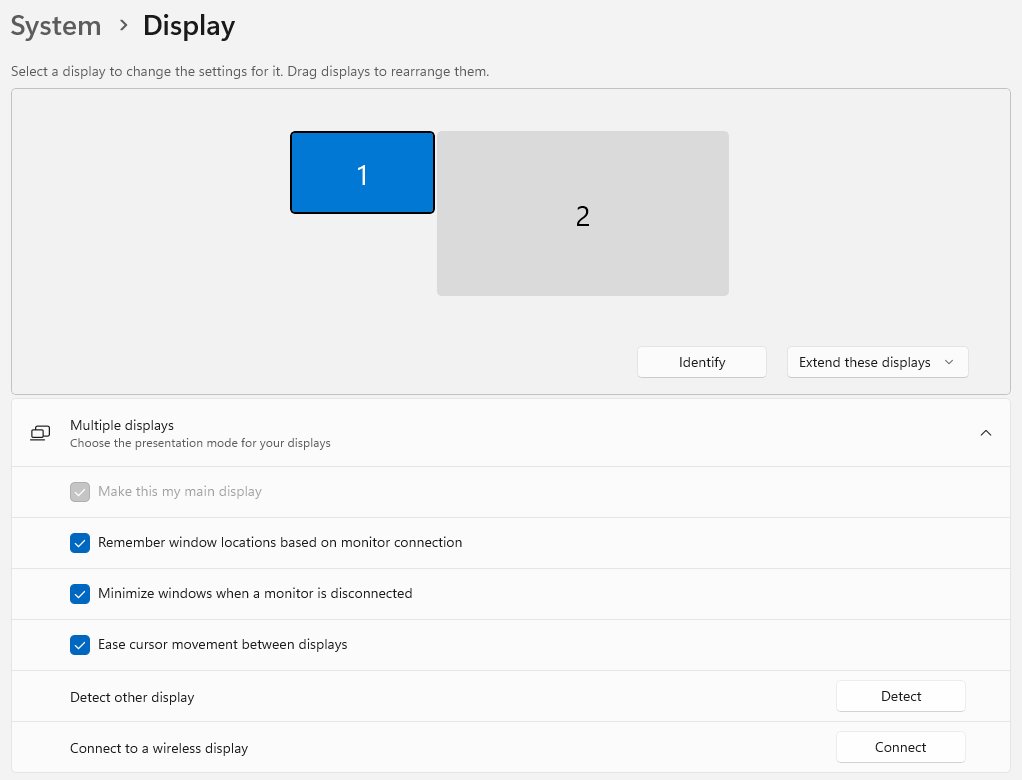
- Plug the glasses into a USB-C port that carries video.
- Open Settings > System > Display. The glasses show as a second display.
- In the menu next to Identify, pick Extend these displays.
- Drag the two boxes so the glasses sit where you look: above or beside the laptop screen.
- If text looks blurry, VITURE suggests setting the output to "1920×1080 (Full HD) at 60Hz" [1].
On a Mac, the glasses appear as an external display, and you can mirror or extend the desktop "just like any monitor" [1].
How many screens each maker's software gives
One pair of glasses shows one picture. Several "screens" come from software that splits that picture or lets you turn your head across a wider desktop. Here is what each maker says it offers for work today.
| Maker | Software or mode | Screens | Platforms | Limits the maker states |
|---|---|---|---|---|
| VITURE | SpaceWalker app, free [1] | "up to 3 virtual screens", mirror or extend [1]. Also a 32:9 UltraWide mode [1] | Windows, Mac, iOS, Android [1] | Windows 10 (1903 or later) or 11, 16 GB RAM [2]. Mac: macOS 13 or later; Intel Macs dropped from v1.6.0 [2]. HDMI XR Adapter not supported on Windows [2] |
| VITURE Beast | SpaceWalker | Single, Ultrawide, 2 or 3 side by side [2] | Windows, Mac [2] | "support only" these layouts [2] |
| XREAL One series | UltraWide Mode, in the glasses' menu | One wide screen: 16:18, 21:9 or 32:9 [5] | A device with USB-C DP output [4] | "not all devices or systems support video output in a true 32:9 signal format" [5] |
| XREAL One Pro | Anchor Mode | Pins the screen in place, 3DoF or 6DoF [4] | A device with USB-C DP output [4] | 6DoF needs XREAL Eye, "sold separately" [9] |
| XREAL AURA | Android XR | "up to five virtual screens", or a wired mirror of your PC [9] | Android XR [9] | Not stated |
| RayNeo | None on the RayNeo pages we opened | One screen (the device's) | Any DP device [11] | RayNeo's download page lists no Windows or Mac app [23] |
Last checked : the makers' software and support pages.
On the XREAL pages we opened, we found no Windows or Mac multi-screen app. XREAL's developer site says its Nebula app "will no longer be maintained" [21]. XREAL One glasses have these features built in: UltraWide Mode, Anchor Mode and a "Text Optimization" setting that "enhances text readability by smoothing jagged edges" [7].
VITURE's SpaceWalker for Windows also has a "Visual Lock" feature, "Currently in Beta, and only available on SpaceWalker for Windows" [2]. On macOS Sequoia, VITURE says "auto-disable built-in display is currently unavailable" in the app [2].
Two reviews of the VITURE Beast, April 2026: Tom's Guide says "Xreal is way to go for productivity", and also that with SpaceWalker "things get very interesting with multiple monitor layouts on a laptop" [14]. CNET's reviewer uses a pinned screen with laptops "all the time" and says a wide layout means "moving your head around to see it all", which "can be useful for laying out multiple apps while working" [13].
Limits for a working day
The makers' own pages name the limits that matter for long text work.
- Sharp text needs the right fit. VITURE: "Small shifts cause significant blur" [1]. XREAL sells the One Pro in "two IPD sizes" to avoid "blurring and cut-off edges" [4], and has a guide for "blurry edges" [6].
- Wear time. VITURE says to "Limit initial sessions to 20–30 minutes" at first, and that after adaptation "Sessions of 1–2 hours are comfortable for most users" [1]. XREAL warns that "Extended use of any display can cause temporary eye fatigue, dryness or headaches" [9].
- Power. XREAL One series glasses "do not have a built-in battery" [6]: the laptop or phone powers them. VITURE sells a USB-C XR Charging Adapter that keeps a phone, tablet or handheld "charging while you use XR" [1].
- Your eyesight. VITURE's Luma Pro has a diopter dial "from –4.0D to +0D" [1]. XREAL uses "model-specific prescription inserts that an optician can fit to your prescription" [9]. RayNeo has a video on "How to install prescription lenses" [15].
- Colour and edges. Tom's Guide found the VITURE Beast "Not as color-accurate for work as Xreal", with "Some slight chromatic aberration around the edges" [14].
What owners report
Six Hacker News comments from owners, 2025 and 2026. We have not tested these glasses for a full working day.
- Like one 1080p screen. On an Amtrak train with XREAL One Pro and a Bluetooth keyboard: "it's about the equivalent of a single 1080p screen." Terminal tools work well "as I can bump the font size up". The owner still prefers "a proper monitor when available" [16].
- Ultra-wide helps. A developer with XREAL One: the 32:9 mode "is a real boost to using my work laptop", with "3 windows arrayed comfortably". This owner wears them "for hours comfortably" with corrective inserts [17].
- Blurry areas. Another One Pro owner: "Don't expect to use it for coding for several hours a day". The lenses leave "blurry areas of the screen, very visible as you move your head around" [18].
- Posture, not sharpness. A One Pro user codes in a cafe or in bed: "the ergonomic benefits are the selling point, not the display quality". This owner uses an app (Better display) to send a high-DPI picture to the glasses, which gives "noticeably better quality" [19].
- Eyes after 2 to 3 hours. "my eyes usually start hurting after 2-3 hours because text is not 100% sharp", one owner writes, though the glasses put "a lot less strain on my neck" [20].
- Fine on a train, not all day. A VITURE XR Pro owner: good "in a cramped space like a train or airline seat", but for "8-10 hours of thoughtful work, I would choose the monitor" [22].
Which glasses fit which work
No pair here beats a good desk monitor for sharpness. Choose for where and how you work.
- Travel, trains, planes. Any pair that connects to your laptop. VITURE has a "Private Screen Mode", described as "ideal for flights or working in public" [1].
- Several windows on a laptop. VITURE with SpaceWalker for up to three screens on Windows or Mac [1][2]. Check the RAM and macOS limits in the table.
- Text and code for longer. XREAL One series, for Tom's Guide's productivity verdict [14], Text Optimization [7] and the 32:9 mode one owner relies on [17].
- A headset instead. A Meta Quest can show your computer's screens too: see Meta Quest remote desktop.
- Gaming on the same glasses. See AR and XR glasses for gaming.
AR glasses or AI glasses? CNET puts it plainly: "Plug-in display glasses like Viture and Xreal offer aren't AI glasses" [13]. Meta presents its newer Meta Ray-Ban Display as "the addition of a display" to the Ray-Ban Meta features [12]. That display is placed "off to the side" and is "designed for short interactions" [12]. Meta's examples are messages and walking directions [12], not work on a spreadsheet.
3D mode: the same glasses after work
Your work glasses can also show 3D. XREAL One series glasses have a 3D Mode for Full SBS video at "3840×1080" [8]. VITURE says its glasses "natively support full SBS (Side-by-Side) 3D video at 3840×1080 resolution" [3]. The RayNeo pages we opened do not state a 3D mode, so RayNeo is left out here.
The catch is finding 3D video to play. Owl3D Cloud is a web app that converts a 2D video you upload, or a video link, into 3D with AI, with no install and no graphics card. Pick XR glasses as where you watch, and it sets the depth for glasses. The default output is Full side-by-side. Download the file to your laptop or phone, play it full screen and switch the glasses to 3D mode. It is an AI conversion, not a studio 3D release, and it takes time to convert.
Frequently asked questions
Can AR glasses replace a monitor?
For travel and short sessions, yes, for many owners. For a full day at a desk, four of the six owners we quote report limits: one compares the picture to "a single 1080p screen" [16], one reports "blurry areas of the screen" [18], one gets tired eyes after 2 to 3 hours [20], and one would "choose the monitor" for 8 to 10 hours of work [22].
Do AR glasses work with a MacBook?
Yes. VITURE lists Macs with Apple Silicon and says the glasses appear as an external display [1]. RayNeo lists MacBook Pro models from 2016 or later [11]. For VITURE's multi-screen app on a Mac, you need macOS 13 or later and an Apple Silicon Mac for current versions [2].
Can I use AR glasses for Zoom or Teams calls?
The glasses show your screen, so you see the call as on any external display. No maker page we read covers calls.
Sources (23)
- VITURE, "FAQ". https://www.viture.com/faq (opened 2026-11-14)
- VITURE Academy, "SpaceWalker for Desktop". https://www.viture.com/academy/spacewalker/desktop (opened 2026-11-14)
- VITURE Academy, "Luma Series XR Glasses". https://www.viture.com/academy/xr-glasses/luma-series (opened 2026-11-14)
- XREAL, "XREAL One Pro". https://www.xreal.com/one-pro (opened 2026-11-14)
- XREAL Tutorials, "UltraWide Mode" (One series). https://tutorials.xreal.com/docs/glasses/one-series/osd/ultrawide-mode (opened 2026-11-14)
- XREAL Tutorials, "One Series FAQ". https://tutorials.xreal.com/docs/glasses/one-series/faq (opened 2026-11-14)
- XREAL Tutorials, "Display Setting" (One series). https://tutorials.xreal.com/docs/glasses/one-series/osd/display-setting (opened 2026-11-14)
- XREAL Tutorials, "3D Mode" (One series). https://tutorials.xreal.com/docs/glasses/one-series/osd/3d-mode (opened 2026-11-14)
- XREAL, site text for its product pages (1S, 1 Pro+, AURA, xbx a01+), read from https://www.xreal.com/1s (opened 2026-11-14)
- RayNeo, "Support". https://www.rayneo.com/pages/support (opened 2026-11-14)
- RayNeo, "Product Compatibilities". https://www.rayneo.com/pages/product-compatibilities (opened 2026-11-14)
- Meta, "Meta Ray-Ban Display", newsroom, September 2025. https://about.fb.com/news/2025/09/meta-ray-ban-display-ai-glasses-emg-wristband/ (opened 2026-11-14)
- CNET, Scott Stein, "Viture Beast review", updated April 28, 2026. https://www.cnet.com/tech/computing/viture-beast-review-i-think-i-found-my-new-favorite-display-glasses/ (opened 2026-11-14)
- Tom's Guide, Jason England, "Viture Beast review", April 27, 2026. https://www.tomsguide.com/computing/smart-glasses/viture-beast-review (opened 2026-11-14)
- RayNeo, "How to use". https://www.rayneo.com/pages/how-to-use (opened 2026-11-14)
- Hacker News, comment of April 27, 2026 (user's report). https://news.ycombinator.com/item?id=47925153 (opened 2026-11-14)
- Hacker News, comment of March 14, 2026 (user's report). https://news.ycombinator.com/item?id=47377252 (opened 2026-11-14)
- Hacker News, comment of May 26, 2026 (user's report). https://news.ycombinator.com/item?id=48276532 (opened 2026-11-14)
- Hacker News, comment of May 26, 2026 (user's report). https://news.ycombinator.com/item?id=48276959 (opened 2026-11-14)
- Hacker News, comment of May 26, 2026 (user's report). https://news.ycombinator.com/item?id=48277419 (opened 2026-11-14)
- XREAL Developer, "Download". https://developer.xreal.com/download/ (opened 2026-11-14)
- Hacker News, comment of June 20, 2025 (user's report). https://news.ycombinator.com/item?id=44324032 (opened 2026-11-14)
- RayNeo, "Download". https://www.rayneo.com/pages/download (opened 2026-11-14)