Steam Deck on an External Monitor or TV: Which Cable, Which Dock, and What to Do When the Screen Stays Black
How we researched this: written by Owl3D from published sources, all 7 listed at the end.
Short answer
Yes. The Steam Deck LCD and the Steam Deck OLED both send video out of their USB-C port, "up to 8K @60Hz or 4K @120Hz", per Valve [1][2]. A monitor with a USB-C video input needs only one cable. A TV or a monitor with only HDMI or DisplayPort needs a dock or hub, such as Valve's Docking Station (HDMI 2.0 and DisplayPort 1.4, "up to 4k 60hz, or 1440p 120hz") [3]. To charge the Deck while it drives a screen, the dock or hub needs USB-C Power Delivery passthrough [4]. Owl3D, the publisher of this guide, makes the Owl3D Shift, a 14-inch 4K monitor, described in one passage below.
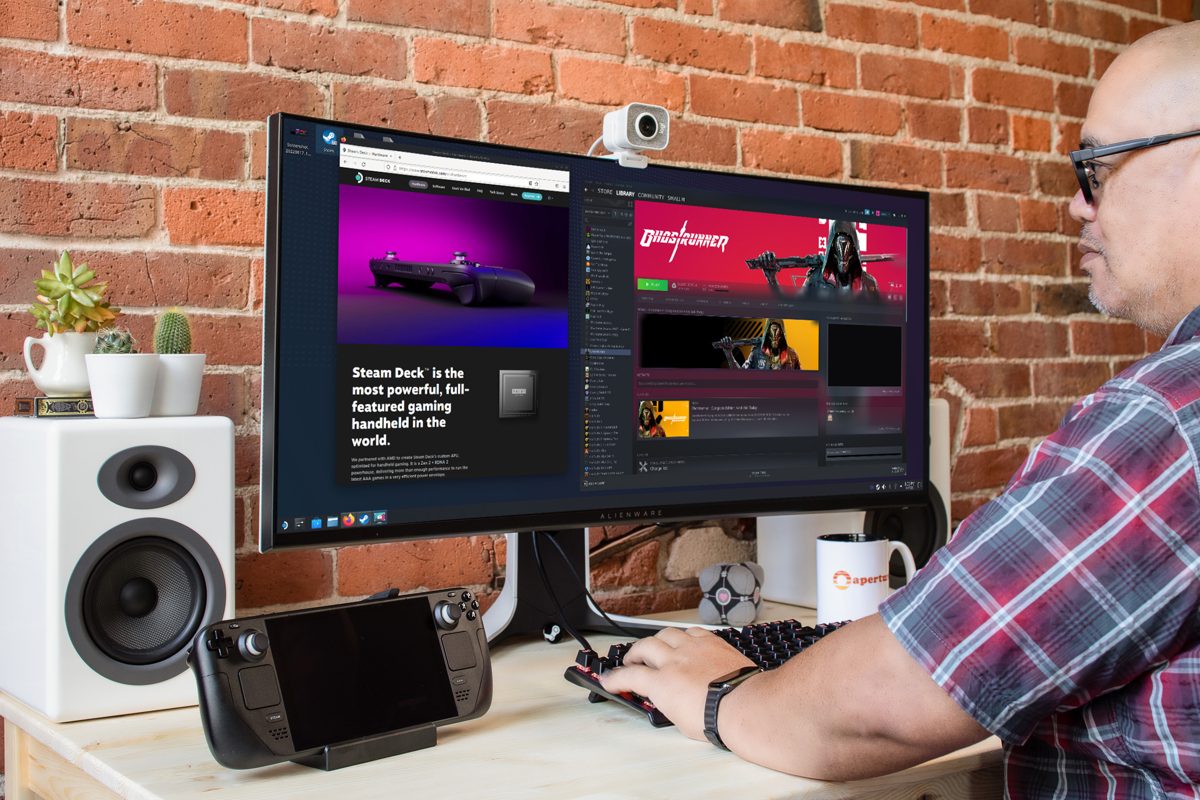
A Steam Deck in the Docking Station, driving a desk monitor with a keyboard. Image: Valve.
Key takeaways
- Pick your set-up in the table: one USB-C cable, a dock or hub with HDMI, or a portable monitor.
- In Gaming Mode the Deck's own screen goes black when a display is connected. Valve calls this "expected behavior" [4]. Both screens at once need Desktop Mode.
- Screen stays black? Check the input, then the cable, then turn on External display safe mode. No-signal fixes.
- A portable monitor with a USB-C video input needs one cable; plan how the Deck and the monitor get power. What to check.
- The Owl3D Shift works as an ordinary 4K 2D monitor, with limits for the Deck. The Shift.
Three ways to connect
| Set-up | What you need | Charging the Deck while you play |
|---|---|---|
| Monitor with a USB-C video input | One USB-C cable that carries video (DisplayPort Alt Mode) [1][2] | Use a dock or hub with PD passthrough instead [4] |
| TV, or a monitor with HDMI or DisplayPort | Valve's Docking Station or a USB-C hub with HDMI [3][4], and a DP 1.4 or HDMI 2.0+ cable [4] | Yes, through the Docking Station's USB-C power input [3], or a hub with PD passthrough [4] |
| Portable monitor | A USB-C video input, or a hub if it has only HDMI | Only with a hub or dock that has PD passthrough [4] |
Last checked : Valve's tech specs and Steam Support docking FAQ.
You do not need Valve's dock. Valve: "Most USB-C compliant hubs and docks will work without issue with Steam Deck. Thunderbolt and DisplayLink docks may work, but are not officially supported." [4] From DisplayPort to HDMI, use an active cable or adapter: "Passive cable adapters (Display Port™ to HDMI) are not supported and may cause issues." [4]
The Deck's USB-C port can send 4K at 120Hz [1][2]. The Docking Station tops out at 4K 60Hz or 1440p 120Hz [3]. It also has three USB-A ports, Gigabit Ethernet and FreeSync (VRR) support [3].
Connect it, step by step
- Plug the charger, the display cable and any keyboard or controller into the dock or hub first. Valve gives this order: "First, plug all the items into the dock" [4].
- Connect the Deck: the dock's USB-C cable into the Deck, or a USB-C cable from the Deck to the monitor's USB-C input.
- On the TV or monitor, select the input that the cable is plugged into. TVs often have several HDMI inputs [4].
- The Deck's own screen turns black. This is normal in Gaming Mode [4].
- To change the resolution or refresh rate, open the Steam > Display menu [4].
- If your TV has a Gaming Mode picture setting, turn it on. Valve also suggests turning off "motion smoothing" [4].
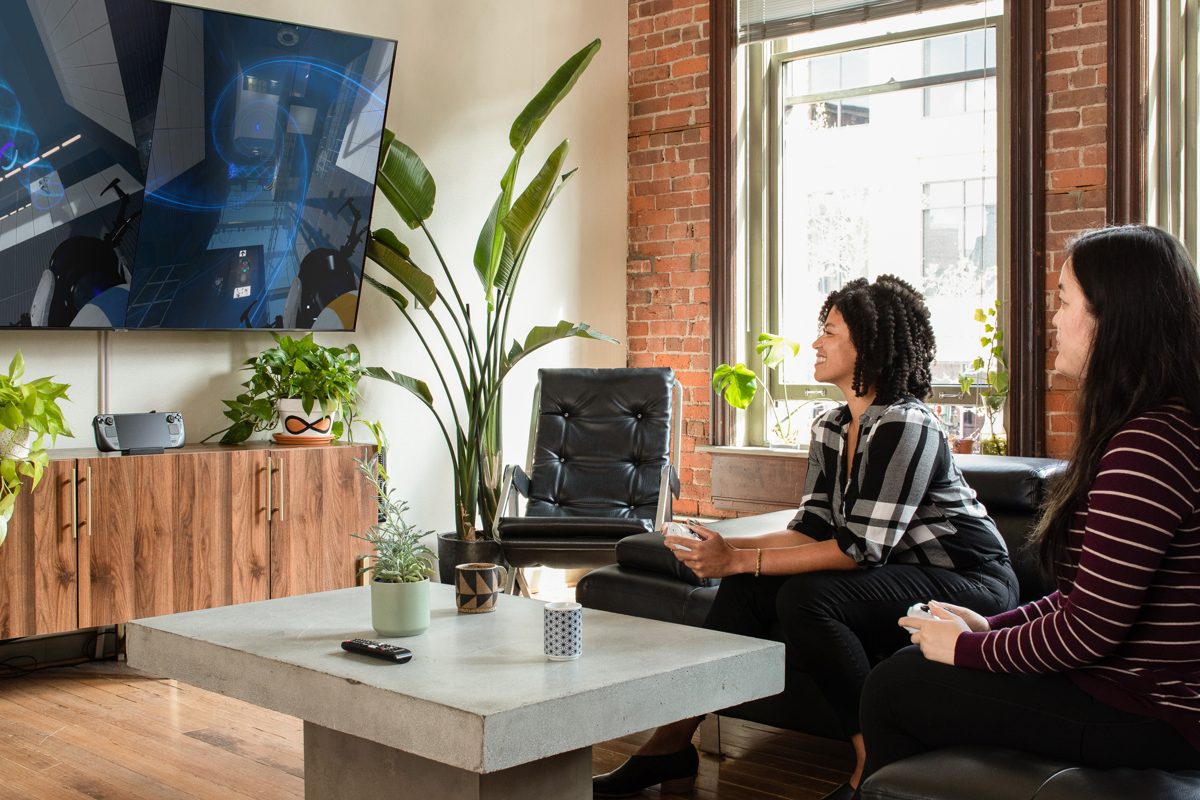
Use both screens: Desktop Mode
In Gaming Mode only the external screen is on. Valve: "Right now, the only way to enable both/multiple displays is by rebooting into Desktop mode." [4] Open Desktop Mode from Steam > Power [4]. Desktop Mode runs the KDE Plasma desktop [1]. To mirror a game onto both screens, Valve says to launch the game from Desktop Mode [4].
No signal or a black screen: what to check
Work down the list. Each item is from Valve's docking FAQ [4].
| What you see | What to do |
|---|---|
| TV or monitor shows "no signal" | Check the selected input. Try another input port, unplug and replug the cable, or try a new cable |
| The Deck's screen does not go black when you connect | Reset the dock: unplug the Deck, the dock's power supply and the display cables, then plug them back in |
| A lower resolution works, a higher one does not | The dock, cable or display may not support that mode. Use a DP 1.4 or HDMI 2.0+ cable |
| The picture does not fit the screen | In Steam > Display, turn off "Automatically Scale User Interface" and move the slider. On the TV, look for Overscan |
| Picture through a DisplayPort to HDMI adapter fails | Replace a passive adapter with an active one |
| The Docking Station may need a firmware update | Plug the power supply and the Deck into the dock, restart the Deck, unplug both, wait 10 seconds, plug them back in. This should start the update |
Still black? Turn on External display safe mode. It makes the Deck "pick a low resolution and refresh rate for your external display to improve the chances of successfully lighting up the display" [4]:
- Unplug the Deck from the dock or hub.
- In the Deck's Display settings, set External display safe mode to On.
- Plug the Deck back into the dock.
- The display should now light up [4].
Many TVs have 60Hz limits on some inputs and 30Hz limits on others. Valve suggests checking the TV's manual for "4K30" and similar input limits [4]. If nothing works, Valve suggests trying another device on the dock, and then battery storage mode on the Deck. The steps are in Valve's FAQ [4].
What a portable monitor needs for a Steam Deck
- A USB-C video input. The Deck sends video as DisplayPort over USB-C [1][2]. A portable monitor with only HDMI needs a hub with HDMI between them.
- Power. The Deck uses a 45W USB-C PD charger [1][2]. If the Deck must charge while it drives the monitor, put a hub with PD passthrough between them [4]. Check in the monitor's manual how the monitor itself is powered.
- Resolution and refresh. The Deck's own screen is 1280 x 800 [1][2]. Valve caps it at 60Hz on the LCD model and 90Hz on the OLED model [5]. Over USB-C the Deck can send up to 4K at 120Hz [1][2].
If you want a screen in front of your eyes instead of on a table, see AR and XR glasses for gaming for display glasses with a Deck.
The Owl3D Shift as a Steam Deck monitor
The Owl3D Shift is a 14-inch 4K (3840 x 2160) monitor [6]. Over USB-C (DisplayPort Alt Mode) or Mini HDMI, it works as an ordinary 4K 2D monitor with most computers, with no app [6]. Its panel runs at 60 Hz [6]. It is powered over USB-C and needs a power source of 20 W or more [6]. Valve's pages do not say how much power the Deck's USB-C port gives out, so plan a 20 W source for the Shift. Do not connect USB-C video and Mini HDMI at the same time [6].
The Shift's glasses-free 3D needs the Owl3D app and a computer that meets the requirement [6]. We make no 3D claim for the Steam Deck: with a Deck, expect a 2D monitor. We have not tested the Shift with a Steam Deck.
Frequently asked questions
Can you connect a Steam Deck to an external display?
Yes. Both models send video out of the USB-C port as DisplayPort, up to 8K at 60Hz or 4K at 120Hz [1][2]. Use a USB-C monitor directly, or a dock or hub for HDMI and DisplayPort.
Can you dock a Steam Deck?
Yes. Valve sells the Steam Deck Docking Station, which fits both the LCD and the OLED model [7]. Valve also says most USB-C compliant hubs and docks work [4].
Do I need the official dock?
No. Valve: "if having the official Docking Station isn't your preference, you're welcome to use whatever you like." [7] To charge the Deck at the same time, the hub needs USB-C PD passthrough [4].
Sources (7)
- Valve, "Steam Deck: Tech Specs" (Steam Deck OLED). https://www.steamdeck.com/en/tech (opened 2026-11-15)
- Valve, "Steam Deck: Tech Specs" (Steam Deck LCD). https://www.steamdeck.com/en/tech/deck (opened 2026-11-15)
- Valve, "Steam Deck Docking Station: Tech Specs". https://www.steamdeck.com/en/tech/dock (opened 2026-11-15)
- Steam Support, "Docking the Steam Deck". https://help.steampowered.com/en/faqs/view/4C18-08B5-DEC9-3AF4 (opened 2026-11-15)
- Steam Support, "Steam Deck - Basic Use & Troubleshooting Guide". https://help.steampowered.com/en/faqs/view/69E3-14AF-9764-4C28 (opened 2026-11-15)
- Owl3D, "Owl3D Shift" product page and specifications. https://www.owl3d.com/shift (opened 2026-11-15)
- Valve, "Steam Deck: Dock". https://www.steamdeck.com/en/dock (opened 2026-11-15)