How to Make a VR Video: Shoot, Edit and Upload 180° or 360°
How we researched this: written by Owl3D from published sources, all 15 listed at the end.
Short answer
Film with a camera that covers 180 or 360 degrees, stitch the footage in the camera maker's software, edit it in an editor set to VR, then export it with VR metadata so YouTube or a headset player wraps it round the viewer. For 3D, the usual route is 180 degrees from a two-lens VR180 camera. Already have an ordinary video and want it in 3D in a headset? That is a different job: see converting a video to VR.
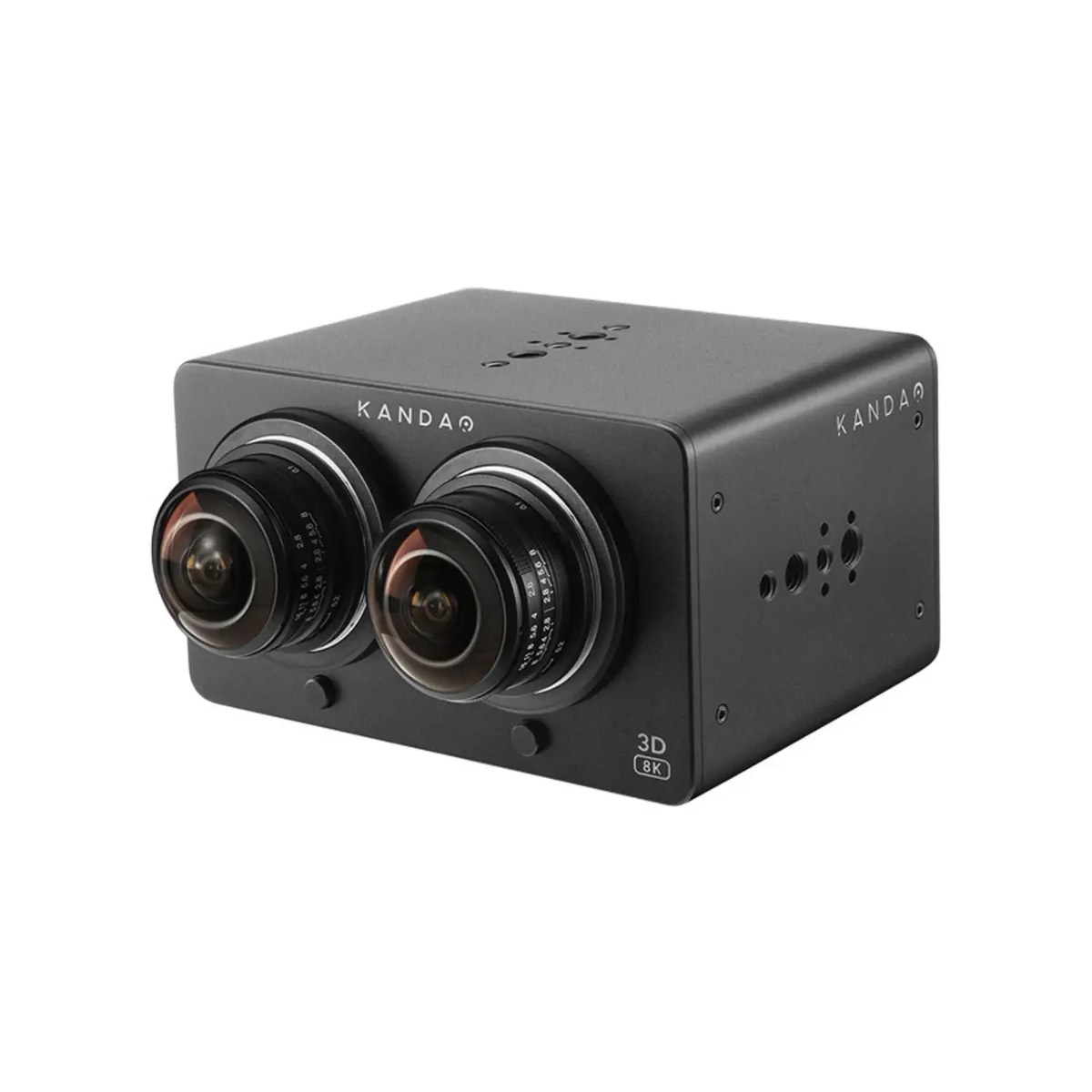
A VR180 camera: two fisheye lenses side by side, one for each eye. The Kandao VR Cam 8K. Image: Kandao.
Key takeaways
- 180 in 3D for people and things in front of you; 360 for places where looking round matters: which to shoot.
- Keep the camera level and still, at seated eye height, with your subject at least 60 cm from the lenses: shooting.
- YouTube needs VR metadata in the file, added after your last edit: export and upload.
- Flat on YouTube, two pictures side by side, or two round fisheye circles? Fixes.
180 or 360, 3D or 2D: decide first
Meta's requirements for 180 and 360 video on Meta Quest TV show the options [3]:
| Kind | What the viewer sees | Filmed with | File (Meta's spec) |
|---|---|---|---|
| VR180, 3D | The half in front of them, with depth | A VR180 camera or a dual fisheye lens | Side by side, 2:1, at least 3840 x 1920 |
| 360, 2D | Everything round them, flat | A 360 camera | One picture, 2:1, at least 3840 x 1920 |
| 360, 3D | Everything round them, with depth | A 3D 360 camera | Top and bottom, 1:1, at least 3840 x 3840 |
VR180 is the usual choice for depth. "VR 180 offers an easier workflow and higher quality video compared to shooting in 360", writes the reviewer at ThreeSixty Cameras, because "the same number of pixels only need to fill half the space" [13]. 360 is for tours, events and places where the viewer should turn round.
Step 1: the camera
- A 360 camera. A two-lens model films two fisheye pictures, front and back; the stitching software that comes with the camera joins them into one 360 picture [8].
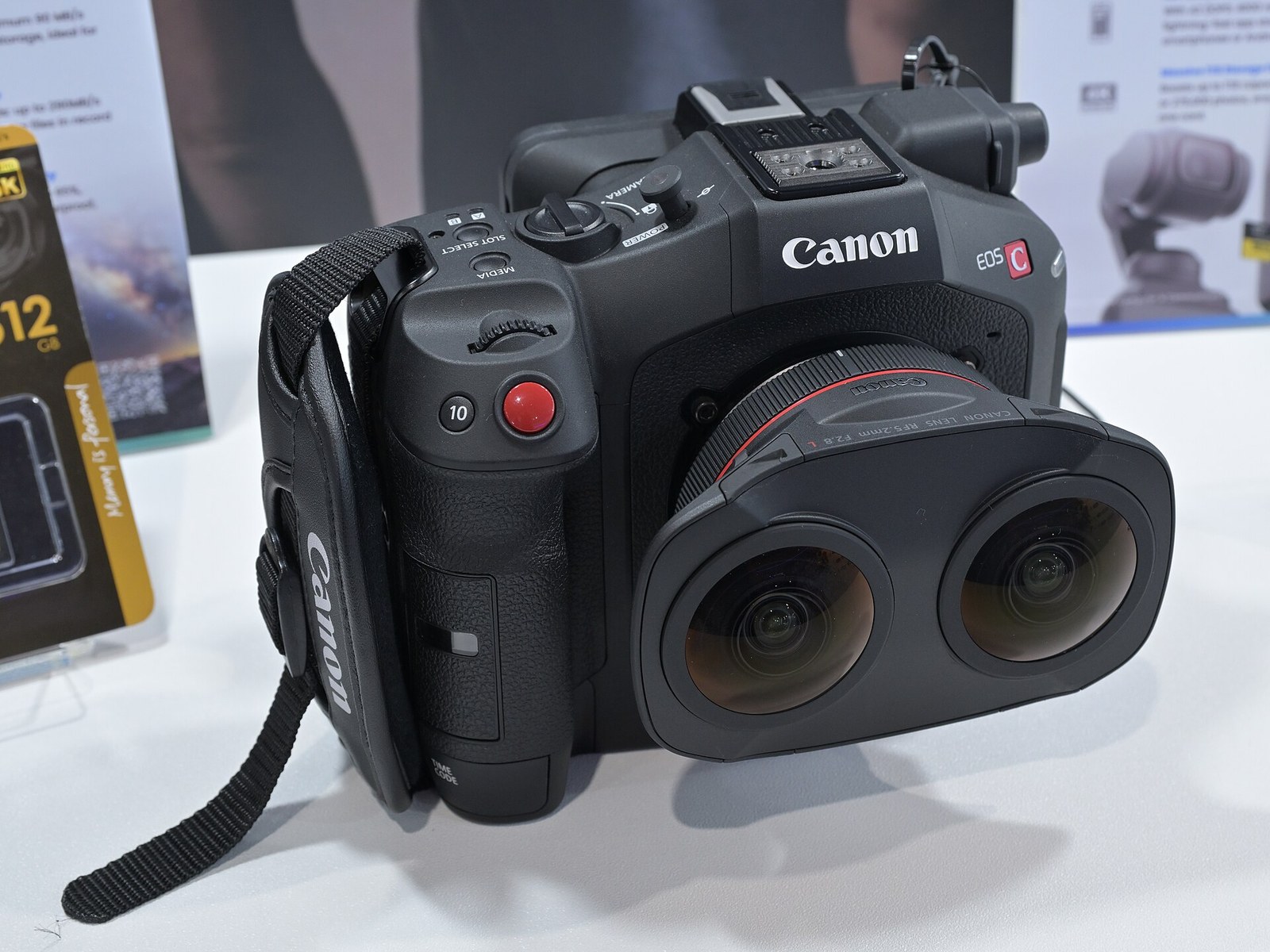
- A VR180 camera, or a Canon dual fisheye lens. Two lenses side by side, for 3D. Current models and prices: VR180 cameras and Canon lenses.
- A phone. An iPhone that records spatial video gives you 3D video for an Apple Vision Pro [11], and a Meta Quest can show it after you upload it with the Meta Horizon app [12]. One owner found it less immersive than VR180: the phone question.
Step 2: shoot it
- Keep it level. With VR180 "you need to make sure both lenses are level at all times" [7]. A tilted horizon makes the viewer tilt their head to keep their balance [8].
- Keep it still. Use a tripod and let the subject move [7]. Meta's rules for Quest TV exclude video that makes people sick "by being shaky or having too much accelerated motion" [4].
- Put it where the viewer's eyes would be. For VR180, "the approximate height of a seated person" [7]; for 360, "slightly below eye level" [8].
- Mind the distance. "Keep the subject at least 60cm away from the lenses or the 3D effect will look distorted" [7]. For 360, CenarioVR suggests "about 4-5 feet from the main subject" [8].
- There is no behind the camera. In 360 you and any lights you add are in the shot: leave, or start recording from the camera's phone app while out of sight [8].
- Keep movement off the seam. On a two-lens 360 camera, things on the line between the lenses can be distorted by stitching [8].
- Keep the action in front. In VR180 the 3D is strongest at the centre [7]; in 360 the front of the camera is the first view people see [8].
- Shoot at the highest resolution. In 360, "4K images and video only give you HD in each hemisphere" [8].
Watch a short test in a headset before the real shoot.
Step 3: stitch and edit
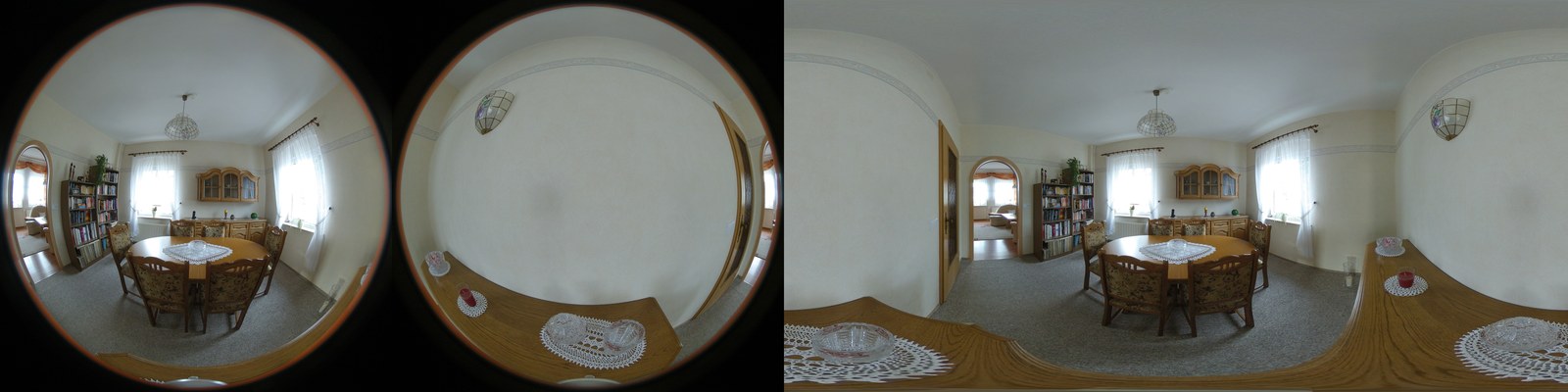
- Stitch or convert first. YouTube's advice: "Stitch the file using either stitching software that comes with the camera or separate 180° or 360° stitching software" [1]. The result is an equirectangular picture, a whole sphere laid flat [8]. Canon's dual fisheye footage goes through Canon's EOS VR Utility, which converts it "into VR 180° images in equirectangular projection"; it needs a paid plan [9].
- Edit in a VR sequence. "Use editing software to ensure the sequence settings are in VR and match your source footage" [1]: 360 or 180, mono or side by side, the same size as the footage.
Step 4: export and upload
- Export an MP4. Meta's spec: .mp4, with 30 or 60 frames a second and 25 to 60 Mbps recommended; for spatial sound, first-order ambisonics [3].
- Add the VR metadata, last. It tells YouTube and players the file is 180 or 360. YouTube says to "modify the file with an app like Adobe Premiere (2019 or higher) or script before uploading" [1]. Google's Spatial Media Metadata Injector, on GitHub, does it for 360, and for VR180 since version 2.1, its latest release (August 2018) [5][6]. For 3D, YouTube reads stereo metadata in the file [2]. Do it after every other program: in 2017 a Shotcut user found an edited VR video was "no longer 360" on YouTube, and Shotcut replied that some metadata "is not passed through" [14].
- Upload to YouTube and wait. "It may take up to an hour for 360° playback to be available" [1]. A 3D video "will play side by side" until processing ends [2].
- Or copy it to your headset. Some players read the format from the file name. Skybox, for example, reads
LR_180for side-by-side VR180 and2D_360orTB_360for 360 [10]. Copying files to a Quest: moving videos to the headset.
When it plays wrong
- YouTube plays it flat and you cannot look round. The metadata is missing, was removed by a later edit, or YouTube is still processing. Inject it again as the last step, upload, and wait up to an hour [1].
- Two round fisheye pictures. That is the camera's unstitched frame [8]. Stitch it in the camera's software and export it as a 360 video [1].
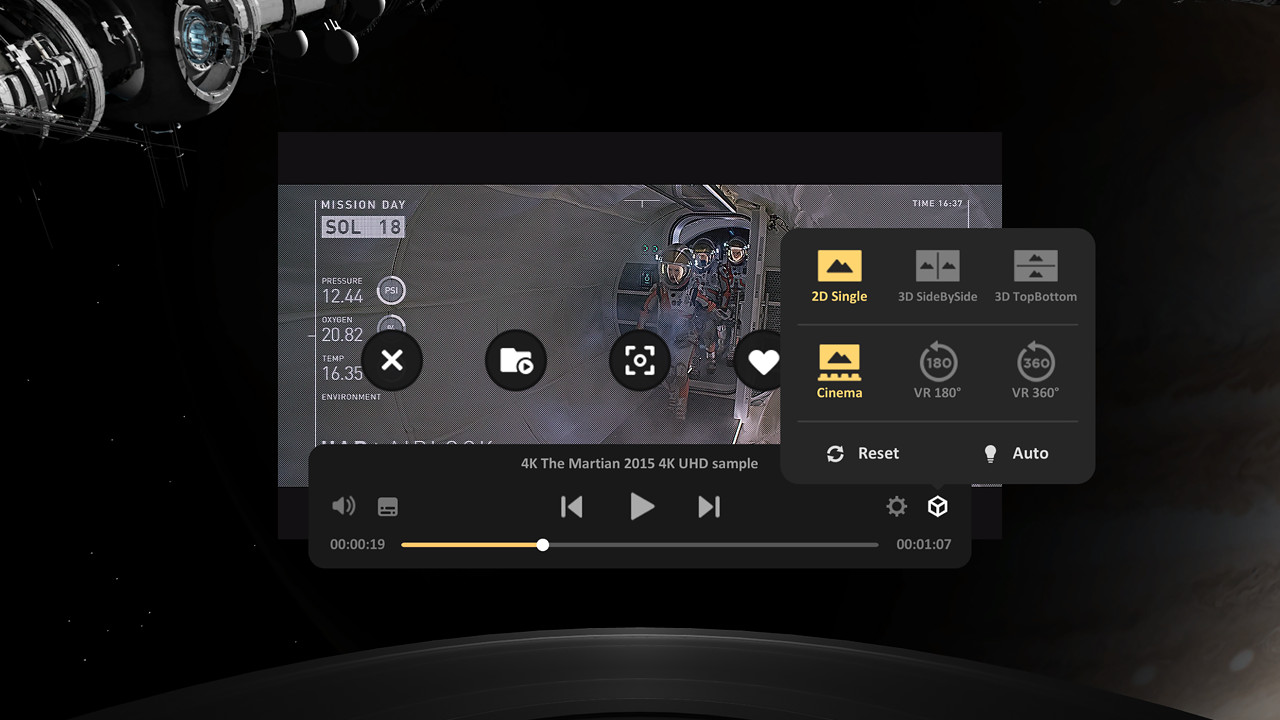
- Two pictures next to each other. The player or YouTube treats it as 2D. In the headset, choose 3D side by side and VR 180 [10]; on YouTube, check the stereo metadata [2].
- Bent the wrong way. The player chose 360 for a 180 video, or the other way round. Pick the right one, or rename the file [10].
- Double images, or it hurts to look at. Something was closer than 60 cm, or the camera was not level [7].
More player fixes: VR video player settings.
Already have an ordinary video?
It cannot show what the camera did not film, but it can become 3D for a headset. Owl3D, the publisher of this guide, makes a converter that turns a 2D video file you have the right to use into 3D side by side, half side by side or top-bottom, which plays on a flat screen in the headset. It does not make 180 or 360 video. It runs on your own Windows PC or Mac, and it is not instant. The free plan converts up to 60 seconds of video at a time, with no watermark. It is an AI conversion, not footage from a 3D camera.
From Owl3DOwl3D converterA desktop app for Windows and Mac that turns 2D videos and photos into 3D.Frequently asked questions
Can I make a VR video with my phone?
A 3D one, yes; a 180 or 360 one, not with the phone's camera alone. An iPhone's spatial video is 3D [11], and a Quest plays it [12]. One iPhone owner who watched a test on a Quest 3 wrote around 2024: "it is 3D but it is not immersive like you experience with VR180 videos." [15] We have not tested it. For 180 or 360 you need a VR180 or 360 camera; most pair with a phone app [8].
Can AI make a VR video from a normal video?
It can make it 3D, and some tools stretch it over a 180 or 360 sphere, but nothing appears that the camera did not film: can a normal video become 180 or 360.
Does Owl3D make VR180 video?
No. Owl3D's converter makes 3D side by side, half side by side or top-bottom from a 2D video, and Spatial Video for Apple Vision Pro on a Mac. It takes ordinary 2D video, not VR180 or 360 footage.
Sources (15)
- YouTube Help, "Upload 180- or 360-degree videos". https://support.google.com/youtube/answer/6178631 (opened 2026-10-17)
- YouTube Help, "Upload 3D videos". https://support.google.com/youtube/answer/7278886 (opened 2026-10-17)
- Meta Quest Media Studio, "360/180 Video Requirements". https://creator.oculus.com/media-studio/documentation/video-spec/ (opened 2026-10-17)
- Meta Quest Media Studio, "How to Upload an Immersive Media". https://creator.oculus.com/media-studio/documentation/media-studio/ (opened 2026-10-17)
- Google, "spatial-media" on GitHub: README and "VR180 Video Format". https://github.com/google/spatial-media (opened 2026-10-17)
- Google, "Spatial Media Metadata Injector v2.1", release notes, August 27, 2018. https://github.com/google/spatial-media/releases (opened 2026-10-17)
- ThreeSixty Cameras, "6 Tips for Shooting VR180 3D Video". https://www.threesixtycameras.com/5-tips-for-shooting-vr180-3d-video/ (opened 2026-10-17)
- John Blackmon, CenarioVR (ELB Learning), "Best Practices for Creating 360 Degree Video". https://www.cenariovr.com/blog-posts/best-practices-for-creating-360-degree-video.html (opened 2026-10-17)
- Canon, "EOS VR Utility". https://app.ssw.imaging-saas.canon/app/en/vru.html (opened 2026-10-17)
- Skybox (Source Technology), "How to Adjust 2D/3D/VR Video Formats". https://skybox.xyz/support/How-to-Adjust-2D&3D&VR-Video-Formats (opened 2026-10-17)
- Apple, iPhone User Guide, "Take spatial photos and record spatial videos for Apple Vision Pro with your iPhone camera". https://support.apple.com/guide/iphone/spatial-photos-record-videos-apple-vision-iph6e3a6d4fe/ios (opened 2026-10-17)
- Meta Quest Help Center, "Spatial video on Meta Quest". https://www.meta.com/help/quest/372981992147360/ (opened 2026-10-17)
- ThreeSixty Cameras, "Every VR180 Camera Out Now: Comparison Table". https://www.threesixtycameras.com/every-vr180-camera-out-now-comparison-table/ (opened 2026-10-17)
- User's report: Shotcut forum, "Shotcut Video is not 360, Why?", posted October 25, 2017. https://forum.shotcut.org/t/shotcut-video-is-not-360-why/2982 (opened 2026-10-17)
- User's report: comment under the YouTube video "Apple Spatial Video in 3D! Shot on iPhone 15 Pro for Vision Pro & Meta Quest 3", channel Hugh Hou, shown as posted "2 years ago" on 2026-10-17. https://www.youtube.com/watch?v=x3v-0XbWI2s (opened 2026-10-17)