Bigscreen 3D Movies: Rentals, Your Own Files and 2D Films in 3D
How we researched this: written by Owl3D from published sources, all 4 listed at the end.
Short answer
Bigscreen is a free VR cinema app on Steam and on Meta Quest [1][2]. You can watch 3D movies in it in two ways. Its Steam page says studio deals, "such as Paramount Pictures", let you "rent and watch high quality 3D movies in VR" [1]. And its player opens your own video files in side-by-side 3D or over-under 3D [1][2]. On a Quest, the files sit on the headset [2]. On a Windows PC, you can also stream your desktop into Bigscreen [3]. Owl3D, the publisher of this guide, makes an app that turns 2D films into side-by-side 3D for Bigscreen.
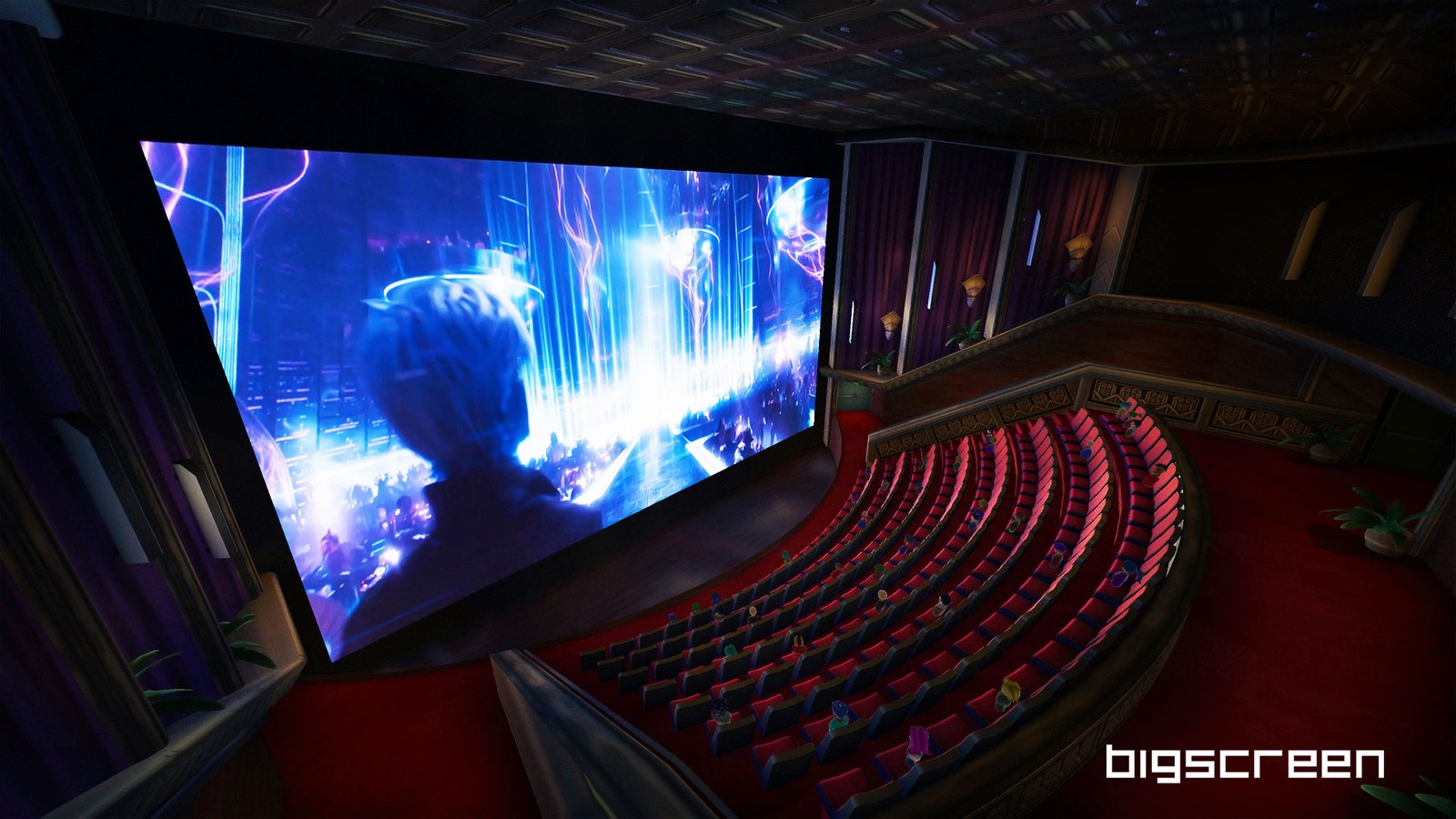
A film on a virtual cinema screen: a screenshot from the Bigscreen app. Image: Bigscreen.
Key takeaways
- Bigscreen is free; it runs on Quest and on SteamVR and Oculus PC headsets; see what it runs on.
- Rentals: we could not see today's 3D film list or prices from outside the app; see rentals.
- Your own 3D file plays in side-by-side or over-under 3D; see your own files.
- A 2D film can become a side-by-side 3D file, or play in 3D live from a PC; see 2D films in 3D.
- Two copies of the picture next to each other means 3D is off in the player; see fixes.
Which headsets run Bigscreen?
| Where | Price | What it plays in 3D |
|---|---|---|
| Meta Quest (Meta Horizon Store) | Free to get | "local video files stored on your VR headset", side-by-side or over-under 3D [2] |
| PC VR (Steam): Rift, Rift S, Quest, Vive, "any SteamVR headset", Windows Mixed Reality | Free | Your own files, and movies "in side-by-side 3D or over-under 3D directly from your desktop" [1] |
Last checked : the Bigscreen Beta pages on Steam and the Meta Horizon Store.
The Steam version needs Windows 10 and SteamVR or the Oculus PC software [1].
Can you rent 3D movies in Bigscreen?
The Steam page says yes: "Bigscreen's partnership with movie studios, such as Paramount Pictures, provides official movie broadcasts and enables you to rent and watch high quality 3D movies in VR" [1]. The Quest listing says "WATCH 3D movies with friends in a virtual theater" and does not mention rentals [2].
If you want a studio film in 3D on a Quest 3 or 3S, Disney+ is another option. On November 10, 2026, Disney said subscribers "in select countries" can watch some Disney+ films in 3D on those headsets [4]. Disney did not name the countries.
How to watch your own 3D movie in Bigscreen
A 3D film file holds two pictures, one for each eye. Side-by-side puts them next to each other in one frame. Over-under puts one above the other. Bigscreen plays both layouts [1][2].
- Get a 3D file that you have the right to use, in side-by-side or over-under layout.
- On a Quest, copy it to the headset. Bigscreen's Quest player plays "local video files stored on your VR headset" [2]. To copy over a USB cable or Wi-Fi, see how to transfer movies to a Quest.
- On a PC headset, keep the file on the PC. The Steam version plays your own files and your desktop [1].
- Open the file in Bigscreen's video player, and set 3D to the file's layout: side-by-side or over-under.
Stream your PC into Bigscreen on a Quest
Bigscreen Remote Desktop sends a Windows PC's screen to Bigscreen on a Quest [3]. It is "For Windows only" [3].
- Install Bigscreen Remote Desktop on the PC and log in with the same account as on the Quest [3].
- Check the network: the PC and the Quest on the same network, and the Quest on 5 GHz Wi-Fi [3].
- In VR, open the Bigscreen menu, go to the "My Room" tab and choose "Remote Desktop" [3].
- Switch "Sharing desktop: Off" to On [3].
The PC's graphics card needs hardware video encoding: NVIDIA NVENC, AMD Adrenalin 18.8.1 or newer, or Intel Quick Sync [3].
Watch a 2D film in 3D in Bigscreen
Most films people own are 2D. A 2D film has only one picture, so there is no second view for the other eye. A converter estimates the depth of each frame and builds the second eye's view. The result is an AI conversion, not the studio's 3D version. You can do this in two ways with the Owl3D app, on your PC.
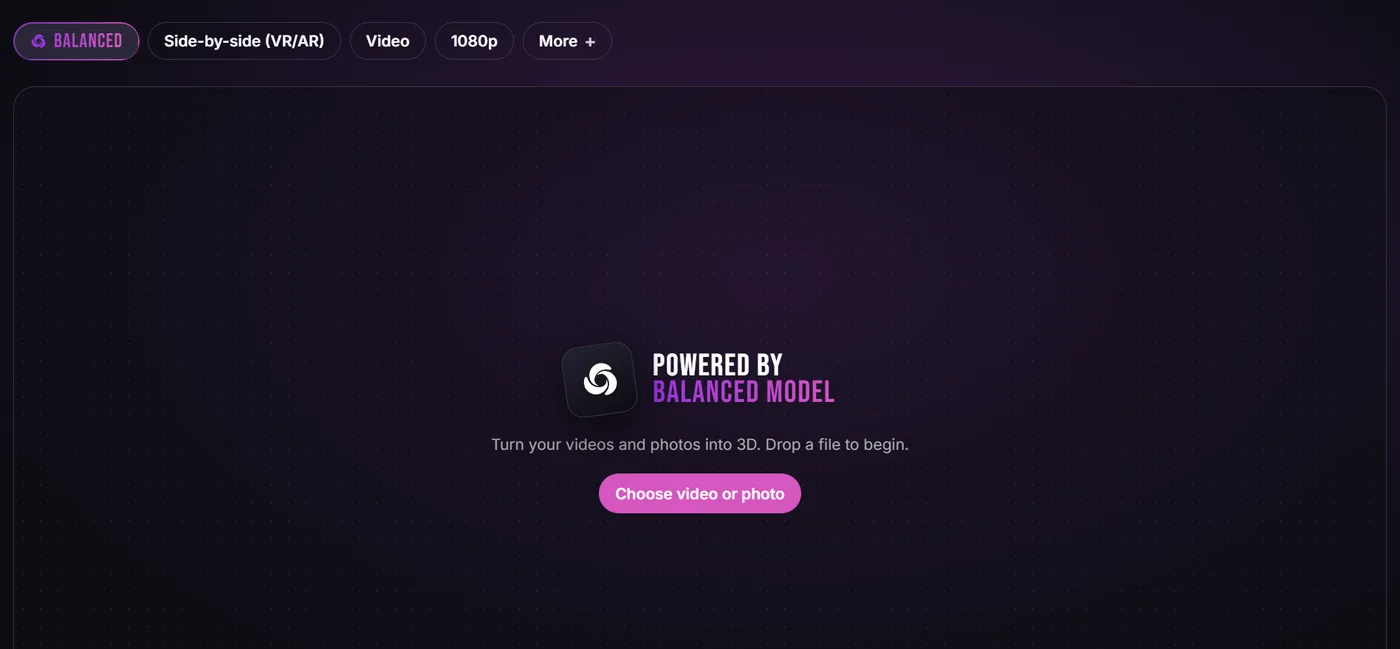
Make a 3D file. The Owl3D converter's "Side-by-side (VR/AR)" format writes both eyes side by side, "What almost every headset expects". Open the file in Bigscreen in side-by-side mode. The converter works with NVIDIA, AMD or Intel graphics on Windows, or on a Mac. It is not instant: it takes the time the film needs. The free tier converts 60 seconds of video per file, with no watermark.
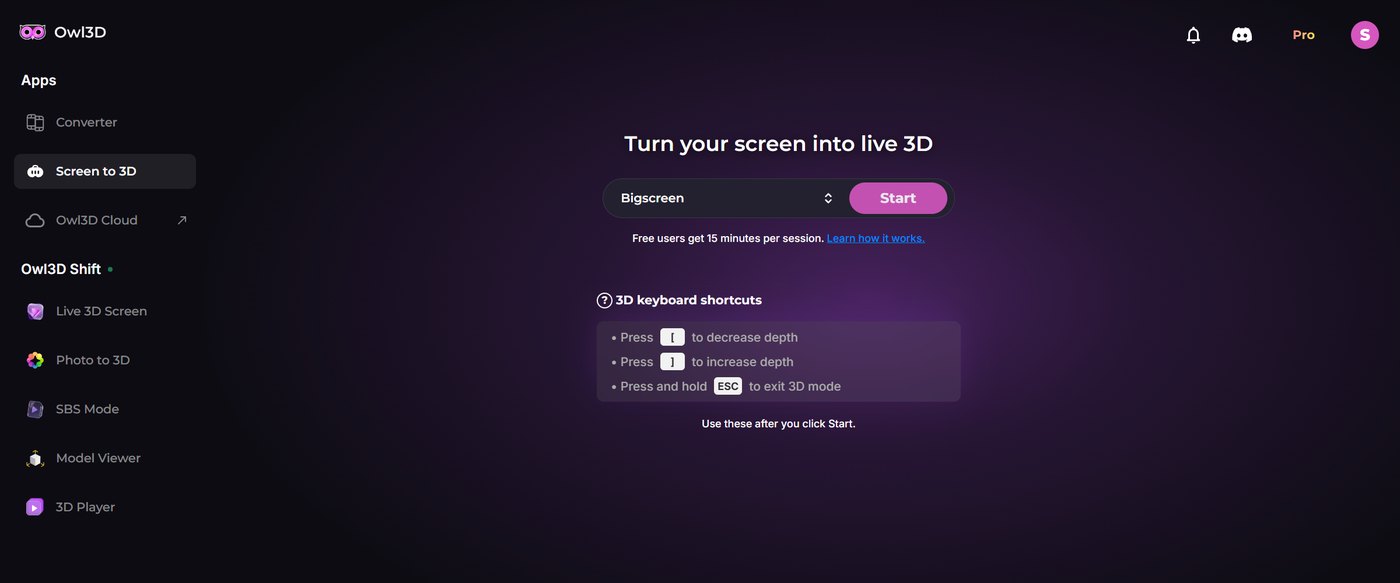
Play it in 3D live. Live 3D Screen in the Owl3D app turns the PC screen into side-by-side 3D in real time, as the film plays, with no file to make. The app has a Bigscreen choice: pick it and click Start. The app then says it "uses the Half side-by-side format" and asks you to switch the player to SBS mode. Show the PC screen in Bigscreen (on a Quest, with Remote Desktop) and set the screen to side-by-side 3D. On Windows it needs an NVIDIA RTX 30 series card or newer. Free users get 15 minutes per session.
When the 3D does not look right
- You see two copies of the picture, next to each other. The file is side-by-side 3D and the player shows it flat. Turn on side-by-side 3D for that file.
- You see two copies, one above the other. The file is over-under. Pick over-under, not side-by-side.
- Remote Desktop does not connect. Check the three conditions Bigscreen gives: the same network, 5 GHz Wi-Fi on the Quest, and hardware encoding on the PC's graphics card [3].
Frequently asked questions
Is Bigscreen free?
Yes. Bigscreen Beta is free to get on the Meta Horizon Store and on Steam [1][2]. Bigscreen shows no rental prices outside the app.
Can I watch my own 3D movies in Bigscreen?
Yes. Its player opens your own video files in side-by-side 3D or over-under 3D [1][2]. On a Quest, the file must be on the headset [2].
Why do I see two pictures next to each other?
The file is side-by-side 3D and the player shows it flat. Turn on side-by-side 3D for that file. If the two pictures are one above the other, pick over-under.
Can I watch a 2D movie in 3D in Bigscreen?
Not with Bigscreen alone. A converter such as the Owl3D app can make a side-by-side 3D file from a 2D film, or show the PC screen in 3D live. The result is an AI conversion, not the studio's 3D version.
Sources (4)
- Steam, "Bigscreen Beta" store page. https://store.steampowered.com/app/457550/Bigscreen_Beta/ (opened 2026-11-14)
- Meta Horizon Store, "Bigscreen Beta". https://www.meta.com/experiences/bigscreen-beta/2497738113633933/ (opened 2026-11-14)
- Bigscreen, "Remote Desktop for Meta Quest". https://www.bigscreenvr.com/remotedesktop (opened 2026-11-14)
- The Walt Disney Company, "Disney+ Brings 3D and Viewing Environments to Meta Quest and Meta VR Glasses" (November 10, 2026). https://thewaltdisneycompany.com/news/disney-plus-3d-viewing-meta-quest-vr-glasses/ (opened 2026-11-14)