How to Use an iPad or Laptop as a Second Monitor
How we researched this: written by Owl3D from published sources, all 6 listed at the end.
Short answer
Yes, you can. With a Mac, use Sidecar, which is built into macOS: in Control Center, click Screen Mirroring and choose your iPad [2]. With a Windows PC, Sidecar does not work [1]. You need an app on both devices, such as Duet or spacedesk [4][5]. To use a spare Windows laptop as the second screen, add the Wireless Display feature under Settings > System > Projecting to this PC on the laptop and open the Wireless Display app, then press Windows key + K on your main PC [3]. Skip to: Mac · Windows PC · laptop · iPad does not show up.
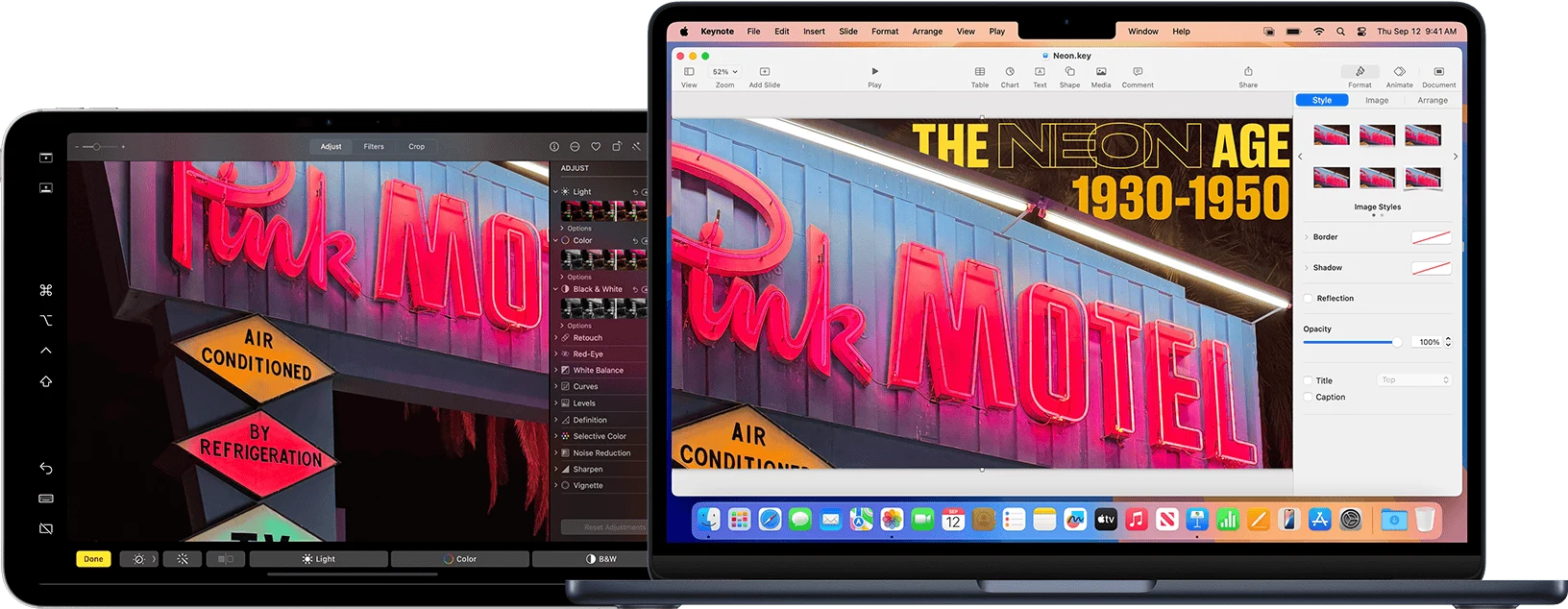
An iPad Pro as a second display for a MacBook Air with Sidecar. Picture: Apple, from "Use an iPad as a second display for a Mac" [1].
Key takeaways
- Sidecar is built into macOS and works only between a Mac and an iPad [1][2]. Both must use the same Apple Account [1][2].
- Older devices may not work: Sidecar needs a Mac introduced in 2016 or later (a MacBook Air from 2018 or later, or the iMac Retina 5K, 27-inch, Late 2015) and an iPad from the list below [1].
- On Windows, the app goes on both the PC and the iPad [4][5].
- A spare Windows 11 laptop can be a wireless second screen with no third-party app. You add the optional Wireless Display feature in Settings [3].
Use an iPad as a second monitor for a Mac (Sidecar)
Check first that your Mac and iPad are on this list [1]:
| Device | Works with Sidecar |
|---|---|
| Mac (macOS Catalina 10.15 or later) | MacBook Air from 2018 or later; iMac (Retina 5K, 27-inch, Late 2015); all other Mac models from 2016 or later |
| iPad (iPadOS 13 or later) | iPad Pro (all models); iPad (6th generation) or later; iPad mini (5th generation) or later; iPad Air (3rd generation) or later |
- Get both devices ready. Sign in to the same Apple Account on both. Turn on Wi-Fi, Bluetooth and Handoff, and keep them within 30 feet (10 meters) of each other [2].
- Connect from your Mac. Click Control Center in the menu bar, click Screen Mirroring, then choose your iPad [2]. Or open System Settings > Displays, click the button on the right, then choose your iPad [2].
- Pick extend or mirror. In Displays, choose your iPad, then use the Use as menu [2]. Extend adds the iPad as more desktop space. Mirror shows your Mac screen on the iPad [1][2].
- Arrange the screens. Click Arrange and drag the iPad to the side where it sits on your desk [2].
- Move windows across. Drag a window to the edge of the screen until the pointer appears on the iPad [2].
Wired or wireless? Sidecar works wirelessly. To keep the iPad charged, Apple suggests you connect it to the Mac with the iPad's USB charge cable [1]. Over USB, the iPad must be set to trust your Mac [1].
On the iPad you can type and click with the Mac's keyboard and mouse, and a sidebar gives you the Command, Option, Control and Shift keys. You can also use an Apple Pencil as the pointer [1].
To stop, click Control Center > Screen Mirroring on the Mac and deselect your iPad. Or tap the disconnect button at the bottom of the iPad's sidebar [1][2].
iPad does not show up
Work down this list:
- Same Apple Account on both devices, with two-factor authentication [1].
- Wi-Fi and Bluetooth on, on both devices and on the same Wi-Fi network [2]. Handoff must also be on [1].
- No hotspot. The iPad must not share its cellular connection, and the Mac must not share its internet connection [1].
- Closer together. Wireless Sidecar needs the devices within 10 meters (30 feet) [1].
- Check the models in the table above, and install the latest macOS and iPadOS updates [1].
- Or connect by cable. You can also connect the iPad to the Mac with a USB cable [2]. The iPad must be set to trust your Mac [1].
Use an iPad as a second monitor for a Windows PC
Sidecar works only between a Mac and an iPad [1]. On a Windows PC you need a third-party app. Two that say they support it on their own sites:
| App | Install on the PC | Install on the iPad |
|---|---|---|
| Duet | Duet for Windows, Windows 10 or later [4] | The Duet app, on the tablet you want to use as a display [4] |
| spacedesk | spacedesk driver, Windows 11 or 10 [5] | spacedesk Viewer, iOS later than 9.3; connects over your local network or over USB [5] |
Install the PC part on the computer and the app on the iPad [4][5]. spacedesk says its extra screens can mirror one screen or extend the desktop [5]. We have not tested these apps ourselves. Check each maker's site for the current price and setup steps.
Use a laptop as a second monitor
A spare Windows 11 laptop can be a wireless second screen for another Windows PC, with Microsoft's optional Wireless Display feature [3].
On the laptop (the one that becomes the screen):
- Open Start > Settings > System > Projecting to this PC [3].
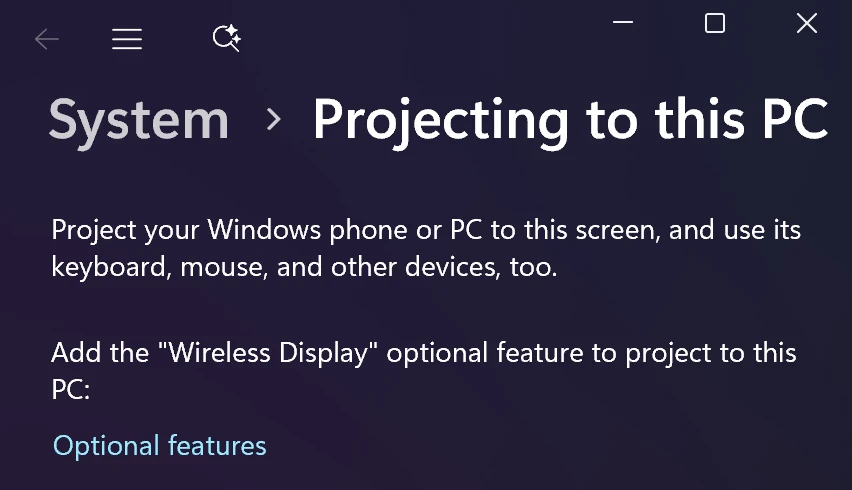
- Add Wireless Display. Under Add the "Wireless Display" optional feature to project to this PC, select Optional features. Select View features, type "wireless display", tick it, then select Next and Install [3].
- Open the Wireless Display app. Type "wireless display" in the search box on the taskbar and select it [3].
This is the page you see in step 1 before the feature is installed:
On your main PC:
- Press Windows key + K and select the laptop [3].
- Choose what each screen shows. Press Windows key + P. Extend spreads your desktop across the screens; Duplicate shows the same thing on both [3].
If the main PC does not list the laptop, check that the laptop has Wi-Fi on and the Wireless Display app open [3]. The app needs Windows 11, version 22H2 or later. Earlier versions use the Connect app [3]. The spacedesk Viewer also runs on Windows laptops, over your local network [5].
When an iPad is too small
If you would rather have a fixed second screen on your desk than an iPad, Owl3D makes the Owl3D Shift. It is a 14-inch 4K screen meant to sit beside a laptop or desktop [6]. Over USB-C or Mini-HDMI it works as an ordinary 4K 2D monitor with most computers, without the Owl3D app [6]. With the Owl3D app it also shows movies, games and photos in glasses-free 3D. The 3D needs a computer that meets the requirements on the Shift page [6].
This guide is about using an iPad or laptop as a screen for a computer. It does not cover showing the iPad's own screen on a Mac.
Frequently asked questions
Can you use an iPad as a second monitor?
Yes. For a Mac, use Sidecar, which is built in [1]. For a Windows PC, use an app such as Duet or spacedesk [4][5].
Do I need an app for Sidecar?
No. You set it up on the Mac, in System Settings > Displays or the Screen Mirroring menu [1][2]. Your Mac and iPad must be on Apple's list of supported models [1].
Can I use my iPad as a second monitor without Wi-Fi?
Apple does not say so directly. It lists Wi-Fi, Bluetooth and Handoff as requirements only for wireless Sidecar. Over a USB cable, the iPad must be set to trust your Mac [1]. But Apple's setup steps ask for Wi-Fi, Bluetooth and Handoff on both devices before you begin [2].
Can I use my iPad as a second monitor for a Windows laptop?
Yes, with an app. Sidecar does not work with Windows [1]. Duet and spacedesk both have a Windows part and an iPad app [4][5].
Sources (6)
- Apple Support, "Use an iPad as a second display for a Mac". https://support.apple.com/en-us/102597 (opened 2026-11-14)
- Apple, Mac User Guide, "Use your iPad as a second display for your Mac". https://support.apple.com/guide/mac-help/use-your-ipad-as-a-second-display-mchlf3c6f7ae/mac (opened 2026-11-14)
- Microsoft Support, "Screen mirroring and projecting to your PC or wireless display". https://support.microsoft.com/en-us/windows/hardware/display-graphics/screen-mirroring-and-projecting-to-your-pc-or-wireless-display (opened 2026-11-14)
- Duet, duetdisplay.com. https://www.duetdisplay.com/ (opened 2026-11-14)
- spacedesk, "System Requirements" and "download". https://manual.spacedesk.net/SystemRequirements.html and https://www.spacedesk.net/download/ (opened 2026-11-14)
- Owl3D, "Owl3D Shift". https://www.owl3d.com/shift (opened 2026-11-14)