Integrated vs Dedicated GPU on a Windows Laptop
How we researched this: written by Owl3D from published sources, all 20 listed at the end.
Short answer
On a Windows laptop with an NVIDIA or AMD chip, Windows picks the integrated or the dedicated GPU for each app, and it does not always pick the dedicated one. To switch an app, go to Settings > System > Display > Graphics, select the app, choose High performance, and reopen it [1], [7]. For Owl3D, set Owl3D.exe to High performance the same way, keep the laptop plugged in, and turn off any Eco GPU mode (steps). To check which GPU an app uses, see Task Manager.
Key takeaways
- Having an RTX or Radeon chip does not mean every app uses it. What each GPU does.
- Five common assumptions that lead people to the wrong fix: the table.
- Check which GPU an app uses in Task Manager, then switch it in Windows Settings.
- The NVIDIA GPU is missing, or the setting does nothing? When it still uses integrated graphics.
- Using Owl3D on a laptop? Set Owl3D.exe to the dedicated GPU and check the Shift's connection.
What the two GPUs do
The integrated GPU (iGPU) is built into the Intel or AMD processor. It uses little power and is enough for browsing, video calls and streaming video. The dedicated GPU (dGPU, also called discrete), an NVIDIA GeForce or RTX chip or an AMD Radeon chip, uses much more power and is built for games, video editing and 3D design [7].
On most laptops the two work together. NVIDIA calls this Optimus; AMD calls it switchable graphics. The laptop's own screen is wired to the integrated GPU. When an app runs on the dedicated GPU, the dedicated GPU draws each frame and hands it to the integrated GPU, which sends it to the screen [6], [7]. When no app needs it, Optimus switches the NVIDIA GPU off completely to save battery [6].
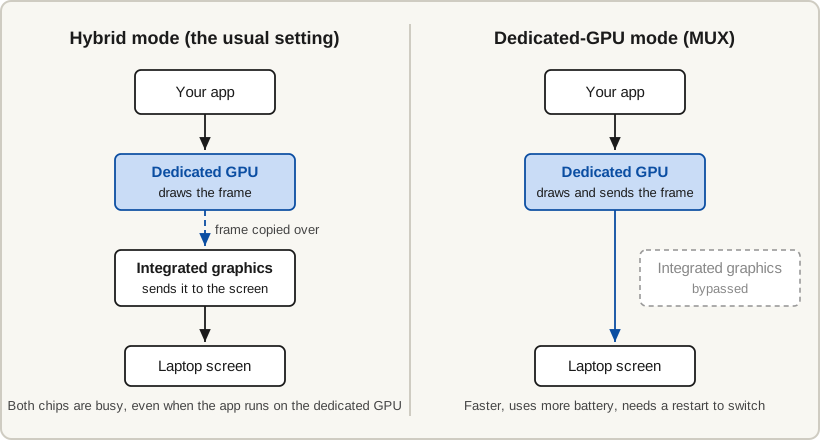
Some gaming laptops can bypass the integrated GPU instead, so the dedicated GPU drives the screen itself. A MUX switch does it after a restart [9], [11]; NVIDIA Advanced Optimus switches on the fly, with a few seconds of black screen [16]. See laptop GPU modes.
Five assumptions that send people the wrong way
| What people assume | What actually happens | How to check |
|---|---|---|
| "My laptop has an RTX card, so every app uses it." | Windows picks a GPU for each app. Unless an app or a setting asks for high performance, it can run on integrated graphics [1], [13] | Task Manager, GPU Engine column |
| "Task Manager shows the Intel GPU busy, so the NVIDIA GPU is not being used." | The integrated GPU is busy in hybrid mode even when the dedicated GPU draws the app, because every frame goes to the screen through it [7] | Look at the app's own row, not the GPU tiles: check |
| "The NVIDIA GPU shows 0%, so it is broken." | An idle NVIDIA GPU is switched off on purpose [6]. It wakes when an app asks for it | Start the app, then look again |
| "I set High performance, so it is fixed." | The choice is made when the app starts, so a running app keeps its old GPU [5], [15]. An app can also pick its own GPU and ignore the setting [3] | Close and reopen the app, then check |
| "An external monitor always runs on the dedicated GPU." | It depends on how the port is wired. Some ports go to the NVIDIA GPU, others to the integrated GPU [5], [12] | Which port is on which GPU |
Check which GPU an app is using
- Open the app you want to check, and use it (play the video, start the game).
- Open Task Manager with Ctrl + Shift + Esc [7].
- Note the GPU numbers. On the Performance tab each GPU has a tile headed GPU 0, GPU 1 and so on, with its name underneath, for example an Intel or AMD Radeon integrated GPU and an NVIDIA GeForce RTX Laptop GPU [7]. Do not assume GPU 0 is the dedicated one: the order differs from laptop to laptop [7], [8].
- Add the columns. On the Processes tab, right-click any column header and turn on GPU and GPU Engine [7].
- Read the app's row. GPU Engine shows the GPU number and engine it is using right now, such as "GPU 1 - 3D" [7]. Match the number to the names from step 3. A blank value only means the app is not using a GPU at that moment [7].
Two more ways to look:
- NVIDIA's activity icon. In NVIDIA Control Panel, open the Desktop menu and select Display GPU Activity Icon in Notification Area. Clicking the icon lists the programs and displays using the NVIDIA GPU [5].
- Does the laptop have two GPUs at all? Press Windows + X, open Device Manager and expand Display adapters. Two entries, such as Intel UHD Graphics and an NVIDIA card, mean switchable graphics; one entry means there is nothing to switch [7].
Switch an app to the dedicated GPU
Windows' own setting comes first. On Windows 10 version 2004 and later and on Windows 11 it takes priority over NVIDIA's [4], [7].
- Open Graphics settings. Settings > System > Display > Graphics [1]. Shortcut: press Windows + R, type
ms-settings:display-advancedgraphicsand press Enter [7]. - Find the app. Under Custom options for apps, select it. If it is not listed, add it: Add desktop app opens a file browser to find the program's .exe file; Add Windows Store app lists installed Store apps [2].
- Choose High performance. The choices are Let Windows decide, Power saving (integrated GPU) and High performance (dedicated GPU) [1], [7]. On older builds you select Options, choose, then Save [1].
- Close and reopen the app [1], [7], then check again.
Windows 10 calls the list Graphics performance preference instead of Custom options for apps [20], and before version 1903 it said Classic app and Universal app instead of Desktop app and Microsoft Store app [13].
NVIDIA Control Panel
Use it if Windows' setting did not take, or for apps Windows has no preference for [4], [7]. Right-click the desktop, open NVIDIA Control Panel, then Manage 3D settings > Program Settings. Select or add the app, set "Select the preferred graphics processor for this program" to High-performance NVIDIA processor, and select Apply [7]. The Global Settings tab sets the same choice for every app [7]. Restart the app afterwards [5].
AMD Radeon laptops
AMD removed the Switchable Graphics menu from its Radeon software in version 19.12.1 and asks you to use Windows' Graphics settings instead [13]. The steps above apply.
Laptop GPU modes and MUX switches
Many gaming laptops add a GPU mode in their maker's app. It decides whether the dedicated GPU is on at all, and whether it drives the screen.
| Maker and app | Modes | What to know |
|---|---|---|
| ASUS, Armoury Crate | Ultimate, Standard, Eco, Optimized [9] | Eco turns the dedicated GPU off; it then disappears from Device Manager [10]. Optimized switches to Eco on battery [9]. Ultimate uses the MUX switch and needs a restart [9] |
| Lenovo Legion, Lenovo Vantage | Hybrid, Hybrid-iGPU Only, dGPU [11] | dGPU mode sends all graphics to the dedicated GPU and needs a restart [11] |
| MSI, MSI Center | MSHybrid, Discrete Graphics [12] | Set under General Settings on laptops with a MUX switch. Thunderbolt ports show external displays in MSHybrid mode only [12] |
| Dell and Alienware, BIOS or Alienware Command Center | Hybrid, dGPU only [7] | Turning off Enable Hybrid Graphics / Advanced Optimus in the BIOS leaves only the dedicated GPU. Dell advises turning on the Alienware MUX switch only while plugged in [7] |
External monitors: which port is on which GPU
An external screen is not always driven by the dedicated GPU. Some laptop ports are wired to the NVIDIA GPU, and anything opened on a screen connected there always uses the NVIDIA GPU, whatever the app setting says [5]. Other ports depend on the integrated GPU: on MSI laptops, for example, Thunderbolt ports show external displays only in hybrid mode [12].
To find out which is which, check the port table in the laptop's manual. MSI also suggests NVIDIA Control Panel's Set PhysX Configuration page, which shows which GPU each connected display is on [12]. NVIDIA's activity icon lists the displays the NVIDIA GPU is driving [5].
So if an external screen goes dark on a USB-C or Thunderbolt port after you switch to a dedicated-GPU mode, try another port or switch back to hybrid mode.
When it still uses integrated graphics
| What you see | Likely reason | What to do |
|---|---|---|
| Only one GPU in Task Manager and Device Manager | On ASUS laptops, Eco mode switches the dedicated GPU off and hides it from Device Manager [10]. Lenovo has a similar Hybrid-iGPU Only mode for light work [11] | Switch to Standard or Optimized (ASUS) or Hybrid (Lenovo), then check again |
| The dedicated GPU is in Device Manager with a down arrow or warning icon | It is disabled, or its driver has a problem [7] | Right-click it and select Enable device; install the laptop maker's graphics driver [7] |
| Fine plugged in, slow on battery | On battery, Windows and the laptop may keep apps on integrated graphics [7], [15] | Plug in, and set Power mode to Best performance under Settings > System > Power & battery [14] |
| Set to High performance, still on the integrated GPU | The app was not restarted, or it picks its own GPU [3], [7] | Restart the app; look for a GPU choice in the app's own settings [3]; set it in NVIDIA Control Panel too |
| NVIDIA Control Panel says Windows manages the graphics processor | Normal on Windows 10 20H1 and later [4], [20] | Use Windows' Graphics settings |
| Power mode cannot be changed | A custom power plan from the laptop maker may be selected [14] | Look for a performance setting in the maker's app |
One laptop owner on Steam's forums with an HP Pavilion found the low frame rates came from the battery, not the GPU setting: "I did a hard reset of the battery and it works plugged in now, averaging around 55 FPS." [18]
Owl3D on a laptop
Owl3D, the publisher of this guide, makes software that converts 2D video to 3D. Its instant conversion, Live 3D Screen on the Owl3D Shift glasses-free 3D display and Owl3D Link for Meta Quest, needs an NVIDIA RTX 3060 graphics card or better on Windows; the Shift's support page lists a dedicated NVIDIA graphics card as required for 3D [19]. On a laptop with two GPUs, give Owl3D the dedicated one:
- Add Owl3D. In Graphics settings, select Add desktop app, go to
%LOCALAPPDATA%\Owl3D, open the newestapp-folder (such asapp-2.4.1) and chooseOwl3D.exe. - Choose High performance, then quit Owl3D and open it again.
- Plug the laptop in and set Power mode to Best performance [14]. If the laptop maker's app has an Eco GPU mode, turn it off while you use Owl3D [10].
- If the 3D picture goes black after this change, set Owl3D back to Let Windows decide.
After an Owl3D update, check the setting again: the new version is in a new app- folder.
Check the Shift's connection
The Shift takes video over HDMI or over USB-C DisplayPort Alt Mode, through the cables in its box; use one or the other, not both at once [19].
- Connect one video cable. The USB-C cable goes into a USB-C port on the laptop that carries DisplayPort; the HDMI to Mini HDMI cable goes into the laptop's HDMI port [19].
- Check the picture. The Shift should show part of your desktop as a second screen. If it stays dark after you switched the laptop to a dedicated-GPU mode, try the other cable, or switch back to hybrid mode: on MSI laptops, for one, Thunderbolt ports show external screens only in hybrid mode [12].
- See which GPU drives it. In NVIDIA Control Panel, Set PhysX Configuration shows which GPU each connected screen is on [12]; NVIDIA's activity icon lists the screens the NVIDIA GPU is driving [5].
Frequently asked questions
Is integrated graphics bad?
No. It handles browsing, documents, video calls and streaming video with little power, and Dell's advice is to leave light apps on Let Windows decide and give only demanding apps the dedicated GPU [7].
Does using the dedicated GPU drain the battery faster?
Yes. It uses much more power than integrated graphics, so it is best used plugged in [7].
Can I make every app use the dedicated GPU?
Yes, in three ways: NVIDIA Control Panel's Global Settings tab [7], a MUX or dGPU-only mode in the laptop maker's app or BIOS [7], [9], [11], or, on laptops with more than one dedicated or external GPU, Windows' Default high performance GPU setting [2]. Dell says forcing the dedicated GPU on is safe but costs battery life and adds fan noise and heat [7].
Sources (20)
- Microsoft Support, "Optimizations for windowed games in Windows 11". https://support.microsoft.com/en-us/windows/hardware/display-graphics/optimizations-for-windowed-games-in-windows-11 Opened 2026-10-10.
- Microsoft DirectX Developer Blog, "Navigating the redesigned graphics settings page" (January 19, 2023). https://devblogs.microsoft.com/directx/navigating-the-redesigned-graphics-settings-page/ Opened 2026-10-10.
- Windows Insider Blog, "Announcing Windows 10 Insider Preview Build 17093 for PC" (February 7, 2018). https://blogs.windows.com/windows-insider/2018/02/07/announcing-windows-10-insider-preview-build-17093-pc/ Opened 2026-10-10.
- NVIDIA Control Panel Help, "Setting the Preferred Graphics Processor". https://www.nvidia.com/content/Control-Panel-Help/vLatest/en-us/mergedProjects/nv3d/Setting_the_Preferred_Graphics_Processor.htm Opened 2026-10-10.
- NVIDIA Control Panel Help, "Using NVIDIA Optimus". https://www.nvidia.com/content/Control-Panel-Help/vLatest/en-us/mergedProjects/nvcpl/Using_Optimus_Hybrid.htm Opened 2026-10-10.
- NVIDIA, "Optimus Technology" white paper, version 1.0, hosted by Dynabook. https://aps2.support.emea.dynabook.com/kb0/TSB2803DK0000R01_Optimus_Whitepaper_FINAL.pdf Opened 2026-10-10.
- Dell Support, "Switchable Graphics on Dell Laptops: Full Setup Guide", article 000190229 (last modified September 4, 2026). https://www.dell.com/support/kbdoc/en-us/000190229/how-to-set-nvidia-video-as-the-default-with-computers-that-have-integrated-and-discrete-video-cards Opened 2026-10-10.
- Microsoft DirectX Developer Blog, "GPUs in the Task Manager" (July 21, 2017). https://devblogs.microsoft.com/directx/gpus-in-the-task-manager/ Opened 2026-10-10.
- ASUS ROG, "Maximize your ROG laptop's performance with a MUX Switch". https://rog.asus.com/us/articles/rog-gaming-laptops/maximize-your-rog-laptops-performance-with-a-mux-switch/ Opened 2026-10-10.
- ASUS Support, "Armoury Crate Ver6.0 - Introduction", FAQ 1043747. https://www.asus.com/support/faq/1043747/ Opened 2026-10-10.
- Lenovo, Legion Pro 7 user guide, "GPU modes". https://download.lenovo.com/pccbbs/pubs/legion_pro7/html/html_en/explore_GPUModes.html Opened 2026-10-10.
- MSI, "Video Output Information" (knowledge base 07425, 2022). https://storage-asset.msi.com/global/picture/faq/10015790@2022-0426-0836-173468@kb_07425_en.pdf Opened 2026-10-10.
- AMD Support, "How to configure graphics performance preference in Windows 10", FAQ GPU-110. https://www.amd.com/en/resources/support-articles/faqs/GPU-110.html Opened 2026-10-10.
- Microsoft Support, "Change the power mode for your Windows PC". https://support.microsoft.com/en-us/windows/change-the-power-mode-for-your-windows-pc Opened 2026-10-10.
- NVIDIA, "Optimus Rendering Policies" technical note (July 2012). https://developer.download.nvidia.com/devzone/devcenter/gamegraphics/files/OptimusRenderingPolicies.pdf Opened 2026-10-10.
- ASUS Support, "NVIDIA Advanced Optimus - Introduction", FAQ 1049565. https://www.asus.com/support/faq/1049565/ Opened 2026-10-10.
- Users' reports: Microsoft Q&A, "Game not using high performance GPU despite graphics settings" (February 2021). https://learn.microsoft.com/en-us/answers/questions/3783189/game-not-using-high-performance-gpu-despite-graphi Opened 2026-10-10.
- Users' reports: Steam Community discussions, HP Pavilion 15 thread (February to March 2021). https://steamcommunity.com/discussions/forum/11/3117025249771604100 Opened 2026-10-10.
- Owl3D, "Owl3D Shift Support", System requirements. https://www.owl3d.com/shift/support Opened 2026-10-10.
- ASUS Support, "[Windows 11/10] How to set the application as the discrete graphics used", FAQ 1044213 (updated March 20, 2026). https://www.asus.com/support/faq/1044213/ Opened 2026-10-10.