Dual Monitor Setup: Connect, Extend and Fix No Signal
How we researched this: written by Owl3D from published sources, all 13 listed at the end.
Short answer
Connect the second monitor to a video port on your computer and turn it on. On Windows, press Windows key + P and choose Extend [1]. Then open Settings > System > Display and drag the two boxes to match your desk [1]. On a Mac, open System Settings > Displays, click the second display, open the Use as menu and choose to extend your desktop [5]. If the second screen stays black, see second monitor not detected.
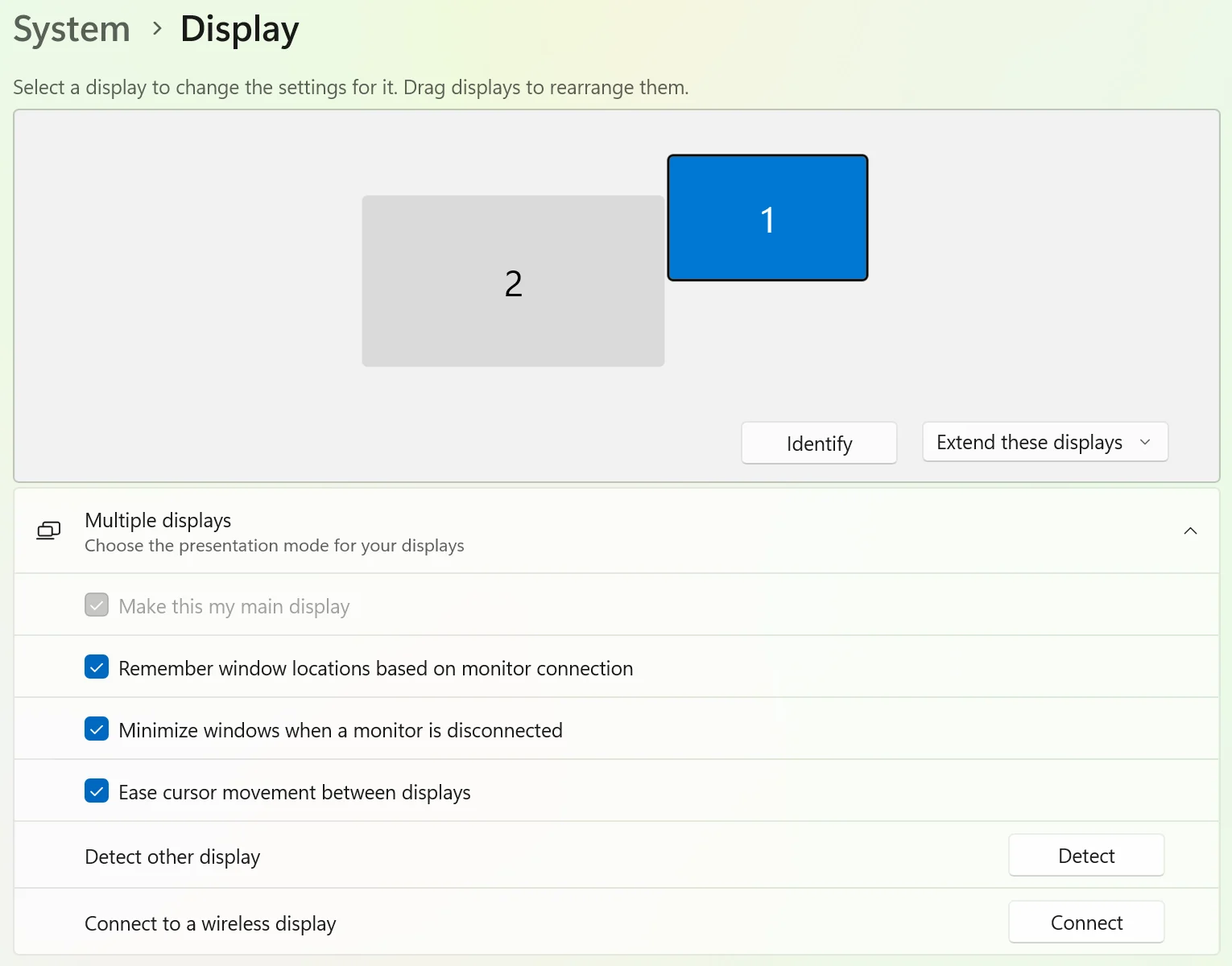
Our own screenshot: a Windows 11 laptop with a second screen set to Extend. Display 1 is the laptop panel; display 2 is the second screen. Owl3D, November 2026.
Key takeaways
- A laptop with one HDMI port can still run two external monitors: add the second with a docking station, or with a USB adapter on a USB-C port if your laptop supports it [2].
- A plain HDMI splitter shows the same picture on both screens. It cannot extend the desktop [2].
- Extend gives you one wide desktop. Duplicate shows the same picture on both screens [1].
- Second screen black? Check the cable and the display mode first, then work through the fixes in order [2].
Which port and cable do I need?
Look at the ports on your computer and on the monitor, and use a cable that fits the ports at both ends when you can [6]. Typical video ports are HDMI, DisplayPort, VGA and DVI [2]. A USB-C port may also give you a video output, with the right adapter [2].
| Your computer has | Connect the second monitor with |
|---|---|
| An HDMI port and a USB-C port | HDMI for one screen; for the other, a USB adapter on the USB-C port, if your computer supports it [2] |
| Only one video port | A docking station, or a USB adapter on a USB-C port [2] |
| A Mac with Thunderbolt or HDMI ports | The display's own cable, or an adapter if the port does not match [4] |
Three things decide if it works:
- The adapter must carry video. Apple says a USB-C or Thunderbolt adapter must be compliant with "DisplayPort Alt Mode, Thunderbolt 3, or Thunderbolt 4" [7].
- The cable must carry the resolution. If the cable or adapter does not support the display's resolution and refresh rate, the screen stays dark or runs at a lower setting [7].
- Your computer must support two screens. Some graphics adapters cannot drive more than one external monitor [2]. Base MacBook Air models are a common case: see Mac.
Do I need a docking station? Not always. With one video port you can, by default, use only one external monitor. A docking station adds more; on a computer with a USB-C port, a USB adapter may do the same [2].
Set up dual monitors on Windows 11
- Connect and turn on the monitor. Make sure the monitor is on and the cable is secure at both ends [2][6][7].
- Press Windows key + P and choose Extend. The four options are PC screen only, Duplicate, Extend and Second screen only [1].
- Open Settings > System > Display. You see one numbered box for each screen. Select Identify to show each number on its screen [1].
- Drag the boxes to match your desk, then select Apply. Move the mouse across to test: it should cross where the screens meet [1].
- Pick the main display. Select the screen you want, then tick Make this my main display under Multiple displays. In our screenshot it is ticked and greyed out, because display 1 is already the main display.
In our screenshot above, display 2 sits to the left of display 1, so the mouse crosses at the left edge of the laptop screen. Drag box 2 to the right side if your monitor stands on the right.
Make the text sharp. Select each screen and check Scale and Display resolution. On our laptop, Windows marked the panel's own resolution as "(Recommended)":
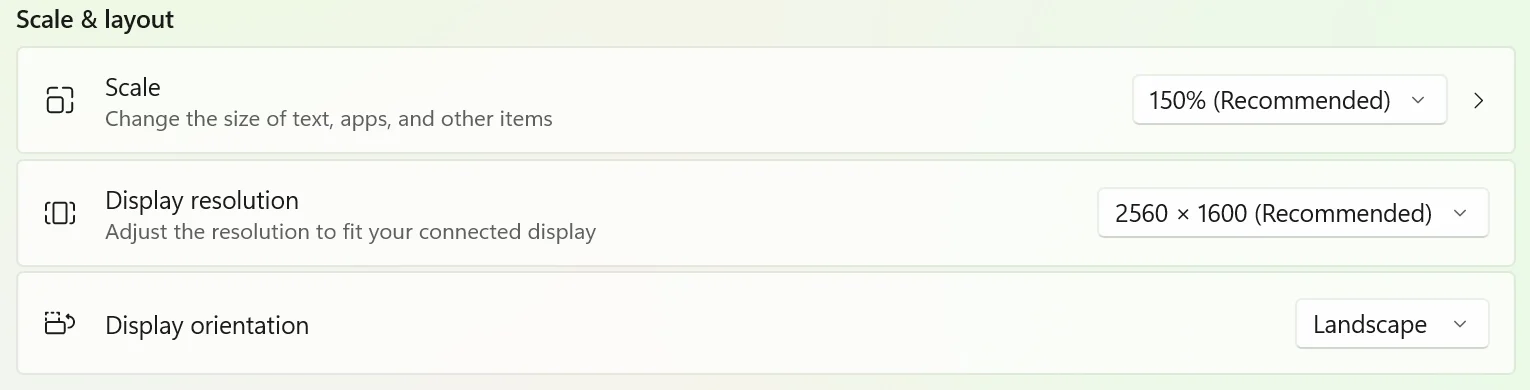
The Multiple displays section also has two settings for laptops that you plug in and out: remember window locations, and minimize windows when a monitor is disconnected [1].
Set up dual monitors on a Mac
- Connect the display to power and to your Mac, to a Thunderbolt or HDMI port. Your Mac detects it on its own [4].
- Allow the display if your Mac asks. A Mac laptop with Apple silicon may ask you to allow the accessory. If you do not allow it, the display stays dark [7].
- Open Apple menu > System Settings > Displays. Click the name of the display, open the Use as menu and choose to extend or mirror your desktop [5].
- Arrange the displays in the same Displays settings, and set resolution and refresh rate there [4].
How many screens can my Mac drive? It depends on the model [4]:
| MacBook Air | External displays |
|---|---|
| M1 or M2 | One, up to 6K at 60Hz [9][10] |
| M3 | One with the lid open [11][13]. Two with the lid closed, macOS Sonoma 14.3 or later, an external keyboard and mouse, and power connected [11] |
| M4 or M5 | Two, with the lid open; closing the lid does not add a third [8] |
A hub or a daisy chain does not raise that number [8]. If your Mac has reached its number, the extra display stays dark [7]. Other Macs: choose Apple menu > System Settings, click Help in the menu bar, choose your Mac's Specifications, and look under Display Support or Video Support [6].
Second monitor not detected or "no signal"
Work down this list and stop when the screen comes on.
- Check the cable. Make sure the monitor is on, and reseat the cable at both ends [6][7]. Try another cable: if a new one works, the old one was faulty [2].
- Check the display mode. On Windows, press Windows key + P and make sure Extend is selected [2].
- Ask the computer to look again. On Windows: Settings > System > Display > Multiple displays > Detect [1]. On a Mac: in Displays, hold the Option key and click Detect Displays [6].
- Reset the graphics driver (Windows). Press Windows key + Ctrl + Shift + B. A beep or a flicker means it worked [3]. If not, restart [2].
- Take out the dock or adapter. Docks, dongles and adapters can cause conflicts [2]. Plug the monitor straight into the computer, or into another video port [2][7].
- Lower the resolution or refresh rate. A screen set above what the cable, adapter or computer supports can go dark or drop to a lower setting [7].
- Update or roll back the display driver (Windows). In Device Manager > Display adapters, roll back the driver if the problem began after an update. Otherwise reinstall it [2].
- Test the monitor on another computer. This shows if the fault is in the monitor or in your computer [2].
A second screen that also shows 3D
Owl3D makes the Owl3D Shift, a 14-inch 4K screen meant to sit beside a laptop or desktop [12]. The second screen in our screenshots above is a Shift, connected over USB-C. Over USB-C or Mini-HDMI it works as an ordinary 4K 2D monitor with most computers [12], so the steps above apply. With the Owl3D app it also shows movies, games and photos in glasses-free 3D. The 3D needs a computer that meets the requirements on the Shift page [12]. It is a 60Hz screen [12], not a fast gaming monitor.
Frequently asked questions
Can I use two monitors with a laptop that has one HDMI port?
Yes, if the laptop also has a USB-C port with video. Otherwise use a docking station. With only one video port you can use one external monitor by default [2].
How do I split my monitor into two screens?
With two monitors, Extend splits your desktop across them. Press Windows key + P and choose Extend [1]. On a Mac, use the Use as menu in Displays settings and choose to extend [5].
Can I use my laptop as a second monitor?
This guide covers a monitor connected by a video cable. Using a laptop as the second screen is a different setup, and this guide does not cover it.
Why is my second monitor blurry?
It may be set to a scaled resolution. The display's own native resolution can be sharper than a scaled one [7]. On Windows, choose the resolution marked "(Recommended)".
Sources (13)
- Microsoft Support, "How to use multiple monitors in Windows". https://support.microsoft.com/en-us/windows/hardware/display-graphics/how-to-use-multiple-monitors-in-windows (opened 2026-11-14)
- Microsoft Support, "Troubleshoot external monitor connections in Windows". https://support.microsoft.com/en-us/windows/hardware/display-graphics/troubleshoot-external-monitor-connections-in-windows (opened 2026-11-14)
- Microsoft Support, "Troubleshooting blank screens in Windows". https://support.microsoft.com/en-us/windows/hardware/display-graphics/troubleshooting-blank-screens-in-windows (opened 2026-11-14)
- Apple Support, "Connect displays to your Mac". https://support.apple.com/en-us/102555 (opened 2026-11-14)
- Apple, Mac User Guide, "Extend or mirror your Mac desktop across multiple displays". https://support.apple.com/guide/mac-help/extend-mirror-mac-desktop-multiple-displays-mchlb5f905a1/mac (opened 2026-11-14)
- Apple, Mac User Guide, "Connect one or more external displays with your Mac". https://support.apple.com/guide/mac-help/connect-an-external-display-mchl7c7ebe08/mac (opened 2026-11-14)
- Apple Support, "If your external display is dark or low resolution". https://support.apple.com/en-us/102501 (opened 2026-11-14)
- Apple Support, "How many displays can be connected to MacBook Air". https://support.apple.com/en-us/122212 (opened 2026-11-14)
- Apple Support, "MacBook Air (M1, 2020) - Tech Specs". https://support.apple.com/en-us/111883 (opened 2026-11-14)
- Apple Support, "MacBook Air (M2, 2022) - Tech Specs". https://support.apple.com/en-us/111867 (opened 2026-11-14)
- Apple Support, "Use dual monitors with your MacBook Air and MacBook Pro with M3 chip". https://support.apple.com/en-us/117373 (opened 2026-11-14)
- Owl3D, "Owl3D Shift". https://www.owl3d.com/shift (opened 2026-11-14)
- Apple Support, "MacBook Air (15-inch, M3, 2024) - Tech Specs". https://support.apple.com/en-us/118552 (opened 2026-11-14)