Tutorial
Tutorial
3D Stuttering on Your Mac? Turn Off Low Power Mode First
3D Stuttering on Your Mac? Turn Off Low Power Mode First
|
2
min read

If Shift's 3D looks choppy on your Mac, the app usually isn't the problem. macOS is.
Low Power Mode caps how hard your Mac is allowed to work — great for battery, terrible for real-time 3D, which needs the GPU at full speed on every frame. On a MacBook Air M4 with it on, we measured Live 3D dropping to 7–9 frames per second. Same machine, setting off: smooth.
Is this your problem?
Motion stutters or judders, but the picture is sharp when paused
It got worse the moment you unplugged, or below 20% battery
Everything else on the Mac feels slightly sluggish too
If depth looks wrong but motion is smooth, that's something else.
Turn it off from the menu bar (fastest)
Click the battery icon in the menu bar, top right of your screen
Under Energy Mode, click Low Power so it is no longer highlighted
Low Power here is a toggle, not a menu — if it's highlighted, that's what's capping your frame rate.
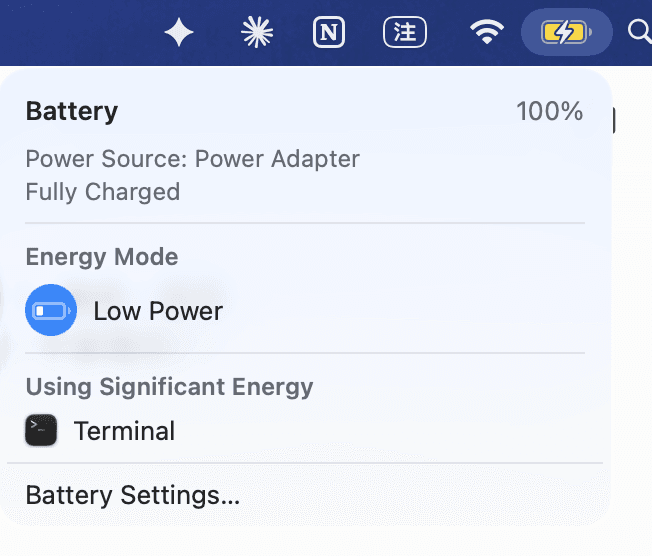
No battery icon up there? Open System Settings → Control Center → Battery and turn on Show in Menu Bar.
Turn it off in System Settings
Open System Settings
Go to Battery
Set Low Power Mode to Never
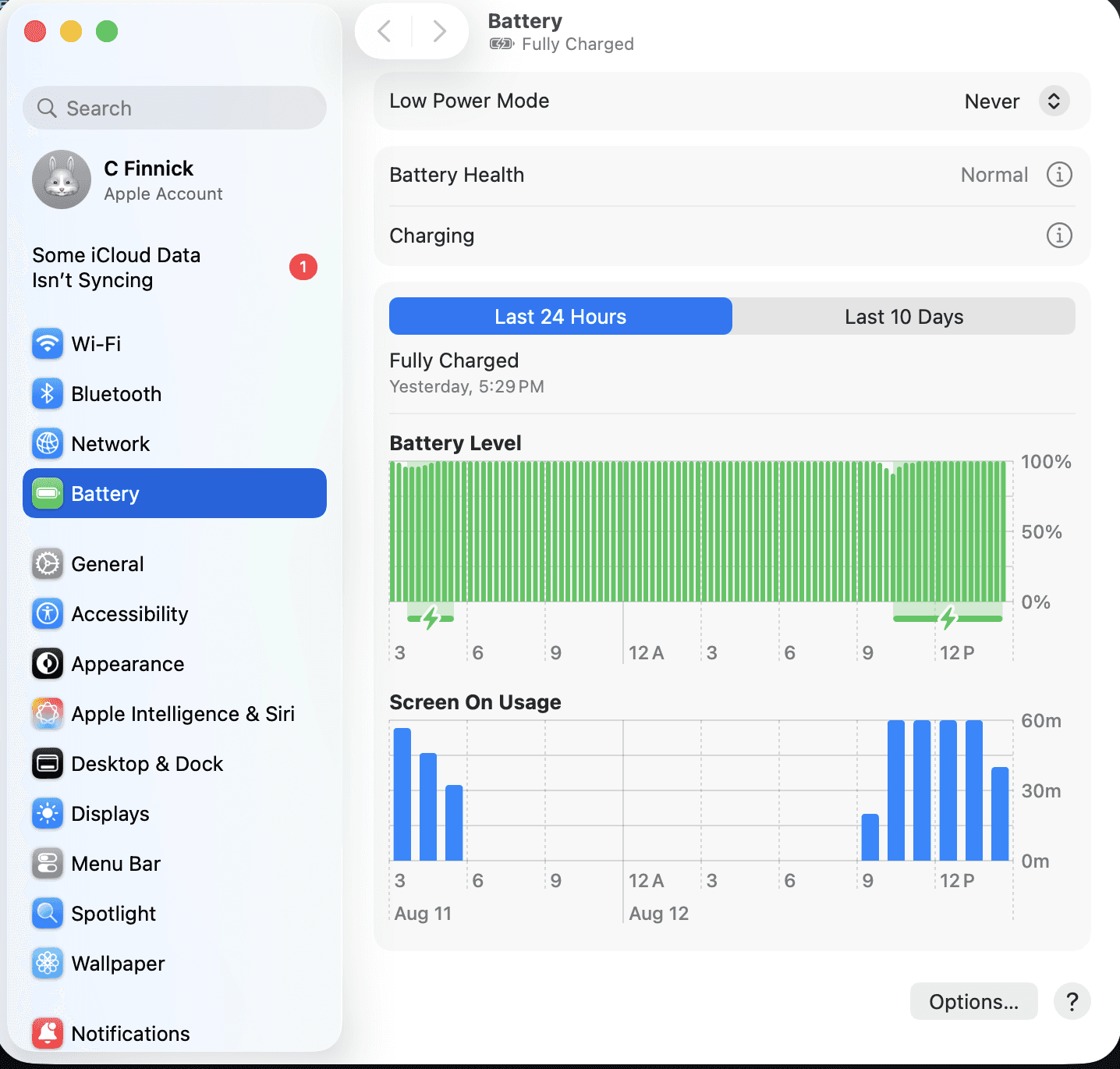
Two things worth knowing here.
The name changes between the two places. Menu bar: Energy Mode. System Settings: Low Power Mode. Same setting.
Check which option is selected. If it's Only on Battery, that explains the most common version of this problem — 3D is fine plugged in and falls apart the moment you unplug.
Why it switched itself on
You may never have chosen it. macOS enables Low Power Mode by itself when the battery runs low, and doesn't always turn it back off when you plug in. Settling in for a long session? Plug in first.
After you turn it off
Frame rate recovers immediately — no restart, no reconverting. The trade is battery: real-time 3D is genuinely demanding, and the setting only decides whether your Mac is allowed to work that hard.
Our suggestion: leave it on Only on Battery, and plug in for long sessions.
Why Shift can't just turn it off for you
macOS doesn't allow it. Changing Low Power Mode needs system-level privileges Apple doesn't grant regular apps — we'd have to ask for an admin password and install a privileged helper on your Mac, permanently, to flip one toggle. Not worth it for a two-click setting. So Shift tells you where the switch is and leaves it to you.
Still stuttering?
Another app is using the GPU — video calls, games, exports. Quit what you're not using.
Thermal throttling — hot to the touch or loud fans? Give it airflow and a minute.
4K source — significantly more work than 1080p.
Click the battery icon, switch Low Power off, and Shift's 3D goes back to full speed straight away.
Haven't tried Shift yet? Download Owl3D and see what your existing library looks like in 3D.
If Shift's 3D looks choppy on your Mac, the app usually isn't the problem. macOS is.
Low Power Mode caps how hard your Mac is allowed to work — great for battery, terrible for real-time 3D, which needs the GPU at full speed on every frame. On a MacBook Air M4 with it on, we measured Live 3D dropping to 7–9 frames per second. Same machine, setting off: smooth.
Is this your problem?
Motion stutters or judders, but the picture is sharp when paused
It got worse the moment you unplugged, or below 20% battery
Everything else on the Mac feels slightly sluggish too
If depth looks wrong but motion is smooth, that's something else.
Turn it off from the menu bar (fastest)
Click the battery icon in the menu bar, top right of your screen
Under Energy Mode, click Low Power so it is no longer highlighted
Low Power here is a toggle, not a menu — if it's highlighted, that's what's capping your frame rate.
No battery icon up there? Open System Settings → Control Center → Battery and turn on Show in Menu Bar.
Turn it off in System Settings
Open System Settings
Go to Battery
Set Low Power Mode to Never
Two things worth knowing here.
The name changes between the two places. Menu bar: Energy Mode. System Settings: Low Power Mode. Same setting.
Check which option is selected. If it's Only on Battery, that explains the most common version of this problem — 3D is fine plugged in and falls apart the moment you unplug.
Why it switched itself on
You may never have chosen it. macOS enables Low Power Mode by itself when the battery runs low, and doesn't always turn it back off when you plug in. Settling in for a long session? Plug in first.
After you turn it off
Frame rate recovers immediately — no restart, no reconverting. The trade is battery: real-time 3D is genuinely demanding, and the setting only decides whether your Mac is allowed to work that hard.
Our suggestion: leave it on Only on Battery, and plug in for long sessions.
Why Shift can't just turn it off for you
macOS doesn't allow it. Changing Low Power Mode needs system-level privileges Apple doesn't grant regular apps — we'd have to ask for an admin password and install a privileged helper on your Mac, permanently, to flip one toggle. Not worth it for a two-click setting. So Shift tells you where the switch is and leaves it to you.
Still stuttering?
Another app is using the GPU — video calls, games, exports. Quit what you're not using.
Thermal throttling — hot to the touch or loud fans? Give it airflow and a minute.
4K source — significantly more work than 1080p.
Click the battery icon, switch Low Power off, and Shift's 3D goes back to full speed straight away.
Haven't tried Shift yet? Download Owl3D and see what your existing library looks like in 3D.